
How Do I Enable the Noise Detector Popup on the IQ5 Hub?
To enable the Noise Detector Popup on the IQ5 Hub, swipe down and touch Settings, then Advanced Settings, and then enter your own Installer Code. Next, touch Installation, then Installer Settings, and check the Noise Detector Popup box with the Panel Ambient Noise Detector enabled first.
About the Noise Detector Popup
The Noise Detector Popup on the IQ5 Hub (available in AT&T LTE and Verizon LTE) determines whether the panel shows a local on-screen message when it detects a noise event. With it enabled, anyone standing at the panel sees a visible alert that noise has crossed the threshold. With it disabled, the noise event is still recorded and reported, but nothing pops up on the panel itself, keeping the monitoring quiet on your security system.
It is disabled by default, which is often the right choice for a short-term rental, since you usually do not want guests to see a noise-monitoring message appear on the panel. A property owner watching their own unit might prefer it on for an immediate local heads-up. The setting is part of the Panel Ambient Noise Detector feature, so it appears greyed out and cannot be changed until that detector is enabled.
Before You Begin
The Noise Detector Popup is in the Installer Settings, which require the Installer Code (1111 by default) or Dealer Code (2222 by default). The steps below use the Installer Code. The Panel Ambient Noise Detector must be enabled for this to be selectable, so turn it on first if needed. See our guide on how to enable the Panel Ambient Noise Detector on the IQ5 Hub for that step.
Enable the Noise Detector Popup
-
Swipe down and touch Settings. Swipe down from the top of the screen to open the Settings Tray, then touch SETTINGS.
 Swipe down from the top of the screen to open the Settings Tray.
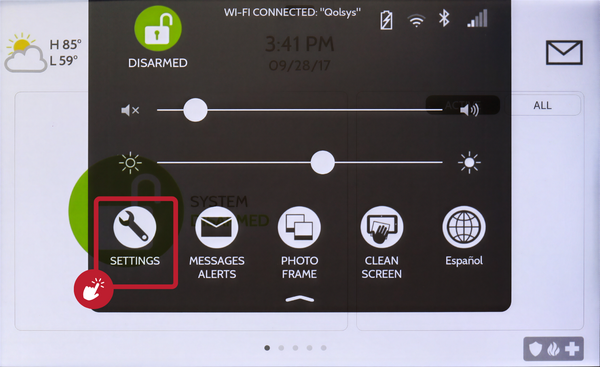 Touch Settings in the Settings Tray.
-
Touch Advanced Settings and enter your Installer Code. Touch ADVANCED SETTINGS, then enter your Installer Code (1111 by default). The Dealer Code (2222) works here too. The panel advances automatically after a valid code.
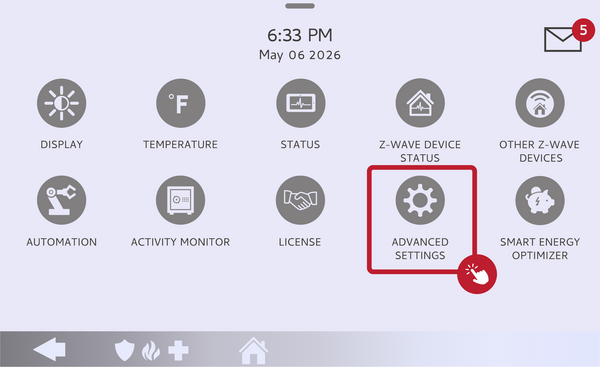 Touch Advanced Settings.
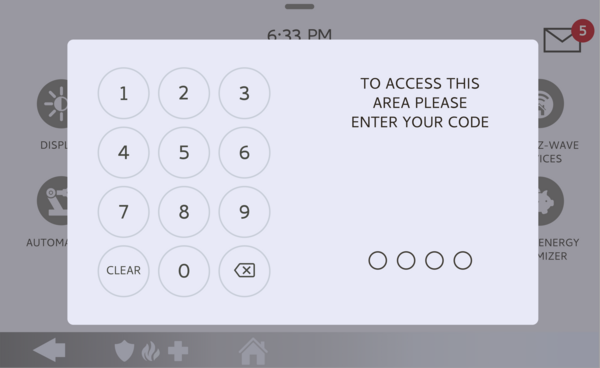 Enter your Installer Code (1111 by default).
-
Touch Installation, then Installer Settings. Touch INSTALLATION, then open INSTALLER SETTINGS and find the Noise Detector Popup, within the Panel Ambient Noise Detector settings.
Open Installer Settings and find Noise Detector Popup. -
Check the Noise Detector Popup box. Check the Noise Detector Popup to turn it on, so the panel shows an on-screen message when a noise event is detected. If the box is greyed out, enable the Panel Ambient Noise Detector first, then check it.
Check the Noise Detector Popup box.
Tips
Think of this as the local, visible side of noise monitoring. Leave it off when you would rather the panel stay discreet, such as in a rental where a guest should not see the alert, and turn it on when you want a clear on-screen notice at the panel. It does not change whether noise events are detected or reported, only whether a message appears on the panel, so your notifications through the account continue either way. Pair it with the Ambient Noise Threshold and Noise Detector Duration to tune the whole feature.
Enabling the Noise Detector Popup on the IQ5 Hub makes the panel show a local alert when it detects loud noise. For help with the Noise Detector Popup or noise monitoring on your IQ5 Hub, contact the Alarm Grid support team. We are here Monday through Friday from 9:00 AM to 8:00 PM Eastern Time. Email us at support@alarmgrid.com, call us at 888-818-7728, or visit our website and chat with a live support agent.
Did you find this answer useful?
We offer alarm monitoring as low as $10 / month
Click Here to Learn MoreRelated Products


- Answered