
How Do I Pair a Phone for Touchless Disarming on IQ5 Hub?
To pair a phone with the IQ5 Hub for Bluetooth Touchless Disarming, navigate to Bluetooth Devices and choose Add Phone. If your phone doesn't show up right away, disable and reenable Bluetooth. Tap your phone in the list of devices and follow the prompts to complete pairing. Tap Save.
Before You Begin
Make sure your smartphone has Bluetooth enabled and is in pairing mode before you start. The IQ5 Hub, available in AT&T LTE and Verizon LTE versions, uses Bluetooth Low Energy (BLE) 5.0 to detect when a paired phone is nearby. Touchless disarming only works when the panel is in an Armed Away state. You will need your Master Code (1234 by default) or Installer Code (1111 by default) to access Bluetooth settings. You can pair up to five smartphones, and each device is assigned to a single partition if security system partitions are enabled on your panel.
Pairing Your Phone with the IQ5 Hub
- Go to Advanced Settings. Swipe down from the top of any screen. Tap Settings, then Advanced Settings. When prompted, enter the Installer Code (default: 1111) or Master Code (default: 1234). If you enter a valid code, you will immediately be in the Advanced Settings menu.
- Navigate to Add Phone. Tap Installation > Devices > Bluetooth Devices. Within the Bluetooth Devices page, tap Add Phone.
- Pair your phone. The panel immediately begins scanning for available Bluetooth devices. Make sure your phone's Bluetooth is enabled and that the phone is within a few feet of the panel during pairing. This scan can take up to 60 seconds, so be patient while the panel detects your device. You can turn Bluetooth off then back on in your phone settings to speed up the process.
- Select your phone from the list of discovered devices. Your phone's Bluetooth name appears in the device list on the panel's screen. Tap it, then follow the onscreen prompts from the panel and the phone to complete pairing.
- Confirm the pairing when prompted. A Bluetooth pairing request appears on both your phone and the panel, displaying a numeric pairing code. Verify the numbers match on both screens, then tap the Pair button on the panel, and finally tap the Pair button on your phone.
-
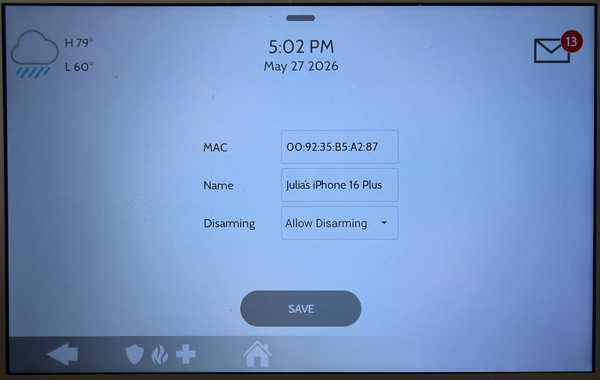
Choose disarming permissions for the paired device. After pairing completes, the panel asks whether you want to allow this phone to disarm the system and which partition it should disarm. Your phone now appears in the Paired Devices list.
Tips
The Bluetooth Disarm Timeout setting controls how long the panel waits after being armed in Away Mode before it allows a Bluetooth device to disarm it. The default is 10 minutes, but you can choose 1, 5, 10, 20, or 30 minutes. This prevents the panel from immediately disarming after you arm it and walk away. You can adjust this setting under Bluetooth Devices by selecting Settings. If you use monitoring services with your panel, Bluetooth Touchless Disarming works alongside your Alarm.com app for convenient remote access and control.
To manage paired devices later, return to Bluetooth Devices from Advanced Settings. From there, you can edit device permissions, change partition assignments, delete individual devices, or remove all paired devices at once. Each paired device can only be assigned to one partition at a time. If you have PowerG sensors or Z-Wave devices on your system, touchless disarming provides a quick and efficient way to disarm when you're unloading groceries or carrying items and can't easily reach the panel.
Pairing a phone for touchless disarming on the IQ5 Hub provides a convenient hands-free way to disarm your system when you arrive home. For help with Bluetooth pairing or other configuration options on your IQ5 Hub, contact the Alarm Grid support team. We're here Monday - Friday from 9:00 AM - 8:00 PM Eastern Time. Email us at support@alarmgrid.com or call 888-818-7728.
Did you find this answer useful?
We offer alarm monitoring as low as $10 / month
Click Here to Learn MoreRelated Products


- Answered