
How Do I Perform a Data Recycle on the IQ5 Hub System?
To use Data Recycle on the IQ5 Hub, swipe down and touch Settings, then Advanced Settings, and enter your code. Next, touch Installation, then Dealer Settings, and scroll down to the Reset section. Touch Data Recycle, then confirm on the popup to erase your saved user data from the panel.
What Data Recycle Does
The IQ5 Hub (available in AT&T LTE and Verizon LTE) includes a Data Recycle option that erases the panel's stored user data while leaving your programming in place. It clears the WIFI SSID and password, all user codes, Panel Camera images, Custom Photo Frame images, and the Message Center and event history. Your enrolled sensors, Z-Wave devices, and automation settings stay exactly as they are.
This makes Data Recycle the right tool when you want to clear personal information without rebuilding your whole security system from scratch. It is ideal for handing a panel to a new homeowner while keeping the sensor and home automation programming intact, so the new owner starts with a clean slate but does not have to re-enroll every device. If you need to wipe everything instead, use our guide on how to factory reset the IQ5 Hub.
Before You Begin
Data Recycle sits in the Dealer Settings menu and uses the Dealer Code (2222 by default), the same place the Master Reset lives. If you only use your Master code day to day, have your Dealer code ready before you start. Make sure the panel is disarmed and connected to AC power, and note your WIFI password ahead of time, since you will need to reconnect the panel afterward.
Run Data Recycle on the IQ5 Hub
-
Swipe down and touch Settings. Swipe down from the top of the screen to open the Settings Tray, then touch SETTINGS.
 Swipe down from the top of the screen to open the Settings Tray.
 Touch Settings in the Settings Tray.
-
Touch Advanced Settings and enter your code. Touch ADVANCED SETTINGS, then enter your Dealer Code (2222 by default). The panel advances automatically after a valid code.
 Touch Advanced Settings.
 Enter your Dealer Code (2222 by default).
-
Touch Installation. On the menu that appears, touch INSTALLATION, the drill icon in the top-left corner, to open the installation and programming options.
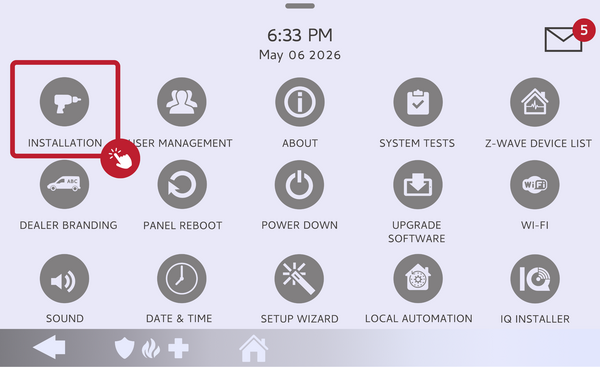 Touch Installation.
-
Open Dealer Settings and scroll to the Reset section. Touch DEALER SETTINGS, then scroll down the page to the Reset section. Touch DATA RECYCLE, which sits near the Master Reset option.
Open Dealer Settings, scroll to Reset, and touch Data Recycle. -
Confirm to run Data Recycle. A confirmation popup appears warning that this erases your stored user data. Confirm to proceed. The panel clears the user data and reboots, keeping your enrolled sensors and automation devices in place.
Confirm on the popup to run Data Recycle.
What Data Recycle Keeps and Removes
Data Recycle clears your personal data but leaves your device programming untouched. Here is a side-by-side look at what it removes and what it keeps:
| Removed | Kept |
| ✗WIFI SSID and password | ✓All enrolled security sensors |
| ✗All user codes (revert to defaults: Master 1234, Installer 1111, Dealer 2222) | ✓Z-Wave devices |
| ✗Panel Camera images | ✓Automation programming |
| ✗Custom Photo Frame images | |
| ✗Message Center and panel event history |
Because the WIFI credentials are wiped, plan to reconnect the panel to your network afterward, and let anyone in the home know their custom user codes will need to be re-added through User Management. If you would rather keep the WIFI and codes but clear something specific, a targeted change in the panel's settings is often a better fit than a full Data Recycle.
Tips
Keep the panel plugged into AC power throughout the process, since interrupting power during a reset can corrupt the panel. Note your WIFI password before you start so reconnecting is quick, and jot down any custom user codes you want to recreate. If your goal is to completely wipe the panel, including sensors and automation, run a Master Reset instead of Data Recycle.
Data Recycle clears your stored user data while keeping your devices enrolled on the IQ5 Hub. For help with Data Recycle or other configurations on your IQ5 Hub, contact the Alarm Grid support team. We are here Monday through Friday from 9:00 AM to 8:00 PM Eastern Time. Email us at support@alarmgrid.com, call us at 888-818-7728, or visit our website and chat with a live support agent.
Did you find this answer useful?
We offer alarm monitoring as low as $10 / month
Click Here to Learn MoreRelated Products


Related Categories
- Home Security Systems
- Home Security Systems
- Apartment Security Systems
- Small Business Security Systems
- Monitored Home Security Systems
- Smart Home Controllers
- DIY Wireless Security Systems
- Wireless Touchscreen Alarm Panels
- Answered