
How Do I Put the 2GIG GC Touch Into Wireless Learn Mode?
To put the 2GIG GC Touch in learn mode, disarm your panel, tap Settings, and enter the Installer Code (1561 by default). Navigate to Sensor Settings and select an empty zone. Tap Quick Add to scan for sensors, or tap Manual Add and use the Learn button to capture a specific sensor's TXID.
Learn mode allows the 2GIG GC Touch security system (available in AT&T LTE and Verizon LTE versions) to detect and enroll wireless sensors by listening for their radio frequency transmissions. When a sensor is triggered during learn mode, the panel captures its unique transmitter ID (TXID) and adds it to the system. This process is essential for adding door and window contacts, motion detectors, smoke detectors, and other wireless devices to your alarm system. The GC Touch supports up to 128 zones for sensor enrollment.
Compatible Sensor Frequencies
The 2GIG GC Touch operates on the 345 MHz frequency, so you must use sensors designed for this frequency. The panel is backward compatible with sensors from previous 2GIG panels, including the GC2, GC2e, GC3, and GC3e. Compatible sensors include 2GIG 345 MHz sensors and Honeywell 5800 series sensors. When enrolling sensors, you can select between eSeries Sensor (encrypted) for newer encrypted 345 MHz devices or Unencrypted Sensor for legacy 345 MHz sensors. Sensors operating on other frequencies, such as 319.5 MHz, 433 MHz, or newer sensors in the 900 MHz range are not compatible with the GC Touch panel. For a complete list of compatible devices, visit the GC Touch compatible products page.
Steps to Enter Learn Mode
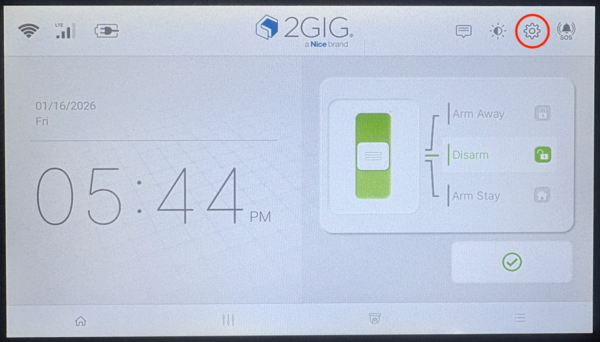
- Disarm the system. The panel must be in a disarmed state to access the Settings menu. If the system is armed, the panel will display an error message preventing access.
-
Tap the Settings icon. The gear icon is located in the top-right corner of the home screen. A code entry prompt will appear.
- Enter the Installer Code. Enter the current Installer Code (1561 is the default), then tap Enter (↵). Sensor Settings is only accessible with the Installer Code, not the Master Code.
-
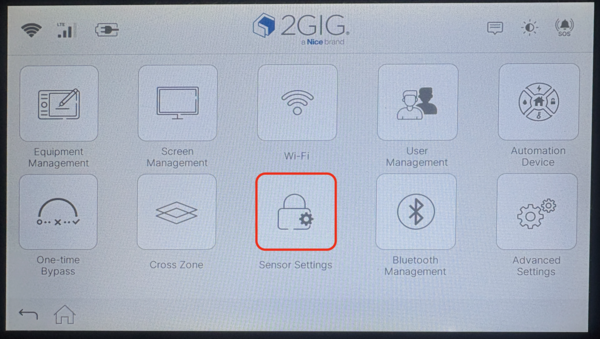
Tap Sensor Settings. This option appears in the Installer Settings menu. The Sensor Settings screen displays all 128 zones with enrolled sensors and empty zones available for new devices.
-
Choose Quick Add or Manual Add.
- Quick Add: The panel immediately begins scanning for 345 MHz sensors once you select this option. Detected TXIDs are displayed in a list.
- Manual Add: Choose an empty zone. The programming screen for that zone appears. Tap the Learn button next to the TXID field to start listening for the sensor.
- Trigger the sensor. Open and close a door or window contact, walk in front of a motion detector, or activate the device you want to enroll. The panel will capture the TXID when it receives the signal.
-
Complete sensor programming.
- Quick Add: Tap the radio button next to the TXID you want to program. Set the SKU/Device ID, Zone Group, and name. Tap Submit to complete enrollment.
- Manual Add: Verify the captured TXID is correct. Select the device type from the SKU/Device ID dropdown, configure the zone group, and assign a name.

After choosing Quick Add, the above screen appears while the panel "listens" for a transmission.

After choosing Manual Add, tap an empty zone slot, then tap Learn and activate the sensor. Verify the TXID received matches the sensor being programmed.
Understanding Quick Add vs Manual Add
Quick Add is ideal when enrolling multiple sensors at once, as it continuously scans and lists all detected 345 MHz devices. Manual Add is better for adding a single sensor or when you need precise control over the enrollment process. Both methods capture the sensor's TXID, which uniquely identifies each device to the panel. The GC Touch supports both eSeries encrypted sensors and unencrypted 345MHz sensors (Honeywell sensors must be uni-directional), with the Sensor Class option available during Manual Add to specify the encryption type.
The GC Touch does not support the 2GIG E+ extended range 900 MHz sensors.
Putting the 2GIG GC Touch into learn mode enables you to expand your home automation and security setup with additional 345 MHz wireless sensors. The process requires Installer Code access and takes just a few minutes per sensor. For help with sensor enrollment or monitoring on your GC Touch panel, contact the Alarm Grid support team at support@alarmgrid.com, Monday - Friday from 9:00 AM - 8:00 PM Eastern Time.
Did you find this answer useful?
We offer alarm monitoring as low as $10 / month
Click Here to Learn MoreRelated Products


Related Videos

Related Categories
- Home Security Systems
- Home Security Systems
- Business Security Systems
- Business Security Systems
- Apartment Security Systems
- Small Business Security Systems
- DIY Wireless Security Systems
- Wireless Touchscreen Alarm Panels
- Touchscreen Alarm Panels
- Touchscreen Alarm Panels
- Answered