
What Are the Arming Options on the IQ5 Hub Alarm System?
The IQ5 Hub offers two main arming modes: Arm Stay and Arm Away. Touch the green lock icon on the home screen to open the arming screen and select a mode. Additional options including Bypass, Exit Sounds, and Entry Delay are available by touching the > icon to the right of the arming screen.
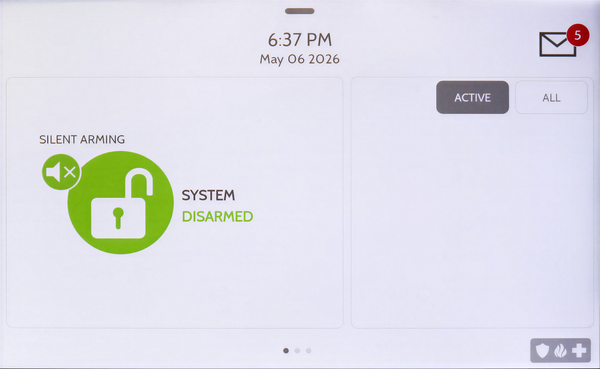
IQ5 Hub showing status System Disarmed. Tap the Disarmed icon to see arming options.
Accessing the Arming Screen
The IQ5 Hub (available in AT&T LTE and Verizon LTE) displays a green lock icon on the home screen when the security system is disarmed. Touching this icon opens the arming screen, which shows only two options: Arm Stay and Arm Away. You can simply tap Arm Stay or Arm Away to arm the system and leave. If you need to access additional options, tap the > icon on the right side of the arming window.

The IQ5 Hub arming options screen showing Arm Away and Arm Stay options. Tap the > icon for additional settings.
Arming Modes
Arm Stay: Arm Stay mode arms all perimeter sensors including doors and windows while leaving interior motion sensors and any doors programmed as an interior type bypassed. This allows the user to move freely inside the premises while the perimeter and entry/exit sensor zones are armed.

The IQ5 Hub Arm Stay icon with an explanation of which sensor types are armed in this mode.
Arm Away: Arm Away mode activates all sensors including perimeter doors, windows, and interior motion detectors and doors. Use this mode when occupants are leaving the premises and no one will remain inside. Touch Arm Away on the arming screen and exit before the countdown timer expires.

The IQ5 Hub Arm Away icon with an explanation of which sensor types are armed when using this mode.
Additional Arming Options
When you touch the > icon on the right side of the arming screen the window expands to show three additional settings: Bypass, Exit Sounds, and Entry Delay. These settings apply to the current arming sequence only and reset to their defaults once the system is disarmed.

IQ5 Hub provides additional options when you press the > icon.
Bypass: Bypass allows you to exclude specific sensors from the armed system for the current arming sequence. The Active and All tabs show open or faulted zones and all zones respectively. If you want to bypass a zone that is already open, find it on the Active screen and tap the circle next to it. If the zone is currently closed, but you will open it during or after arming, then you can find the zone on the All screen. Once any zones to be bypassed are selected, continue with arming and the zone will be bypassed. This is useful when a sensor is open or faulted and you still want to arm the system.
For example, you may want to arm the system in Stay Mode while some windows are open for ventilation. If you will arm before the window is open, find that zone on the All screen and tap the circle next to it. If the window is already open when you go to arm, you can find it on the Active screen and select it from there. If Auto Bypass is enabled in the panel, you don't need to manually bypass when arming, as the system will do it for you, as long as the window, or other burglary zone, is already open/faulted.

IQ5 Hub bypass sensor list showing Active and All tabs
Exit Sounds: The Exit Sounds option toggles on/off the audible beeping that you hear during the exit delay countdown. Turn this off if you want to arm the system without any audible notification during the exit period.

IQ5 Hub showing Exit Sounds set to ON. Tapping this button again will toggle them OFF.
Entry Delay: Entry Delay toggles whether the panel gives you time to disarm after opening a delay-configured door. When Entry Delay is turned off, opening a delay door while the system is armed triggers an immediate alarm. Leave Entry Delay on unless you are certain you will not re-enter through a protected door.
An example of when you might want to turn Entry Delay OFF is when you're on vacation and you don't plan for anyone to enter your home. Hearing an immediate siren can scare away a burglar before they actually enter your home. When you return, you can disarm the system through the Alarm.com app, via Bluetooth disarm, or with a wireless key fob.

IQ5 Hub Entry Delay toggle shown ON in the additional arming options menu. Tapping this button again toggles Entry Delay OFF.
Auto Stay and Auto Bypass
The IQ5 Hub also includes two automatic behaviors that are enabled by default. Auto Stay automatically switches the system from Away mode to Stay mode if no entry or exit door is opened during the exit delay. This helps to prevent false alarms if you arm Away but remain inside. Auto Bypass automatically bypasses any open or faulted sensors during arming so the system can arm even when a zone is not ready. Both of these settings can be toggled by going to Settings > Advanced Settings > Installer Code (default: 1111) > Installation > Security and Arming Settings.
The IQ5 Hub provides flexible arming options to match your security needs. For help with arming options or other configurations on your IQ5 Hub, contact the Alarm Grid support team. We are here Monday - Friday from 9:00 AM to 8:00 PM Eastern Time. Email us at support@alarmgrid.com, call us at 888-818-7728, or visit our website and chat with a live support agent (available from 9:00 AM - 6:00 PM Eastern Time).
Did you find this answer useful?
We offer alarm monitoring as low as $10 / month
Click Here to Learn MoreRelated Products


Related Categories
- Home Security Systems
- Home Security Systems
- DIY Wireless Security Systems
- Touchscreen Alarm Panels
- Touchscreen Alarm Panels
- Answered