
Can I Add a Smoke Detector to My 2GIG GC Touch System?
Yes, the 2GIG GC Touch supports wireless smoke detectors that operate on the 345 MHz frequency. Smoke detectors are added through Sensor Settings using Quick Add or Manual Add, and they should be programmed as 24-Hour Fire or 24-Hour Fire Verification zones to ensure continuous protection.
The 2GIG GC Touch (available in AT&T LTE and Verizon LTE versions) supports a variety of 345MHz sensors from 2GIG and Resideo (formerly Honeywell), including smoke, heat, and carbon monoxide detectors. Adding life safety devices provides 24-hour protection that remains active whether the system is armed or disarmed. When using life safety devices, full central station monitoring is recommended, though Alarm Grid customers can choose between full and self monitoring options.
Compatible Smoke Detectors
The 2GIG GC Touch works with 345MHz wireless smoke detectors from 2GIG and Honeywell. Popular compatible models include the 2GIG-SMKT8e-345, 2GIG-SMKT100-345, and the Honeywell 5800SMOKEV, all of which combine smoke, heat, and freeze detection in a single device. Depending on the model, these sensors may use encrypted (eSeries and 345s Series) or unencrypted (Honeywell 5800 Series uni-directional) wireless communication.
Photoelectric smoke detectors send RF signals to the panel when smoke particles enter the sensing chamber and refract light onto the internal photosensor. The panel receives these 345MHz signals and triggers the appropriate alarm response, including sounding the built-in siren and notifying the central monitoring station when monitoring service is active.
Adding a Smoke Detector
Follow these steps to add a smoke detector to the 2GIG GC Touch:
- Disarm the system. The panel must be disarmed before accessing Installer-level settings.
-
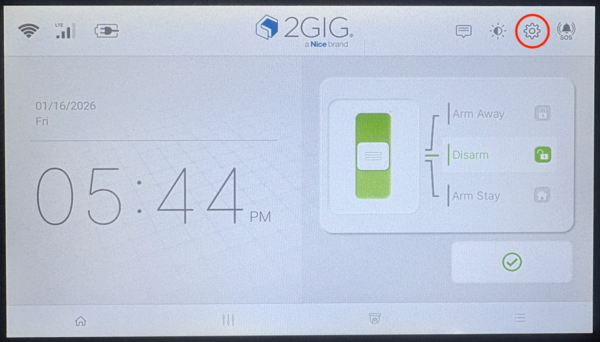
Enter Settings. Tap the gear icon (⚙) in the top-right corner of the home screen.
-
Enter the Installer Code. When prompted, enter the Installer Code (1561 by default) then tap Enter (↵)*. Sensor Settings is only accessible using the Installer Code.
*The first panel firmware update removes the Enter (↵) requirement. -
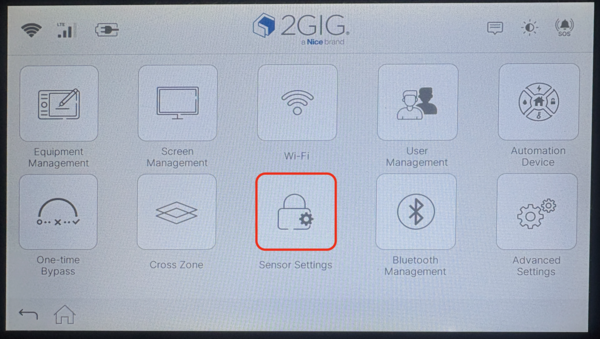
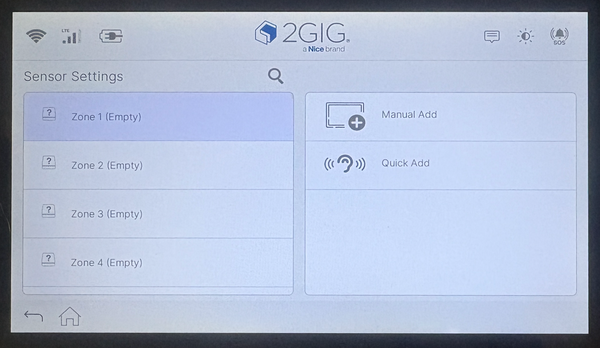
Open Sensor Settings. Tap Sensor Settings from the Installer menu. The screen displays all 128 available zones in the left panel, with Manual Add and Quick Add options in the right panel.
-
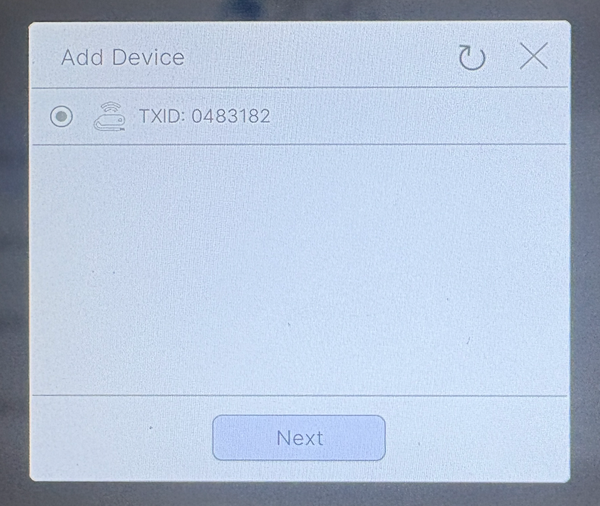
Select Quick Add. You can use either Manual Add or Quick Add, but for this example we'll use Quick Add. When you tap it, you'll see the Add Device screen. The panel is listening for compatible devices. When it detects one, the TXID will pop up in a list on this screen.

-
Trigger the smoke detector. Press the test button on the smoke detector, pull the battery tab (if brand new), or fault the tamper to transmit a signal. Once detected, the device's TXID appears on the screen. Verify that it matches the TXID of the smoke detector you're programming. Once you've confirmed, tap the radio button next to the TXID, then tap Next.

-
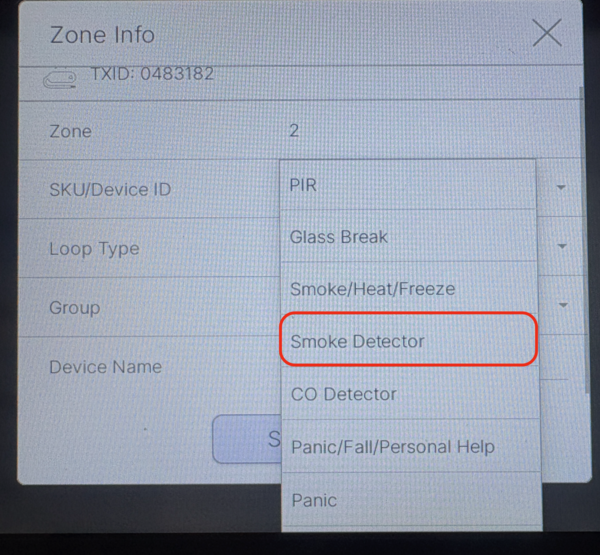
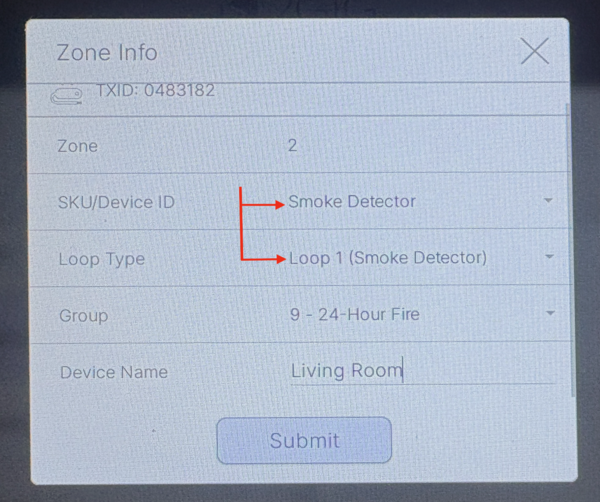
Configure the zone settings. Select the smoke detector model or type from the SKU/Device ID dropdown. In our example, the smoke detector is a Honeywell 5808W3. Once we learn it in and choose Smoke Detector from the available list of device types, the Loop Type and Group is automatically filled in. Verify this setting is correct for the device you're using. For smoke detectors, the Group should be set to either (9) 24-Hour Fire or (16) 24-Hour Fire Verification. Tap the Device Name space and give the detector a name. This is how the zone will be displayed in the panel's Event History.

-
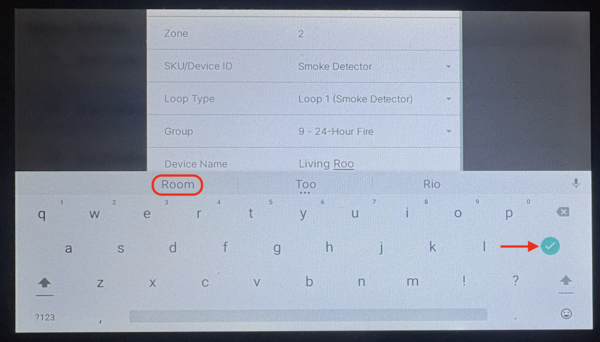
Name the zone and save. Tap the Name field to enter a descriptive name such as "Kitchen" or "Hallway." As you begin to type, if the word exists in the panel's vocabulary you can tap on it to fill it in. Otherwise, type out the description. Tap Submit to save the configuration.


Understanding Fire Zone Types
Smoke detectors programmed as 24-Hour Fire or 24-Hour Fire Verification zones remain continuously active around the clock. This zone type cannot be bypassed, ensuring smoke detection remains active even when the security system is disarmed. When triggered, the panel activates any local fire alarm sounders and sends signals to the monitoring station and/or .
The Fire Verification feature requires the sensor to be activated twice within two minutes, or to remain activated for 30 seconds continuously, before triggering a full alarm. This verification process reduces false alarms from cooking smoke or steam while still providing rapid response in genuine fire conditions.
When adding a multi-function detector that supports smoke, heat, and freeze, you'll have to add the detector's TXID to a separate zone for each function. The loops are usually assigned in order of importance, for example on the 2GIG-SMKT100-345 the loops are as follows:
- Smoke: This is a life-safety zone and is treated with the highest priority.
- Heat: While this is a fire zone, heat detectors are not considered life-safety devices. However, since these zones are still programmed using a sensor group associated with fire, the panel and central station, if applicable, will treat them the same as they would the smoke zone for the sensor.
- Freeze: A freeze detector is also not a life-safety device. However, when you choose a device type of Smoke/Heat/Freeze, the GC Touch knows you may be programming this sensor for freeze detection. This is why you get the option to choose the sensor group for 24-Hr Auxiliary.
The smoke and heat detector zones should always be programmed as either 24-Hr Fire, or 24-Hr Fire Verification. The 24-Hr Auxiliary option is only for use with the freeze function of the sensor.
Adding smoke detectors to the 2GIG GC Touch provides 24-hour fire protection with professional monitoring capability. The Quick Add process takes just a few minutes and the detector begins protecting your home immediately after enrollment. For help adding smoke detectors or other life safety devices to your GC Touch panel, contact the Alarm Grid support team. We're here Monday - Friday from 9:00 AM - 8:00 PM Eastern Time. Email us at support@alarmgrid.com.
Did you find this answer useful?
We offer alarm monitoring as low as $10 / month
Click Here to Learn MoreRelated Products


- Answered
- Answered By
- Julia Ross