
How Do I Answer a Doorbell Camera on the IQ5 Hub Panel?
To answer the doorbell from the IQ5 Hub, make sure an Alarm.com doorbell camera is on your account with notifications enabled. When someone presses the doorbell, a Doorbell Ringing popup appears on the screen. Select Answer to open the live video and speak with the visitor over two-way audio.
About Live Answer
The IQ5 Hub (available in AT&T LTE and Verizon LTE) includes a Live Answer feature that lets you talk directly to whoever is at your front door using the panel's touchscreen. When someone presses the button on a compatible Alarm.com doorbell camera, a Doorbell Ringing notification pops up on the panel. You can answer the call, see live video, speak with the visitor, and even disarm the system or unlock the door, all from the same screen.
Live Answer works with Alarm.com doorbell camera models and requires an active Alarm.com video plan. It is ideal for verifying who is at the door before letting them in, talking to delivery drivers, or screening visitors while you are in another part of the house. The panel handles everything from one screen, so you do not need to pull out your phone or walk to the door.
Before You Begin
You need a compatible Alarm.com doorbell camera on your account and an active video plan. You also have to turn on panel notifications for the doorbell: log in to the Alarm.com website, go to Video Settings, select Video Device Info for your doorbell camera, and check the box labeled "Send button pushed notifications to panel." Without that setting enabled, the Doorbell Ringing popup will not appear on the IQ5 Hub.
Answer the Doorbell
-
Wait for the popup and select Answer. When someone presses the doorbell button, a popup appears on the IQ5 Hub screen reading "Doorbell Ringing" with two buttons, Dismiss in red and Answer in green. It appears no matter what screen the panel is showing. Touch ANSWER to open the live video, or touch DISMISS to ignore it.
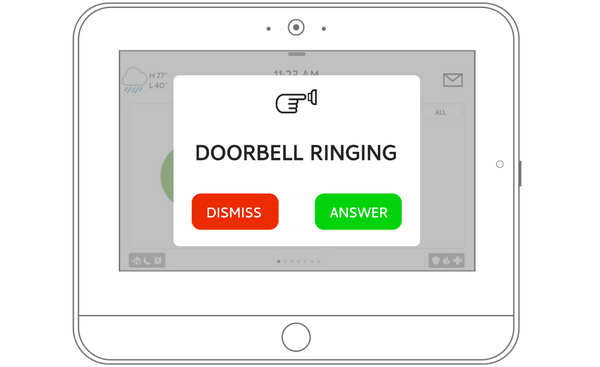 Touch Answer on the Doorbell Ringing popup.
-
Talk to the visitor and use the on-screen controls. The panel opens a full-screen live video view from the doorbell camera, so you can see the visitor in real time. Press and hold Talk to speak, and release to hear their reply. Use the other buttons along the side of the screen as needed, then touch End when you are done.
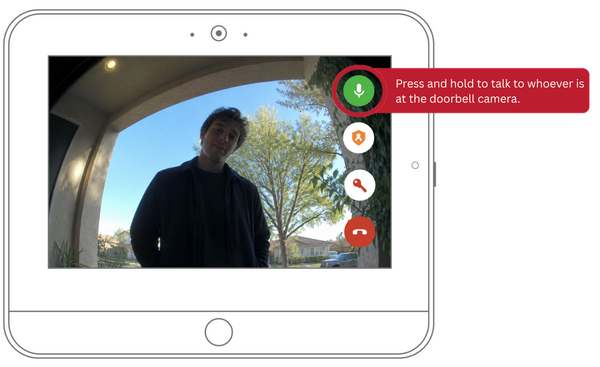 Hold Talk to speak, then touch End to finish.
Controls on the Answer Screen
The live video screen includes several buttons along the right side:
 The control buttons on the Live Answer screen.
Tips
Together, Talk, System Armed, Door Lock, and End give you complete front door control from one screen: verify a visitor, have a conversation, disarm, and unlock without walking to the entrance. This makes Live Answer handy for deliveries, service visits, and unexpected guests. You can also view the doorbell feed anytime from the Live View page by swiping left from the home screen, or in the Alarm.com app. For the best experience, keep the IQ5 Hub on WIFI so video loads quickly and lock commands go through without delay.
Using Live Answer to talk to visitors right from the panel adds convenience and security to your front door on the IQ5 Hub. For help with doorbell cameras and Live Answer or other configurations on your IQ5 Hub, contact the Alarm Grid support team. We are here Monday through Friday from 9:00 AM to 8:00 PM Eastern Time. Email us at support@alarmgrid.com, call us at 888-818-7728, or visit our website and chat with a live support agent.
Did you find this answer useful?
We offer alarm monitoring as low as $10 / month
Click Here to Learn MoreRelated Products


Related Categories
- Home Security Systems
- Home Security Systems
- Monitored Home Security Systems
- DIY Wireless Security Systems
- Touchscreen Alarm Panels
- Touchscreen Alarm Panels
- Smart Home Controllers
- Answered