
How Do I Run a Daughter Cards Test on the IQ5 Hub Panel?
To run the Daughter Cards Test on the IQ5 Hub, swipe down from the top of the screen, touch Settings, then Advanced Settings, and enter the Installer Code (1111 by default). Open System Tests, then the Daughter Cards Test, and touch Run next to each installed card to confirm that it passes.
What Are Daughter Cards
The IQ5 Hub (available in AT&T LTE and Verizon LTE) uses daughter cards, which are the radio modules installed in the panel's internal expansion slots. Each card handles a different wireless protocol. The panel carries Z-Wave and PowerG radios, and you can add one optional legacy RF card to support older sensor frequencies. The Daughter Cards Test verifies that each installed card is communicating correctly with the panel.
Three optional legacy daughter cards are available for the IQ5 Hub, and the panel supports one legacy frequency at a time depending on which card is installed. Each card plugs into an expansion slot inside the panel and is recognized automatically on reboot:
- The 319.5 MHz daughter card adds support for legacy Interlogix and GE sensors.
- The 345 MHz daughter card adds support for Honeywell and 2GIG sensors, one of the most common legacy frequencies in North America.
- The 433 MHz daughter card adds support for legacy DSC sensors.
To learn more about daughter cards for IQ5 panels, see our guide on what a daughter card is on the IQ5 Hub.
Run this test after installing or servicing a card, or any time you suspect a card has come loose or failed. The test reports Pass or Fail for each installed card. Slots with no card display Card Not Available and return Results N/A, so they cannot be tested. If a card fails, check the physical connection inside the panel, reboot, and rerun the test before considering a replacement.
Steps to Run the Daughter Cards Test
- Swipe down from the top of the screen and touch Settings. The Settings Tray opens; touch SETTINGS to open the Settings page.
 Swipe down from the top of the screen to open the Settings Tray.
- Touch Advanced Settings and enter the Installer Code (1111 by default). Touch ADVANCED SETTINGS, then type the code on the keypad. The panel advances automatically, and the Installer Menu opens.
 Enter the Installer Code (1111 by default) on the keypad.
- Touch System Tests. From the Installer Menu, touch SYSTEM TESTS. The System Tests menu opens, showing tests for WIFI, Sensor, Cellular, Z-Wave, PowerG, Daughter Cards, and more.
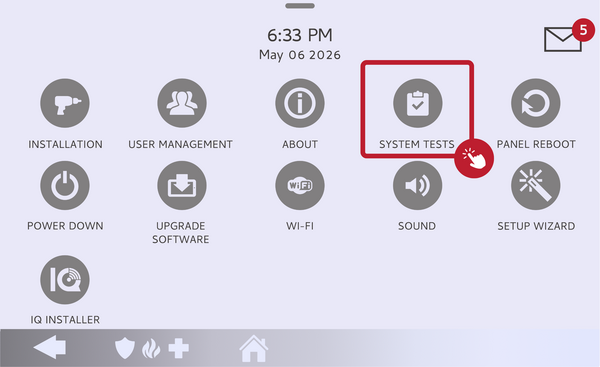 Touch System Tests in the Installer Menu.
- Touch Daughter Cards Test. The Daughter Cards Test screen opens, showing each expansion slot. Installed cards display their type, such as Z-Wave or PowerG. Empty slots display Card Not Available.
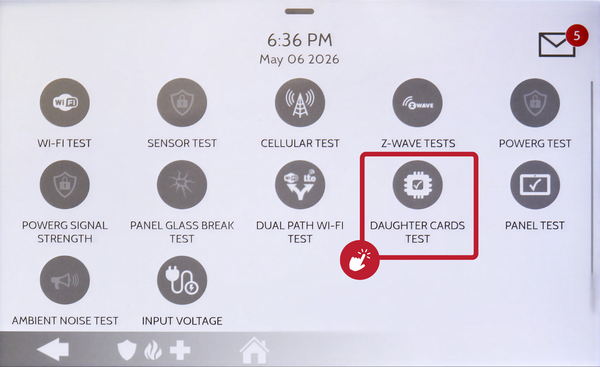 Select Daughter Cards Test from the System Tests menu.
- Touch Run next to each installed card. The test runs for that card and can take a moment to finish. The panel displays Result: Pass or Result: Fail beside each card. Empty slots show Results N/A and cannot be run.
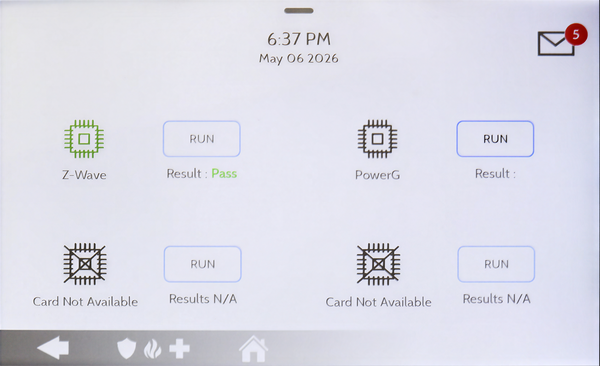 The test runs card by card; results appear as each one finishes.
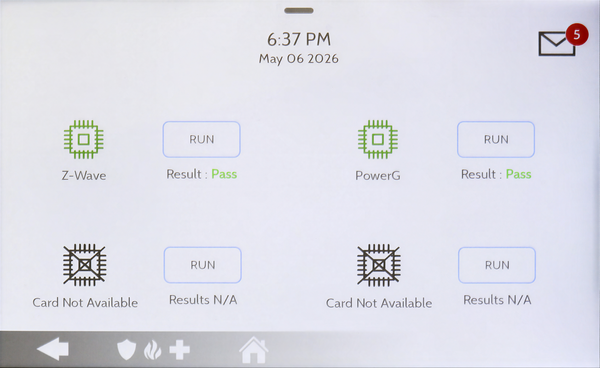 Each installed card returns a Pass or Fail result.
What to Do If a Card Fails
If a daughter card returns a Fail result, start by checking the physical connection. Power down the panel through Advanced Settings, then Power Down. Remove the panel from the wall using a small Phillips screwdriver to undo the locking screw, then open the back cover. Reseat the daughter card firmly in its slot, making sure the connector is fully engaged. Remount the panel, reconnect power, and rerun the Daughter Cards Test. If the card continues to fail after reseating, it may need to be replaced, and Alarm Grid support can help you source the correct card.
Running the Daughter Cards Test on your IQ5 Hub confirms that every installed radio module is communicating correctly with the panel. For help with the Daughter Cards Test or other system tests on your IQ5 Hub, contact the Alarm Grid support team. We are here Monday through Friday from 9:00 AM to 8:00 PM Eastern Time. Email us at support@alarmgrid.com, call us at 888-818-7728, or visit our website and chat with a live support agent.
Did you find this answer useful?
We offer alarm monitoring as low as $10 / month
Click Here to Learn MoreRelated Products


Related Categories
- Home Security Systems
- Home Security Systems
- Monitored Home Security Systems
- DIY Wireless Security Systems
- Answered