
How Do I Add a New User Code on the IQ5 NS Alarm Panel?
Adding a new user code to your IQ5 NS gives household members, guests, or employees their own unique access to the security system. Each user code is assigned a specific access level that controls what that person can do on the system. The IQ5 NS supports up to 242 individual user codes.
Before You Begin
Before you begin, make sure you have the IQ Installer app installed on your mobile device and that your device is connected to the same WIFI network as the IQ5 NS (available in AT&T LTE and Verizon LTE versions.) If you have not yet connected the IQ Installer app to your panel, see our guide on setting up the IQ5 NS with the IQ Installer app before proceeding.
Unlike the other panels in the IQ5 family, which have a touchscreen, the Master Code on the IQ5 NS cannot be used to log into the IQ Installer app. Only the Installer Code or Dealer Code will get you in. Because of this, adding a new user code is often easier to do through the Alarm.com app or website than through the IQ Installer app, particularly if the Master Code is the only code you have on hand.
Alarm Grid generally recommends leaving the Installer Code at its default (1111), since it can't be used to arm or disarm the system and carries little security risk on its own. On the IQ5 NS, though, this isn't really optional: the IQ Installer app requires you to change the Installer Code the first time you connect to the panel.
To avoid getting locked out of programming later due to a forgotten Installer Code, we recommend leaving the Dealer Code at its default (2222) so it's available as a rescue code. If you ever forget the new Installer Code you set, you can log back in with the Dealer Code and reset the Installer Code to something easier to remember. Keep in mind that the first time you log in using the Dealer Code, the app will force you to change it too — the same as when you logged in using the Installer Code.
If you'd rather not manage this yourself, your alarm dealer can change the Installer Code for you remotely through Alarm.com. Keep in mind that even your dealer cannot view the current Installer Code — they're only able to reset it to a new one.
You will need the Installer code (default: 1111) or Dealer Code (default: 2222) to access User Management through the IQ Installer App. Only Installer, and Dealer level codes can create or edit user codes through the IQ Installer App.
| User Type | Access Level | Partition Access |
|---|---|---|
| Dealer | Full access to all settings. Can change itself, and any other user code, including the Installer Code. Has the ability to perform a Master Reset and edit the dealer's contact information. | All partitions |
| Installer | Full access to all settings. Can change itself and any lower-authority code but cannot see or change the Dealer Code. | All partitions |
| Master | Full access to all user-related features and settings, including WIFI setup, user management, and Sound settings. Can change sensor names, but cannot access any other sensor programming. There is only one System Admin code, which has the Master authority level. It sits in the User ID 1 slot. Additional codes can be added with the authority level of Master, but those codes cannot view or change the original System Admin code. Each secondary Master Code can view and change itself, and any secondary user with User, Guest, or Duress authority. | All partitions |
| User | Can arm and disarm the system. Sensor bypass is enabled or disabled on a per-user basis. | Assigned partition(s) only |
| Guest | Can arm and disarm the system. Sensor bypass is enabled or disabled on a per-user basis. | Assigned partition(s) only |
| Duress | Each partition has a dedicated Duress code starting with Partition 1 in User ID 240. Disarms the system while silently sending a duress signal to the security provider. | Each partition has its own unique duress code |
Adding a New User Code Using the IQ Installer app
- Open the IQ Installer app on your mobile device. Make sure your phone or tablet is connected to the same WIFI network as the IQ5 NS panel. The app is available for both iOS and Android devices.
- Connect to the IQ5 NS panel. If this is your first time connecting through the app, be sure to check out our FAQ linked above in the "Before You Begin" section of this FAQ. Scan the QR code on the panel or select the panel from the list of available devices and follow the in-app instructions. Once connected, the app dashboard displays the panel's current status and configuration options.
-
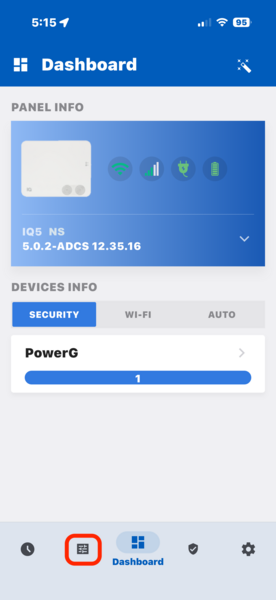
Navigate to Configuration. Tap the Configuration icon (outlined in red below.) The Configuration menu contains system-level settings including User Management, Sound, Partitions, and Installer Settings. This is where all user code changes are made on the IQ5 NS.
-
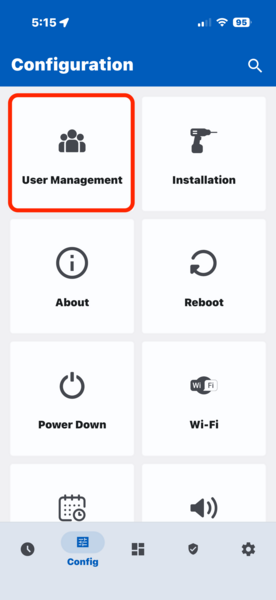
Select User Management. The User Management screen displays all existing user codes on the system. The IQ5 NS supports up to 242 user codes, each with a custom name and access level.
-
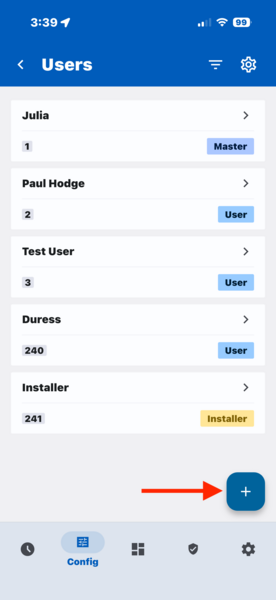
Select Add User. The Add User form appears with fields for the user's name, code, user type, and optional expiration date. Fill in each field to set up the new user profile.
-
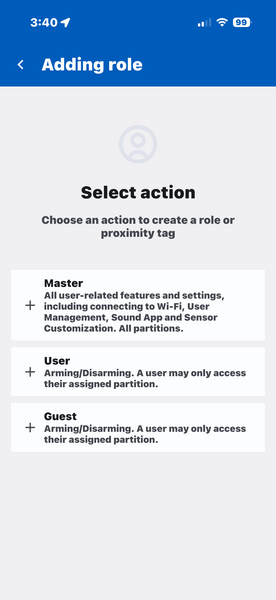
Select a user type. Choose Master for full system access including settings and user codes, User for arming and disarming only, or Guest for arming and disarming. You can also assign the user to specific partitions if partitions are enabled on your system.
-
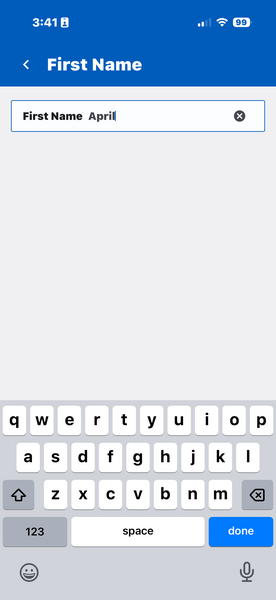
Enter the user's name. You must put something in as the User Code's first name. You can leave the last name blank, but we recommend entering good identifying information here, as this will also show in the panel's event log when the user arms and disarms.
-
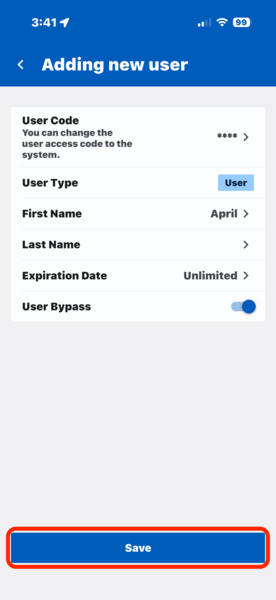
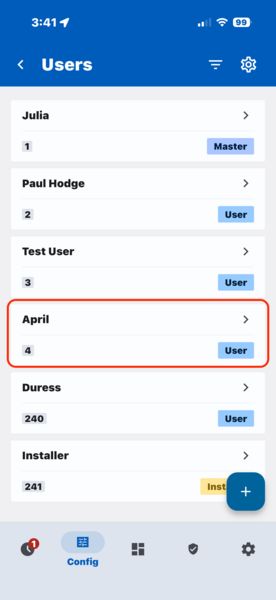
Review and save the new user code. Verify the information has been entered correctly. If you want this user to have the ability to bypass zones, be sure the User Bypass option is toggled on. You can set an expiration date for a code, usually done using the Guest authority level. This is handy for workers or guests that you want to have access for a limited time. When an expiration date is applied, the code expires at 12:01 AM on the date selected. Once all entries are complete, tap the Save button. You'll now see the new user in your list of user codes.


Adding a User Code via the Alarm.com App
- Log in to the Alarm.com Customer app and tap the More (≡) icon in the lower right.
- Select Users, then tap the Add User (+) icon in the upper right.
- Enter the user's first and last name, then tap Create in the upper right.
- Tap the access code field and enter the desired code, or tap Generate Code.
- Toggle on system access for the user, then tap Save.
- Wait a few minutes for the code to send to the panel.
To limit when the code works, tap Time to set the access period before saving. By default, the user has access "At All Times". You can limit when this code works within any given day. You can also set an expiration date for the code. It will cease working at 12:01 AM on the date you set.
Adding a User Code via the Alarm.com Website
- Log in to the Alarm.com Customer website and select Users.
- Click Add User (+ User) in the upper right side of the screen.
- Enter the user's first and last name, then click Create.
- Enter the desired code in the Access Code field, or click Generate Code to have one created automatically.
- Toggle on access to the system (or systems), then click Save.
- A screen appears, allowing you to set more user options. To limit when and for how long the code has access, click on Time. You can set a restricted schedule, which limits when the code works. This can be set on a daily basis. For example, you can set the code to only work between 12:00 PM and 4:00 PM, Monday - Friday to allow your dog walker to gain access. You can also click on Temporary Access, where you set a date for the code to expire. If set, the code expires at 12:01 AM on the date set.
- If you add a contact, mobile number, email, or both, you can click on "Share Code" and then text or email the new code to the user.
- Wait a few minutes before testing the new code on the panel.
Notes
On Qolsys IQ panels, avoid using an underscore ("_") in the user's name. You can also add contact information and set a Language Preference from the User Profile page.
Tips
To disconnect the IQ Installer app from the panel, tap the gear icon in the lower right of the app screen, then tap "Disconnect". For security purposes, change the default Master code (1234) after installation. Each user should have a unique code so the system can track who armed or disarmed, and send individual notifications through Alarm.com monitoring. If 6-digit user codes are enabled on your system, and existing codes have not yet been updated, the panel automatically appends "00" to all existing 4-digit codes. For example, code 1234 becomes 123400.
Adding user codes on the IQ5 NS gives each person in your household or business their own secure access to the system. Check out our IQ5 NS FAQ page for more step-by-step guides. For help with user codes or other settings on your IQ5 NS, contact the Alarm Grid support team. We're here Monday - Friday from 9:00 AM - 8:00 PM Eastern Time. Email us at support@alarmgrid.com or call us at 888-818-7728. You can also visit our website and chat with a live agent Monday - Friday from 9:00 AM - 6:00 PM Eastern.
Did you find this answer useful?
We offer alarm monitoring as low as $10 / month
Click Here to Learn MoreRelated Products


Related Categories
- Home Security Systems
- Home Security Systems
- Apartment Security Systems
- Monitored Home Security Systems
- Smart Home Controllers
- Small Business Security Systems
- DIY Wireless Security Systems
- Answered
- Answered By
- Julia Ross