
How Do I Set Up the IQ5 NS Panel With IQ Installer App?
To set up the IQ5 NS, download the IQ Installer app to your mobile device and power on the panel. Scan the QR code on the back of the panel, press the power button twice within three seconds, and enter the Installer code. Then launch the Setup Wizard to connect to WIFI and enroll sensors.
Before You Begin
The IQ5 NS (available in AT&T LTE and Verizon LTE) does not have a built-in touchscreen, so all programming and configuration is completed using the IQ Installer app, also known as the IQ Installer Interface. Begin by powering up the panel. Connect the battery first, then plug in the included 12VDC power supply after connecting the barrel connector to the panel.
The wiring diagram below can be found on Page 11 of the IQ5 NS Installation Guide
After power is applied, press and hold the power button for three seconds. The Power LED will turn solid green once the panel has booted successfully. Once the panel is up and running the solid green Power LED indicates primary power is present while a flashing green LED indicates the panel is running on battery power only.
Download the IQ Installer app to your smartphone by searching for “IQ Installer Interface” in the Apple App Store or Google Play Store. Make sure you're using version 1.2 or higher. At the time of this writing (March, 2026) the version available in the iOS App Store is 1.6.0/1.6.0.2343 (requires iPhone iOS 15.5+) and in the Google Play Store version 1.6.0+2013 (requires Android 7.0+).
If the system will be professionally monitored, coordinate with your alarm dealer. If this is a DIY installation, it's a good idea to complete the panel configuration prior to account activation to prevent any accidental alarm dispatches that may occur during setup. Alarm Grid customers will need to sign up for a Gold Plan (Self or Full) or higher. During sign up, you will be asked for the panel’s IMEI number, which can be found on the back of the panel or on the product box. This will be used by the account activator to tie your Alarm.com account to your system.
Connecting the IQ Installer App
-
Open the IQ Installer app. Tap Start, then swipe left until the IQ5 NS is shown. You can either scan the panel’s QR code or manually enter the required information. To scan, tap Scan QR and position your phone’s camera over the QR code located on the back of the IQ5 NS or on the product box. The app will automatically read the code and populate the Serial and IMEI fields. To enter the information manually, use the details printed on the same label as the QR code on the rear of the panel or the box. Once the Serial and IMEI are displayed, tap Continue. All local IQ5 NS configuration is completed through this app.
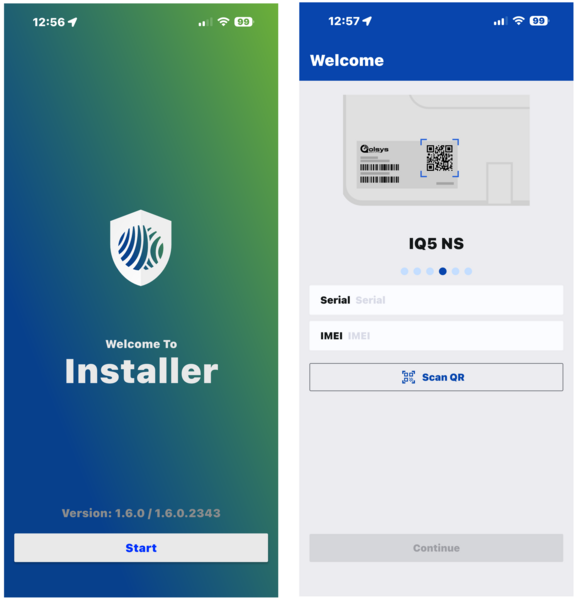
- Pair with the panel. Press the power button on the right side of the IQ5 NS twice within three seconds. The panel's Status LED, indicated by a lock icon, turns solid blue, confirming pairing mode is active. Select Next in the app once the blue LED appears.
- Enter the Installer Code. When prompted, enter the panel's current Installer Code (1111 is the default). The app will verify the code and open either the wizard or the dashboard. If this is your first time connecting, you will be prompted to connect the panel to WIFI and change the default Installer Code for security. Be sure to write down your new Installer Code and store it in a safe place. If you lose the code, your alarm dealer can reset it through the Alarm.com Dealer Portal. If the system is not monitored and the code is lost, you may not be able to program the panel locally.
-
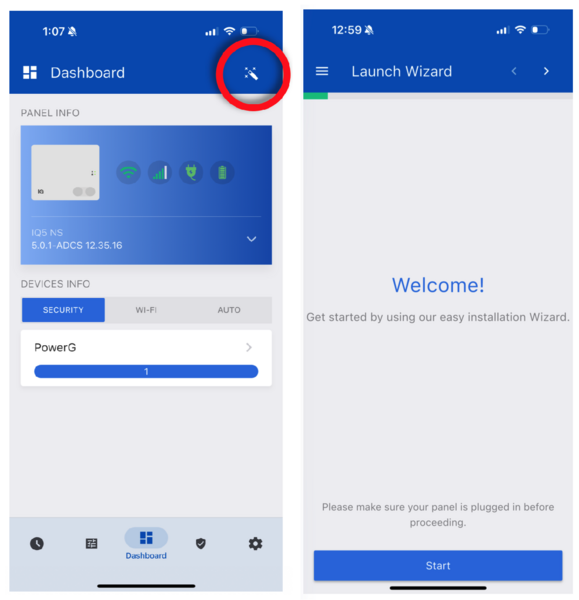
Start the Easy Install Wizard. By default, the Installer Interface will launch the Easy Install Wizard when you first connect to the IQ5 NS. The wizard walks you through every step of initial setup in the correct order. You can also access it later by heading to the Dashboard and tapping the wizard icon:
Running the Setup Wizard
The Setup Wizard guides you through the initial configuration of your security system. Have your WIFI password ready and keep any PowerG or legacy sensors nearby with batteries installed.
- On the Welcome screen tap Start. The welcome screen confirms you are connected to the IQ5 NS and prefaces the setup steps ahead. As noted on the welcome screen, be sure the panel has primary power before proceeding.
- Connect to WIFI. Select your SSID from the list of available networks and enter your password. A strong WIFI connection is important because the IQ5 NS and the IQ Installer App use WIFI to remain connected during configuration. Also, because the panel uses WIFI as one of its two communication paths to Alarm.com and in the future, remote software updates will only be delivered to the panel using WIFI, not cellular.
-
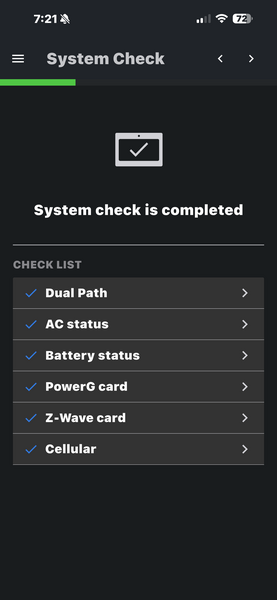
Allow the system check to complete. The wizard verifies the dual path connection, AC power, battery health, PowerG radio, Z-Wave radio, and other components. Each item shows a pass or fail result. A cellular failure could mean the panel does not yet have an active monitoring plan, that a different mounting location is in order, or that the LTE antenna needs attention.
-
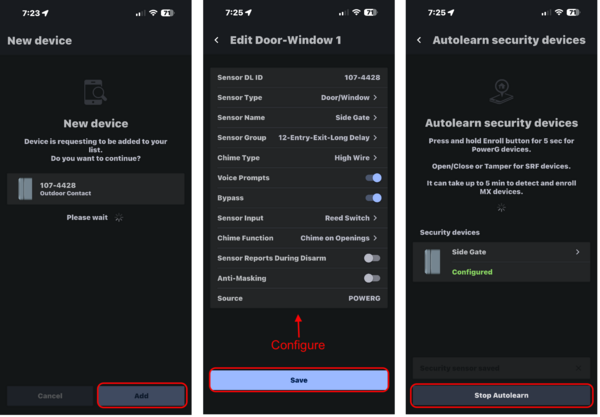
Select Auto Learn Sensor. Tap the Add icon in the lower right. From the 'Adding new device' screen tap Autolearn then select Start Autolearn. The IQ5 NS enters listening mode and waits for a sensor signal.
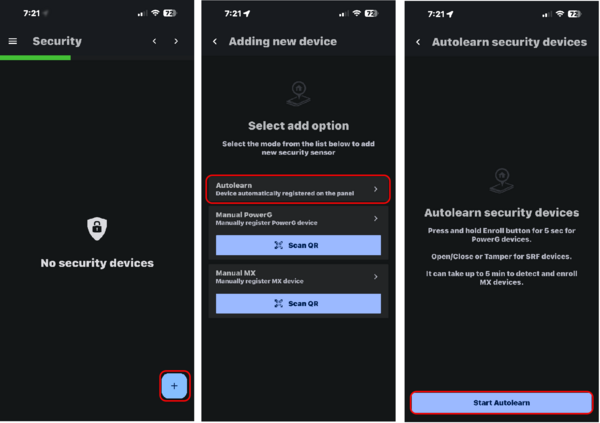
- Trigger the sensor. For legacy RF sensors, open and close a door or window contact, walk in front of a motion, or trigger a cover tamper. On older PowerG sensors hold down the enroll button until the yellow LED flashes. On newer PowerG sensors, simply remove the battery tab to power on the device. The app detects the sensor and displays its DL ID. Select Add to configure the zone.
-
Configure the sensor. Set the Sensor Type, Sensor Group, Sensor Name, Chime Type, enable or disable Voice Prompts and any other parameters using the toggle options and dropdown menus. Options may vary depending on the sensor type. Select Save to finish enrolling a sensor. Repeat for each sensor you want to add. You can also enroll Z-Wave home automation devices during this step. When you're finished, tap Stop Autolearn.
After the Setup Wizard
Once the wizard finishes, the IQ5 NS should be ready to arm, assuming all sensors are in their normal non-faulted state and all cover tampers have been restored. The Status LED turns solid green when disarmed and ready. From the dashboard inside the IQ Installer App, navigate to Configuration for additional settings not covered in the setup wizard, including User Management (up to 242 codes), Sound, Dealer Branding, and Partitions (up to four areas).
Tips
If the app cannot find the panel, verify WIFI is enabled on your phone and you are within range of the panel. If issues persist, reboot the panel by holding the power button for 30 seconds, then try again. You can also connect through the panel's built-in access point as an alternative.
Setting up the IQ5 NS with the IQ Installer app gives you full control over your security system from any iOS or Android device. For help with the Setup Wizard or other configurations on your IQ5 NS, contact the Alarm Grid support team at support@alarmgrid.com or visit our website and chat with a live support agent. We are here Monday - Friday from 9:00 AM to 8:00 PM Eastern Time.
Did you find this answer useful?
We offer alarm monitoring as low as $10 / month
Click Here to Learn MoreRelated Products


Related Categories
- Home Security Systems
- Home Security Systems
- Apartment Security Systems
- Smart Home Controllers
- Small Business Security Systems
- DIY Wireless Security Systems
- Answered
- Answered By
- Julia Ross