
How Do I Add a New Sensor to the IQ Panel 5 Security System?
To add a sensor to the IQ Panel 5, start with the system disarmed and swipe down from the top of the home screen. Select Settings, then Advanced Settings, and enter the Installer Code (default 1111). Navigate to Installation, then Devices, and select Security Sensors to begin enrollment.
Before You Begin
The IQ Panel 5 (available in AT&T LTE and Verizon LTE) supports up to 128 security sensors, including PowerG and PowerG+ sensors are supported out of the box. Legacy Security RF can be added with the appropriate daughter card. Before adding a new sensor, make sure the panel is disarmed and you have the Installer Code (default 1111) ready. Keep the sensor nearby for enrollment. If you are adding a PowerG sensor, have the sensor powered on and within range of the panel.
- Honeywell/2GIG 345 MHz Daughter Card
- Qolsys/Interlogix 319.5 MHz Daughter Card
- Legacy DSC 433 MHz Daughter Card
The IQ Panel 5 offers two methods for adding sensors: Auto Learn and Manual Add.
- Auto Learn - This is the fastest approach because the panel detects the sensor automatically when you trip or tamper the device.
- Manual Add - This option requires you to type in the sensor DL ID by hand, which is useful if you need to pre-program sensors before they're ready to activate.
Both methods allow you to configure the same set of fields including Sensor Type, Sensor Group, Sensor Name, Chime Type, and Voice Prompts.
Adding a Sensor Using Auto Learn
-
Tap Settings. Swipe down from the top of the home screen to open the Settings Tray. The Settings Tray slides down from the top of the display, revealing quick-access icons for WIFI, Bluetooth, brightness, and volume along with the Settings button. Tap Settings.
Swipe down from the top of the IQ Panel 5 home screen to open the Settings Tray: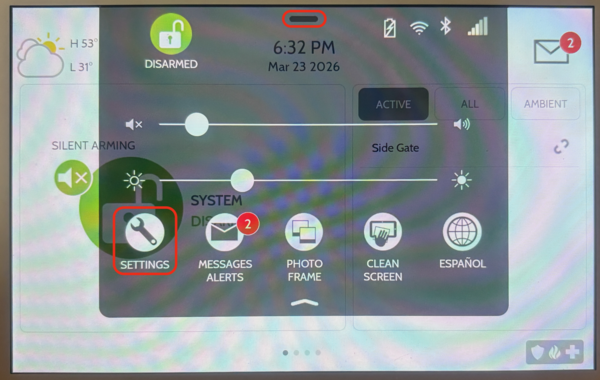
-
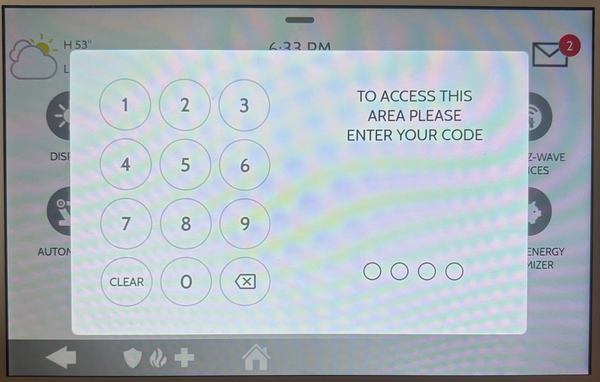
Tap Advanced Settings. Within the Settings menu you'll see several options such as Display, Temperature, Z-Wave Device Status, Advanced Settings, and more. When you tap Advanced Settings, a numeric keypad appears on screen and you'll be prompted to enter a code. Enter the Installer Code (default 1111). This will bring you to the Advanced Settings menu.
Enter the Installer Code (default 1111) on the IQ Panel 5 keypad: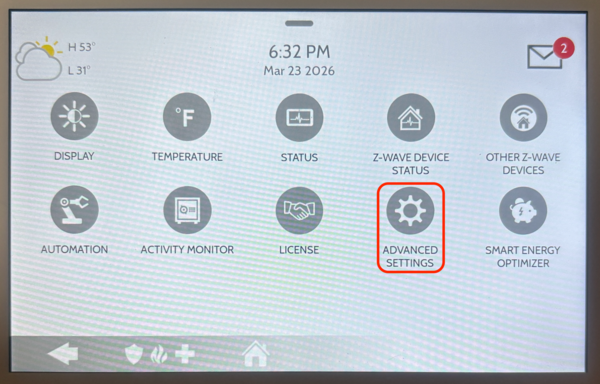
-
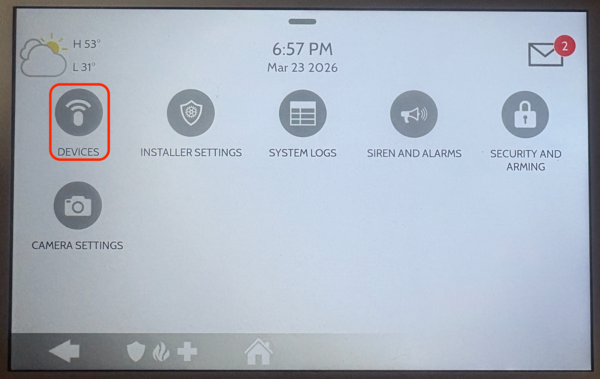
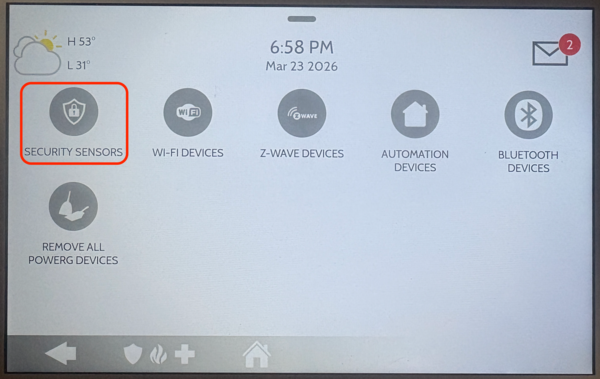
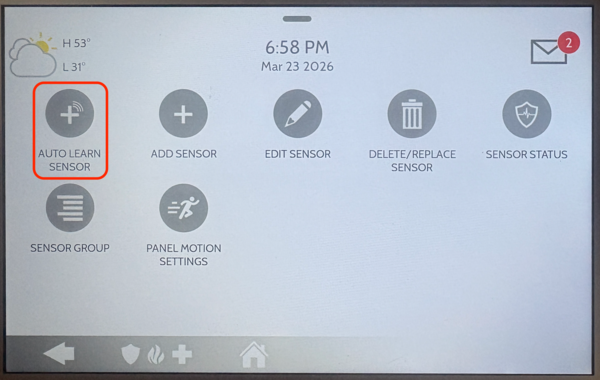
Enter security sensor programming. Select Installation, then Devices, and then Security Sensors. The Security Sensors menu opens, displaying options for Auto Learn Sensor, Add Sensor, Edit Sensor, Delete/Replace Sensor, Sensor Status, and Sensor Group. If you enter Advanced Settings and you don't see the option for Installation, you've logged in using the Master Code instead of the Installer Code. In that case, you'll see Master Settings instead of Installation.
Navigate to Security Sensors: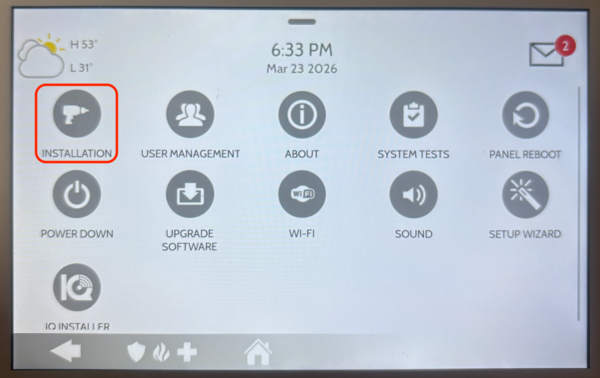
-
Tap Auto Learn Sensor. This will put the panel into listening mode. The panel begins scanning for new sensor signals. It will detect sensors automatically when they are tripped or tampered.
-
Activate the device. Trip or tamper the sensor you want to add. By default, the panel supports PowerG sensors. If you plan to incorporate existing legacy sensors, you can add one of the daughter cards mentioned above. For most sensors, simply faulting and restoring the sensor will allow the panel to detect the DL ID. For older PowerG sensors, press and hold the enroll button until the yellow LED flashes. For newer PowerG sensors, pull the battery tab to power on the device, or tamper it. The panel chimes and displays a popup with the sensor DL ID code asking if you want to add this device.
The IQ Panel 5 detects the sensor and displays the auto-learn confirmation popup: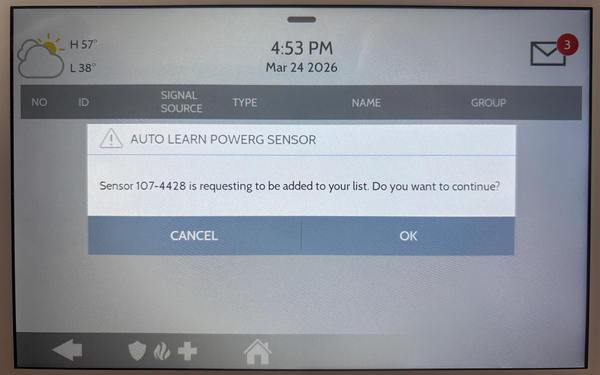
-
Select OK to confirm. Then configure the sensor fields. The sensor information screen appears with fields for Partition Name (if partitions are enabled), Sensor Type, Sensor Group, Sensor Name, Chime Type, Voice Prompts, Bypass, Source, and Chime Function. This is the screen you go to immediately when you choose Add Sensor instead of Auto Learn Sensor. Depending on the sensor learned, the options may vary.
For PowerG sensors, the panel knows that certain DL IDs are associated with certain types of sensors, so the options for Sensor Type may only contain what it considers to be viable options for the sensor. Use the dropdown menus to set each field. Sensor Type determines whether the device is a Door/Window, Motion, Smoke, or other type. Sensor Group controls the behavior of the sensor during arming and/or alarm events.
Configure sensor fields after auto-learning on the IQ Panel: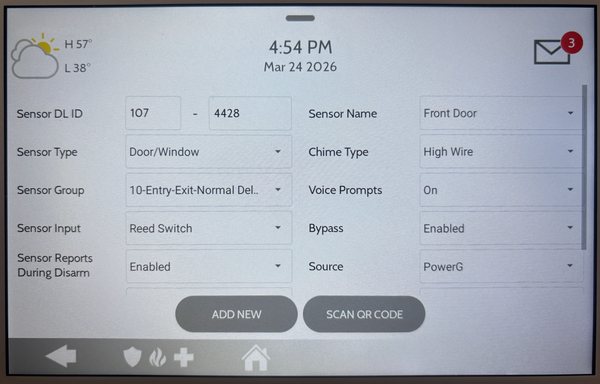
-
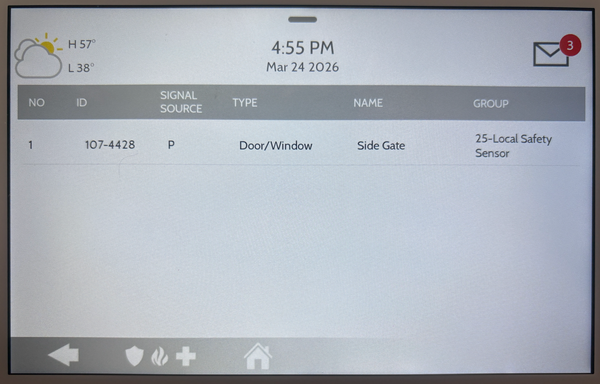
Tap Add New. To save the programming and complete enrollment tap Add New. The panel saves the sensor configuration and returns to the Auto Learn screen, ready to enroll the next sensor. Repeat steps 5 through 7 for each additional sensor you need to add.
Tips
If you prefer to add a sensor manually instead of using Auto Learn, select Add Sensor from the Security Sensors menu. You will need to enter the sensor DL ID found on the back of the device, then configure the same fields described above. The IQ Panel 5 also supports QR code scanning for compatible S-Line sensors, which auto-populates the DL ID field when you hold the sensor box label in front of the panel camera.
Compatible sensors include the PowerG+ Door/Window Sensor or the PowerG+ Door/Window Sensor with Aux Input for standard entry points, and the PowerG+ Motion Detector for interior motion detection. When the panel detects a PowerG or PowerG+ sensor during Auto Learn, the Source field is automatically set to PowerG.
Adding sensors to your security system expands your protection coverage, allowing you to keep every entry point monitored with the IQ Panel 5. Check out this FAQ to learn how to delete a sensor from the IQ Panel 5. For help with sensor enrollment or other configurations on your IQ Panel 5, contact the Alarm Grid support team. We are here Monday - Friday from 9:00 AM to 8:00 PM Eastern Time. Email us at support@alarmgrid.com, call us at 888-818-7728, or visit our website and chat with a live support agent.
Did you find this answer useful?
We offer alarm monitoring as low as $10 / month
Click Here to Learn MoreRelated Products


Related Categories
- Apartment Security Systems
- Wireless Touchscreen Alarm Panels
- Monitored Home Security Systems
- DIY Wireless Security Systems
- Small Business Security Systems
- Smart Home Controllers
- Answered
- Answered By
- Julia Ross