
How Do I Add Photos to the Photo Frame on My IQ5 Hub?
To add photos to the IQ5 Hub Photo Frame, swipe down from the top of the screen and touch Photo Frame in the Settings Tray. Touch ADD to select from several built-in WIFI photo packs or load your own personal photos using Bluetooth (Android only) or the built-in Panel Access Point feature.
Before You Begin
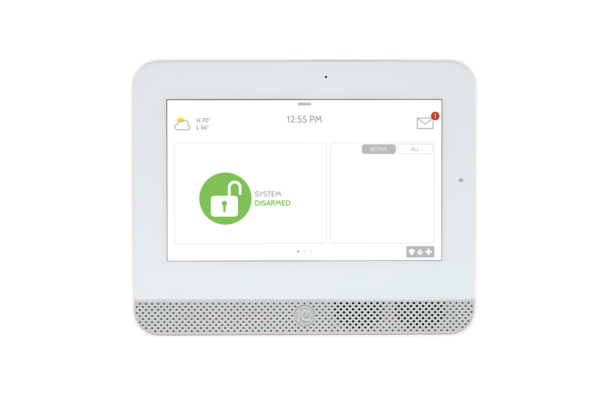
The IQ5 Hub (available in AT&T LTE and Verizon LTE) features a built-in Photo Frame that turns the 7-inch touchscreen into a digital picture frame when the system has been idle for a pre-determined time frame. You can choose from pre-loaded WIFI photo packs that download directly to the panel, or you can transfer your own photos from a smartphone. The panel must be connected to your WIFI network to download the built-in photo packs. If you plan to transfer personal photos, you will use either Bluetooth (Android devices only) or the panel's built-in WIFI Access Point, which works with both Android and iOS devices. You can also set the Display Type to turn the Photo Frame off completely or switch to a Weather Clock screensaver instead, from the same Photo Frame Settings menu.
Adding Photos to the Photo Frame
- Open the Settings Tray. Swipe down from the top of the screen to open the Settings Tray. The Settings Tray slides down and displays quick-access controls for volume, brightness, and several feature icons. You will see the Photo Frame icon in the tray alongside Settings, Messages & Alerts, Clean Screen, and Language options.
- Open Photo Frame settings. Touch Photo Frame in the Settings Tray. The Photo Frame screen opens, showing a grid of thumbnail images currently stored on the panel. Along the top of this screen, you will find four buttons: Play, Delete, Add, and Settings. These controls let you manage all aspects of the Photo Frame feature.
-
Tap ADD to begin. A drop-down menu appears with several options. You can select from WIFI photo packs that include Default, Buildings, Flowers, Mountains, and Water. Each pack downloads a themed set of high-quality images directly to the panel using its WIFI connection. For personal photos, select Bluetooth (Android only) or Panel AP to transfer images from your smartphone.
- Upload photos using Bluetooth (Android only). Put your Android device into Bluetooth pairing mode. On the panel, choose Bluetooth then follow the on-screen prompts to pair your device. Once paired, select the photos you want to transfer then confirm the upload.
-
Upload photos using the Panel AP (recommended for most phones).
- Select Panel AP from the dropdown. The panel will display its network name (SSID) and password.
- On your phone, open WIFI settings.
- Select the panel’s network name from the list of available networks.
- Enter the password shown on the panel screen.
- Once connected, follow the on-screen instructions to upload your photos using your device’s browser.
- Tap Replace All Photos. If you selected a WIFI photo pack the panel downloads the selected photo pack and replaces the existing images in the Photo Frame library. If you chose Bluetooth or Panel AP, follow the steps above along with the on-screen prompts to pair your device and transfer your own photos. The Panel Access Point creates a temporary WIFI network that your phone connects to directly, making it the recommended option for iPhone users since Bluetooth photo transfers are limited to Android devices.
Tips
After adding photos, you can customize how they display by touching Settings on the Photo Frame screen. From there, you can adjust the display duration between 1, 2, or 5 minutes to control how long each image shows before transitioning, change the transition effect between Dissolve and Fade to Black, and enable or disable Shuffle to randomize the display order.
The Photo Frame Start Time setting controls how many minutes of inactivity pass before the Photo Frame activates, with options at 1, 5, 10, 15, 20, 25, or 30 minutes (10 minutes by default). You can also configure Nighttime Mode, which by default runs from 11:00 PM to 6:00 AM, to automatically silence the display, voices, chimes, or all three during set overnight hours. This prevents the screen from lighting up a dark room. To take full advantage of the panel's features you can use Alarm.com, home automation, and Alarm.com cameras, but the Photo Frame runs independently on the panel itself and does not require an active monitoring plan to function.
Adding photos to the Photo Frame on the IQ5 Hub personalizes your security panel, giving it a practical yet fun secondary use as a digital picture frame. For help with the Photo Frame or other features on your IQ5 Hub, contact the Alarm Grid support team. We are available Monday through Friday from 9:00 AM to 8:00 PM Eastern Time. Email us at support@alarmgrid.com, call us at 888-818-7728, or visit our website to chat with a live support agent.
Did you find this answer useful?
We offer alarm monitoring as low as $10 / month
Click Here to Learn MoreRelated Products


Related Categories
- Home Security Systems
- Home Security Systems
- Apartment Security Systems
- Monitored Home Security Systems
- Smart Home Controllers
- Small Business Security Systems
- DIY Wireless Security Systems
- Answered
- Answered By
- Julia Ross