
How Do I Integrate an IQ4 NS Panel and Control4?
To integrate the IQ4 NS with Control4, access panel programming via the IQ Installer App. Tap Configuration > Installation > Devices > WIFI > 3RD Party > Control 4. Enable Control 4, which will require you to enable 6-digit codes. Toggle on 6-digit codes and confirm. The panel will reboot.
Control4 is an IP based automation system that uses software drivers to allow a single point of control for a diverse set of automation-capable devices. In addition to the IQ4 NS, Control4 can be used to control lights, audio/video devices, thermostats, motorized blinds, appliances, and more. When it comes to automation, Control4 has much broader compatibility than the IQ panel itself, but is also a more complex system to configure, often requiring the help of an integration specialist.
There is a single Control4 driver in Composer (the Control4 software) that works for all compatible IQ4 (IQ Panel 4, IQ4 Hub, and IQ4 NS) and IQ Pro panels. The instructions on the panel side are basically the same for all of these IQ panel versions. Once the integration is complete, Control4 can automate other devices based on events that occur on the security panel. Also, unlike some other automation integrations, Control4 will recognize Fire and Carbon Monoxide zones as long as you map them correctly in Composer. This allows you to create automations based on them.
Important Notes:
- Once the panel reboots to enable Control4 you have ten (10) minutes to complete the integration. If the ten (10) minute timer elapses before integration is completed, the panel will reboot and Control4 will be disabled.
- Entry chimes for security points do not work on the Control4 touchscreens
Requirements
- The panel must be on the latest firmware version.
- You must be able to connect with the panel using the IQ Installer App. The app is available from the Apple App Store for iOS devices and the Google Play Store for Android devices. It is a free download. Connecting with the app requires that you know the current panel Installer Code. If you are connecting to the panel for the first time, you will be required to change the Installer Code immediately upon connecting.
- When enabling Control4 integration, you must also enable 6-digit user codes for the panel.
- The Control4 system and the panel must be on the same network.
- For the most reliable connection it is recommended to use SDDP (Simple Device Discovery Protocol) or a static IP (on the panel) for Control4 integration. SDDP is a protocol developed by Control4 to make adding devices easier. All IQ4 panels (v4.1.0+) and the IQ Pro (v4.2.1n+) support SDDP.
In this guide, we will assume that SDDP is being used.
Enabling Control4 Integration For the IQ4 NS
-
Access panel programming. Using the IQ Installer App connect to the IQ4 NS panel.
- Open the IQ Installer App and press "Start" to begin.
- Tap "Scan QR". Position your phone or tablet camera to scan the QR Code on the back lower left of the IQ4 NS. If you still have the panel's packaging, the QR code can also be found on the plain white box the panel came in.
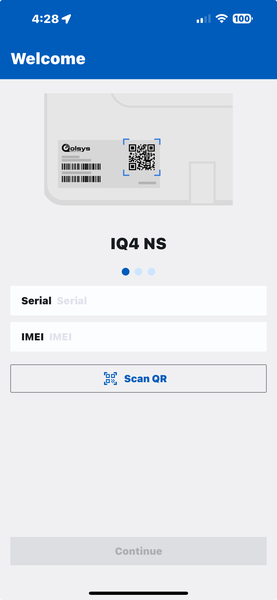
- Tap "Continue".
- Press the power button twice. The power button is located on the right edge of the IQ4 NS (when looking at it from the front). By default, this will initiate a cell test. The panel will annunciate that a cell test is being sent, and then that it is entering installer pairing mode.
- When the Status (Lock) LED turns solid blue press "Next" within the Installer App.
- When prompted, enter the panel's Installer Code to connect. The default Installer Code is 1111.
- If this is your first time connecting to the panel through the IQ Installer App you will be prompted to change the Installer Code. This is mandatory, and you can't re-enter the default Installer Code. Make sure you change the code to something you can remember. If you forget the code, you won't be able to reconnect using the IQ Intaller App unless your alarm dealer changes the Installer Code for you using Alarm.com. If your IQ4 NS is not monitored, you might be unable to reconnect without the Installer Code. Once you've changed the Installer Code, if applicable, you'll be taken to the Dashboard screen.
-
Navigate to 3rd Party WIFI devices. Tap Configuration > Installation > Devices > WIFI > 3RD Party > Control4.
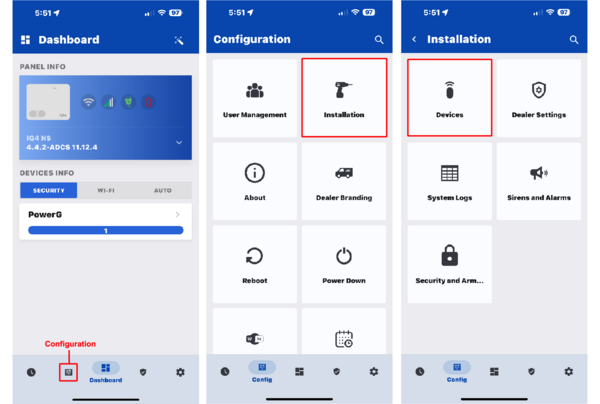
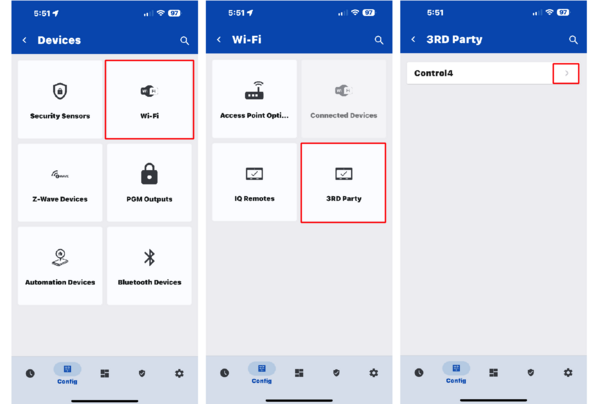
-
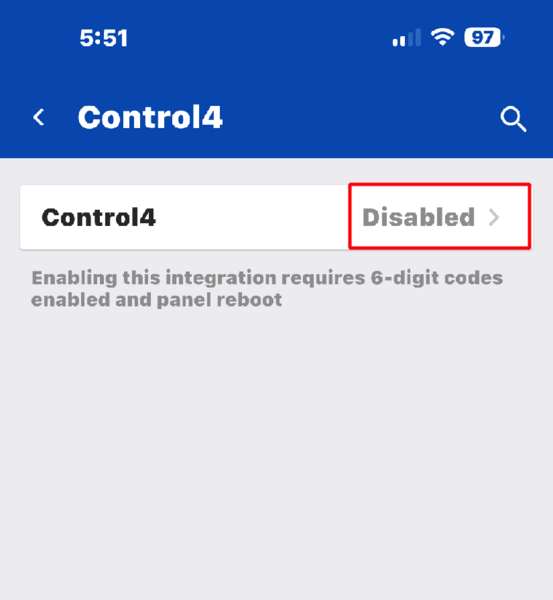
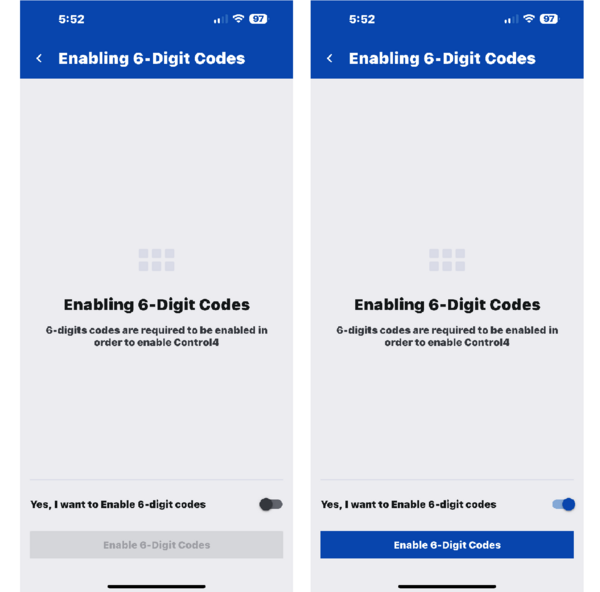
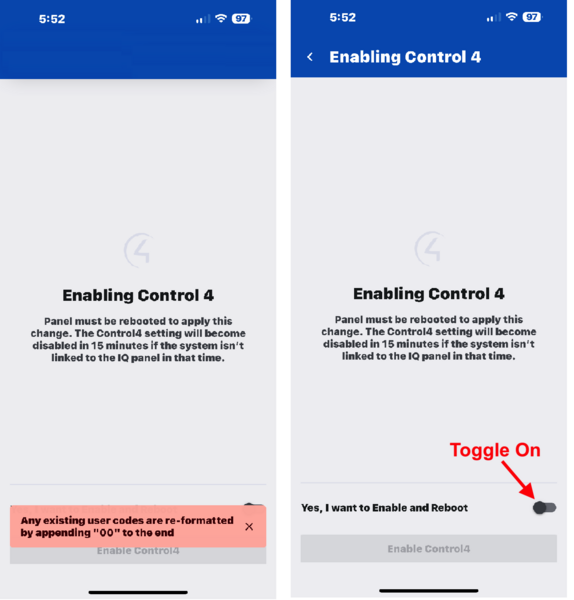
Enable Control4 and 6-digit codes. By default, Control4 is disabled, as shown. Tap the icon to begin enabling it. You'll be asked if you want to enable 6-digit user codes. This is a requirement for Control4 integration. Any existing user codes will have a 0 0 appended to the end of the code. So, if your Master Code is 1234, once this integration is enabled and the alarm panel reboots, your master code will be 123400. Toggle the switch ON, confirming that you want to enable 6-digit codes and tap the button "Enable 6-digit codes." Again, toggle the switch ON for "Yes, I want to enable and reboot" and finally tap "Enable Control4". The IQ4 NS will reboot and afterward Control4 and 6-digit codes are enabled. Remember, when you reconnect to the panel with the IQ Installer App the Installer Code will have a 0 0 appended to the end. So, if you changed your Installer Code to 3333 in Step 1.g above, you'll need to enter 333300 to access programming.
- Locate panel's secure token. Once the panel reboots, navigate back to the Control4 screen by reconnecting with the IQ Installer App, then tapping Configuration > Installation > Devices > WIFI > 3RD Party > Control4. You'll now see that Control4 is Enabled and below that a Secure Token is listed. If the information is masked, click the eye icon to the right of the token to reveal it. The Secure Token will be six (6) characters, consisting of letters and/or numbers. Make a note of it. The Control4 interface, called Composer, has a notes area, you can also save the token information there. You'll need to enter the Secure Token within Control4's Composer console.
- Add the Qolsys driver in Composer. Within System Design in Composer you should get an indication that a device is available to add. When you double-click on the location where this indication appears you should see a window titled "Items." Check the "Discovered" tab within the Items window. If the Qolsys panel doesn't auto-populate go to the Search Tab and search for Qolsys. Be sure the options for "Local" and "Online Only" are checked. "Certified Only" should be unchecked. The driver should pop up beneath the search options. It may show up as "IQPanel2 Security Panel". Again, the same driver is used for all IQ Panels. Double-click this item and the driver will be added to your project.
- Apply the Secure Token. Back in the System Design pane on the left, find the entry called "Security Panel". It can be found listed under whatever location the item came up under. For example, if you found the newly-added Item within the location called "Equipment Room" and that's where you went to find and install the Qolsys driver, then that's where you'll find the entry for "Security Panel". Highlight "Security Panel" in the left pane, then make sure you have the "Properties" tab selected in the upper right of the top-right pane. Below this pane, you should see another pane titled "Advanced Properties". In this section, you'll see an option for "Token". Enter the Secure Token you retrieved from the IQ4 NS panel. Verify you typed it in correctly, then click "Set".
- Bind panel zones to generic drivers. Once you add the Qolsys IQ Panel driver to Control4, the list of panel zones should be imported under the Security Panel item in System Design. Each zone should be tied to a generic driver based on type, e.g., door, window, motion, etc., and then named properly (Front door, Bedroom Window, Living Room Motion). Once that's done, go to "Connections" below System Design in the left pane. In connections bind each zone output to the generic driver that has been automatically populated as "zone Descriptor1 Descriptor2". If the zones don't auto populate delete the Qolsys IQ Panel driver from Control4 then re-add it using the same Secure Token. Once this setup is complete, you're ready to build automations based on security system events.
Note: Without access to Control4, the information in Steps 5 - 7 is based on what I could dig up online. I reached out to Control4 for additional information, but didn't hear back. Hopefully, if you're reading this, you're familiar with Control4 and this information is enough to get you over the finish line. If you are familiar with Control4 and you find something above that is wrong, or incompletely explained, provide feedback and we'll be happy to update this content.
Did you find this answer useful?
We offer alarm monitoring as low as $10 / month
Click Here to Learn MoreRelated Products





- Answered
- Answered By
- Julia Ross