Owner DIY Posts

Posted By

The DSC HS2TCHP(N) touchscreen keypad can work with a Qolsys IQ Pro, but only after a software update. Keypads running version 1.39 or lower need new interface files first, and you can get them from our HS2TCHP firmware updates page.

The update is a quick job. It takes an SD card, a few minutes, and no new hardware.

Why the HS2TCHP(N) Needs an Update

The HS2TCHP(N) was made for DSC PowerSeries NEO systems. Its touchscreen software, called the user interface or UI, is written for a NEO panel. The IQ Pro needs a different UI. Until the keypad gets the new firmware files, it is not ready to be used with an IQ Pro.

Check the part number on your keypad before you start. If it says HS2TCHPRO and runs version 1.40 or higher, the touchscreen will not work on an IQ Pro. The update is only for the HS2TCHP(N) at version 1.39 or lower.

When Does This Comes Up?

The most likely reason is a panel swap. Say a home has a NEO system with HS2TCHP(N) keypads already mounted on the walls. The owner decides to switch to an IQ Pro. The wiring is already in place, so reusing those keypads saves money and a lot of work. The update is what makes that possible.

There is one catch. Once a keypad has been updated for the IQ Pro, it cannot go back to a NEO control panel. Do not update a keypad that still needs to work on a NEO system. If you are still running a NEO panel, we show you how to add an HS2TCHP to a PowerSeries NEO panel in a separate guide.

How to Update the Keypad

The update uses an SD card. Download the files from the firmware page linked above and unzip them. There are three files, and all three go in the root directory of a blank SD card. Format the card as FAT32 first, and use a card with a capacity of 32 GB or less.

Next, slide the card into the bottom of the keypad. On the touchscreen, tap the Options icon, then Installer Menu. Enter the IQ Pro Installer or Dealer Code (defaults 1111 or 2222 respectively). Tap Keypad Programming, tap Firmware Upgrade, and follow the prompts to finish. When it is done, the keypad shows the "IQPanel" logo in the top right corner instead of the "DSC" logo.

Do not pull the keypad off its backplate while the SD card is inside. That can damage the card slot. For the manufacturer’s full notice, see the HS2TCHP(N) touchscreen keypad update instructions.

Connecting the Keypad to the IQ Pro

An IQ Pro can support up to 16 keypads. They connect to the panel over the Corbus, which is a four-wire connection. Here are the basics:

  • Match the colors. Connect the keypad’s red, black, yellow, and green terminals to the corresponding Corbus terminals on the IQ Pro board.
  • Use the right wire size. Use 18 - 22 gauge 4-conductor wire. Two twisted pairs are recommended. Do not use shielded wire.
  • Watch the distance. Keypads can sit up to 1,000 feet from the panel. They can be home run, wired in series, or T-tapped.
  • Power comes last. Keep the panel’s battery and power adapter disconnected until all the wiring is done.
  • Enable keypad. Once the keypad is connected, you'll need the IQ Installer App, available for free from the Apple and Google stores, to enable the keypad, assign partitions if necessary, and set any other keypad options.

Each keypad also has a zone input, so you can hook up a wired sensor, like a door contact, right at the keypad. It works with normally closed loops, single end of line resistors, and double end of line resistors. To turn the input on or off, go to Installation, then Devices, then Security Sensors. Pick the enrolled keypad, tap Edit, and choose Keypad Input. Then select Enable or Disable. For all the details, check the IQ Pro install guide.

Need Keypads or Monitoring?

If you're updating your panel and you're interested in a new monitoring plan to go with it, check out our no-contract monitoring options. We don't charge activation fees, and you can cancel at any time. Need another keypad for your project? Browse our PowerG keypads and the IQ Remote PowerG touchscreen keypad.

Need Help?

Stuck on the update or the wiring? Our support team is happy to help. Phone and email support are open from 9:00 AM - 8:00 PM Eastern. Call us at 888-818-7728 or email support@alarmgrid.com. Live chat on our website is also available until 6:00 PM Eastern.

Tags: , , , , , , , , , , , , , , , , , , , , , , , , , ,

Comments


Posted By

Resideo has extended AlarmNet360 (AN360) connectivity for the Lyric® security system. This extension runs through June 1, 2028, reversing notices sent out earlier this year that signaled an end to remote Lyric management. Here's what changed, and why an upgrade is still worth planning.

A Quick Timeline

Notification Date What It Said
TN-140 March 17, 2026 Legacy Lyric authentication on AN360 was expiring April 15, 2026, ending all remote management features.
TN-142 April 6, 2026 Superseded TN-140 with more detail on what would move to local programming only.
TN-150 September 21, 2026 Replaced TN-140. An extension was secured, restoring full AN360 support through June 1, 2028.


The First Two Notices: TN-140 and TN-142

Resideo's first notice, Technical Notification #140, explained that the legacy authentication process Lyric panels use to connect to AN360 was expiring on April 15, 2026. After that date, AN360 would no longer support adding new Lyric systems, enrolling new sensors, syncing configuration changes, modifying system settings remotely, applying dealer branding, pushing firmware updates over the air, or changing central stations. Core system functionality (arming, disarming, user codes) and connected services (Total Connect, alarm reporting, two-way voice) were not affected.

TN-142 arrived three weeks later and officially superseded TN-140 with more detail. It confirmed that communicator-level settings, like TC2 configuration, comm path, and central station changes, would keep working through AN360 as before. Panel-level settings, like partition and system changes, two-way voice, Home Kit, Lyric Lock, and firmware updates, would instead require USB (firmware update only) or local panel programming. TN-142 also warned that AN360 would automatically disable the Local Programming Lockout and Lyric Lock features on all panels during the week of April 6, 2026.

The Latest Update: TN-150 Restores Support Through 2028

Technical Notification #150, issued September 21, 2026, explained that the root cause of these changes was an expired security certificate with Resideo's certificate provider. While alarm routing continued working throughout, remote capabilities like configuration changes, sensor additions, and device replacements were no longer available.

Resideo has now secured an extension with the certificate provider, restoring full AN360 remote management for Lyric systems through June 1, 2028. TN-150 officially replaces TN-140, and no immediate action is required on your part.

Can You Still Activate a New Lyric System?

We're not sure yet whether a brand new, previously unregistered Lyric panel can currently be activated on AN360. In theory, the answer is yes. We want to confirm the current activation process ourselves before telling you it's a 100% safe bet. We'll update this post as soon as we know more.

UPDATE 09/25/26: We have confirmed that it is possible to activate a new, previously unregistered Lyric. However, we still firmly believe it's time to begin planning your system upgrade. Don't wait until the last minute and get caught up in a backlog of users trying to upgrade.

It's Still Time to Plan Your Upgrade

Even with support extended, June 2028 isn't that far off. If you're running a Lyric system today, now is a good time to start planning a move to a newer platform. Alarm Grid recommends the PROA7 or PROA7PLUS when you're ready to upgrade.

Both of these panels work with the full line of SIX Series wireless sensors right out of the box, so much of what you already own will likely carry over. If your Lyric setup uses older 5800 Series sensors instead, you'll need to add a PROTAKEOVER module along with the Pro Series panel.

Not sure which upgrade path fits your needs? Give our support team a call or send us an email. We're here Monday - Friday from 9:00 AM - 8:00 PM (ET). Our support number is 888-818-7728 or email support@alarmgrid.com. We also offer chat support with a live agent from 9:00 AM - 6:00 PM (ET). Just visit our site.

Tags: , , , , , , , , , , , , ,

Comments


Posted By

2GIG released Firmware Version 1.2 for the GC Touch security panel in August 2026. This update adds new chime options, additional Dark Mode options, and the ability to control door locks straight from the video doorbell screen.

Adding these new features doesn't require a new panel or a truck roll. The update can be installed over the air or via the panel's USB port, and it makes a panel you already own more convenient and user-friendly every day. The GC Touch is available in both AT&T and Verizon versions, with the cellular communicator included from the factory.

What's New in Firmware 1.2

  • Custom chime options. The primary user can now select which chime plays for door and window activity, instead of being stuck with one default sound.
  • Voice annunciation with chimes. Voice announcements can now run alongside the chime options above, so the panel can speak and chime when a zone is faulted.
  • Manual date and time. Date and time can be set right on the panel instead of relying only on automatic updates.
  • Improved localization screens. The screens used to set language and region have been cleaned up.
  • Scheduled Night Mode. Night Mode can now be set to turn on and off automatically at times you choose.
  • Scheduled or automatic Dark Mode. Dark Mode can run on a schedule you set, or follow sunset and sunrise automatically.
  • Lock control from the video doorbell screen. Locks can now be controlled directly from the video doorbell streaming screen, without backing out to a different menu.
  • Faster code entry on PAD1. PAD1 no longer requires pressing "Enter" after a code, so arming and disarming take one less step.
  • Chime added to walk test. Walk tests now include a chime, making it easier to confirm a sensor triggered during testing.

How to Update Your GC Touch

2GIG makes this update available over the air, through cellular or WIFI via Alarm.com. If you'd like your panel updated to Firmware 1.2 now, contact Alarm Grid support and we can get it scheduled. Updates using WIFI are free. If you don't have WIFI, there is a small charge for sending the update. The amount depends on the size of the download.

If you don't have WIFI at your panel and want to avoid this charge, you can update your panel yourself. Download the firmware from our site and apply it through the USB-C port on the back of the panel. Full instructions are available in our GC Touch firmware update guide, and you can download the firmware file from our downloads page. Alarm Grid passes the cellular update fee along at cost, with no markup, and it's added to your next billing cycle.

Get More From Your Security System

Not set up with a GC Touch yet? Alarm Grid carries the full lineup of 2GIG touchscreen panels, and every system we sell can be paired with monitoring that has no contracts, no activation fees, and no termination fees.

Check out our monitoring plans and get live 24/7 monitoring for your home or business. If you have questions, reach out to our support team. We're here Monday - Friday from 9:00 AM - 8:00 PM Eastern Time. You can reach us at 888-818-7728 or by email at support@alarmgrid.com. If you visit our website between 9:00 AM and 6:00 PM Eastern, you can also chat with a live agent.

Tags: , , , , , , , , ,

Comments


Posted By

If your Alarm.com or Total Connect 2.0 alerts show up as text messages, they may rely on an old email-to-text trick that carriers are now shutting down. You might not notice when it quietly stops working. AT&T and T-Mobile have already cut theirs off for good, and Verizon's shutdown looms.

This isn't a rumor or a future warning. For two of the three major carriers, it has already happened. If you set up your alarm notifications years ago and haven't touched them since, this is worth five minutes of your time today.

What Is Email-to-Text, and Why Did People Use It?

Before Alarm.com and Total Connect 2.0 offered push notifications through their own apps, there was a popular workaround for getting alarm alerts as text messages. Every major carrier had (or still has) a special email address format that turns an email into a text. Send an email to a phone number followed by the carrier's domain, like 5551234567@vtext.com for Verizon or 5551234567@tmomail.net for T-Mobile, and it lands on that phone as an SMS.

Alarm.com and Total Connect 2.0 both let you add an email address as a notification destination. Plenty of customers used that feature with a carrier's email-to-text address instead of a real email inbox, which let them get alarm alerts as texts without needing a smartphone app at all. It worked well for a long time, especially before push notifications existed as an option.

Carriers Are Shutting the Gateway Down

Email-to-text was never officially part of how Alarm.com or Total Connect 2.0 were designed to send alerts. It only worked because carriers allowed it, and carriers are walking that back.

Carrier Status Effective Date
AT&T Shut down. Confirmed by AT&T June 17, 2025
T-Mobile Appears to be shut down, with no official announcement Reportedly around June 17, 2025, based on user reports online
Verizon Being phased out. Confirmed by Verizon Full shutdown by March 31, 2027, though some users may lose access sooner

T-Mobile hasn't published anything official about this, which is why we can't point you to a source the way we can for AT&T and Verizon. Based on reports from users online, the shutdown appears to have happened quietly around the same time as AT&T's, on June 17, 2025.

Why This Is Risky If You're Still Using It

The dangerous part isn't that this feature is going away. It's how it goes away. There's no error message on your alarm system and no warning in the app. The text messages just stop arriving, and unless you're specifically testing your system, you may not find out until you need an alert and it never comes.

For an alarm or fire notification, that gap is exactly the wrong place to lose reliability.

Alarm.com Already Saw This Coming

This shift didn't come out of nowhere. Back in March 2024, Alarm.com rolled out a push notification migration tool aimed at customers on carriers with degraded SMS and MMS delivery, T-Mobile, Sprint, and Rogers in Canada among them. At the time, Alarm.com called the migration voluntary, but noted it "may become mandatory" if carrier changes made it necessary. That's more or less what's happening now.

Switch to Push Notifications Today

Push notifications don't depend on carrier text messaging at all. They travel over your phone's internet connection, cellular data or WiFi, straight to the Alarm.com app or the Total Connect 2.0 app. That also means they can do things a text message can't, like let you act directly on an alert or come through even when your phone is set to Do Not Disturb.

Open your notification settings in the Alarm.com app or the Total Connect 2.0 app and make sure push notifications are turned on for the alerts you care about, arming and disarming, sensor activity, and alarms especially. If you're not sure how your account is currently set up, or you want help moving away from an old email-to-text address, contact our support team and we'll walk through it with you.

Not an Alarm Grid customer yet? Take a look at our monitoring plans. No contracts, no activation fees, and no cancellation fees, just straightforward alarm monitoring.

Tags: , , , , , , , , ,

Comments


Posted By

No need to consult your Magic 8 Ball on this one, we'll be glad to help you answer it! In short: if your alarm system or communicator runs on Alarm.com or AlarmNet, it likely isn't locked to one company. It just needs to be properly released from the original provider's monitoring account.

Homeowners may assume their alarm system belongs to whoever installed it. If a monitoring company set up the equipment, doesn't that company own it forever? Not necessarily. Alarm.com and AlarmNet (the network behind Resideo's Total Connect service) aren't owned by any single monitoring company. So once your system is released from the current account, any other monitoring company affiliated with the communication platform can pick up the monitoring.

What Makes a System "Non-Proprietary"

Most modern security panels talk to a monitoring company through one of a few shared networks. Two of the most common are Alarm.com and AlarmNet. Neither network is owned by a single monitoring company. Dozens of providers, including Alarm Grid, offer monitoring on panels that use them.

That's different from a proprietary system, where the panel only works with one company's software and can't be reprogrammed to work with anyone else. If your panel uses Alarm.com or AlarmNet, there's a good chance it was built to be flexible from day one, even if the company that installed it isn't.

The Exception: Some Equipment on These Networks Is Still Proprietary

Running on Alarm.com or AlarmNet doesn't automatically mean a system is open to any provider. Some companies build their own locked-down equipment on top of these shared networks. This shows up most with ADT, but Vivint and a few other large providers do it too. The hardware often comes from the same manufacturers everyone else uses, but it ships with a company-specific firmware, a modified part number, or an account binding that ties it to one provider alone.

If you own one of these proprietary devices, you'll generally need to replace it before you can switch monitoring companies, even though under the hood it communicates over one of these shared networks. One thing to look for is a company-specific tag added to an otherwise standard part number, like the "-ADT" or "-BRK" endings in the table below. If you're not sure whether your panel is proprietary, check the exact model number printed on the panel or the communicator and ask a prospective new monitoring company to confirm before you commit to switching.

A note on the list below: these model numbers came from online research, not from the manufacturers or monitoring companies themselves. Because this kind of information is treated as proprietary, we have limited ability to confirm it's fully accurate or current. If your equipment matches, or looks close to, one of these models, confirm its status with a prospective monitoring company before assuming anything either way.

Model Number Associated Company Backend Platform
ADC-SEM110-VT-ADT ADT Alarm.com
ADC-SEM210-VT-ADT ADT Alarm.com
ADC-SEM110-PS-ADT ADT Alarm.com
ADC-IS-220-ADT (Image Sensor) ADT Alarm.com
ADT Command (and Control) ADT Alarm.com
GSMX4G-ADT / GSMV4G-ADT ADT AlarmNet (Resideo)
LTE-XV-ADT / LTE-XA-ADT ADT AlarmNet (Resideo)
2GIG-GC2 (with Vivint Firmware) Vivint Alarm.com (Legacy)
Vivint SkyControl / Smart Hub Vivint Proprietary Vivint Cloud (Ex-Alarm.com)
BHS-4000 / BHS-3000 Communicators Brinks Alarm.com / AlarmNet (Varies)
ADC-SEM210-VT-BRK Brinks Home Security Alarm.com

What About Ring and SimpliSafe?

You'll also see Ring and SimpliSafe promoted heavily any time you search for a security system, especially as a DIY installer. These aren't professional-grade systems, meaning professional installers likely aren't installing them, and they're a different kind of proprietary than the ADT and Vivint equipment described above. Neither Ring nor SimpliSafe run on Alarm.com or AlarmNet. Instead, they're built on their own closed platforms from the ground up, so there's no shared network to release your equipment into.

If you want ongoing monitoring on a Ring or SimpliSafe system, you're locked into their monitoring plans (Ring Protect or SimpliSafe's monitoring service) for as long as you own that hardware. Switching providers on this kind of system generally means replacing the equipment in its entirety, not simply requesting a release of your system.

The Real Rule: One Company at a Time

Here's the part that trips people up. A non-proprietary system can only be monitored by one company at a time. While your equipment is active on an account with your current provider, no other company can take over monitoring for it, even though the technology may allow it. The system has to be released from the original account first.

This is where some customers get stuck. Say you've decided to cancel, your equipment is paid off, and you're no longer under contract with the installing company. At your request, your alarm company should release the equipment so you can take it to a new provider.

Some companies make this difficult. They may tell you your system or its communicator can't be used anywhere else. In most cases involving non-proprietary Alarm.com or AlarmNet equipment, like the kind described as non-proprietary above, that isn't true. The system can be used elsewhere. It just needs to be released first.

In most circumstances, AlarmNet and Alarm.com will not facilitate the release of a system. Think of your old monitoring company and your prospective new one as warring nations. In this analogy, AlarmNet and Alarm.com are Switzerland. They don't take sides. One exception to this rule is when the original monitoring company is defunct and your equipment is stuck tied to an account nobody is managing anymore.

How Alarm Grid Handles It

Alarm Grid was built around the idea that customers should never feel trapped. We don't use contracts. We don't charge activation fees. We don't charge cancellation fees.

If you ever decide to cancel your account with us, we'll ask why. We'll see if there's anything we can do to fix the problem or find you a better plan. But once it's clear you want to move on, we process the cancellation and release your equipment. That frees it up to be picked up by any other monitoring company that supports your system's platform, whether that's Alarm.com or AlarmNet.

What Matters Common Elsewhere At Alarm Grid
Contracts Often required, sometimes for 2-3 years None, ever
Activation Fees Often charged upfront None
Cancellation Fees Early termination fees are common None
Equipment After You Cancel May be held or restricted Released so you can use it with another qualifying provider


Know Before You Buy (or Switch)

If you're shopping for alarm monitoring, or thinking about switching providers, ask these questions before you sign up with anyone. First, does the equipment run on Alarm.com or AlarmNet? Second, is any of the equipment proprietary? Third, does the company require a contract, and do they charge fees for cancellation or early termination? The answers will tell you how much freedom you'll actually have down the road.

Ready to make the switch, or start fresh with an easy, no-contract monitoring plan? You can email us with questions at support@alarmgrid.com or call us at 888-818-7728. We're here Monday - Friday from 9:00 AM - 8:00 PM Eastern Time, and happy to help you figure out whether your current system can be moved to a new provider.

ADT, Vivint, Brinks Home Security, Ring, and SimpliSafe are trademarks of their respective owners. Alarm Grid is not affiliated with, endorsed by, or sponsored by any of these companies.

Tags: , , , , , , , ,

Comments


Posted By

If your alarm goes off, your monitoring station calls you right away to confirm it's real before dispatching help. Call screening apps and phone features are more common than ever, and they can't always tell that dispatch call apart from spam, so it might get silenced or blocked completely.


These tools are great at stopping robocalls and telemarketers, which is exactly the point of using them. The trouble is, your monitoring station's number may be unfamiliar to your phone too, so it can get caught in that same net. If the call is about a break-in or a fire, missing it could delay the help you need.

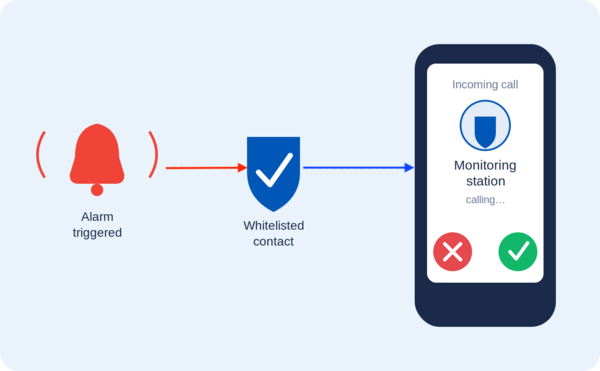
The good news is there's an easy fix. Whitelist your monitoring station's phone numbers (add them to your contacts or an "allowed" list) so they always get through, no matter what call screening tool you use.

How Call Screening Can Block Your Monitoring Station

Call screening comes in a few common forms, and most people use more than one at a time without realizing it.

  • Phone-based screening apps. Google's Call Screen feature (built into Pixel phones) can automatically answer unknown calls with an AI assistant, ask who's calling, and hang up on anything it flags as spam. Apple's Silence Unknown Callers feature works differently. It sends any call from a number that isn't already in your contacts, recent calls, or Siri suggestions straight to voicemail without ever ringing your phone.
  • Phone carrier services. Carriers like Verizon, AT&T, and T-Mobile all offer built-in spam protection, such as Verizon's Call Filter or T-Mobile's Scam Shield. These services label suspicious calls and can automatically send anything flagged as "spam" or "junk" to voicemail.
  • Third-party call-blocking apps. Apps like Truecaller, Hiya, and RoboKiller work similarly. They compare incoming numbers against huge spam databases and block or silence calls that they deem suspicious.

Every one of these tools works the same basic way. Numbers that aren't already saved to your contacts (or added to the app's own allow list) get treated with suspicion. Since your monitoring station's number probably isn't saved anywhere on your phone, it can easily get caught in the same net as spam calls.

How to Whitelist a Number

Whitelisting is simple, and it works across almost every call screening tool. Save the monitoring station's phone number (or numbers in the case of stations like CMS) as a contact on your phone. Most call screening apps and phone features automatically let contacts through without screening them.

If a carrier or third-party app has its own separate "allow" or "safe" list (Verizon's Call Filter does, for example), add the number or numbers there too. Check the settings menu of whatever call screening app or feature you use to see if this option is available.

Alarm Grid's Monitoring Station Numbers

If you're an Alarm Grid customer based in the United States, you're monitored by Criticom, aka CMS, save all five of these numbers as contacts. A CMS call could come from any of them, so no single number is enough on its own:

  • (800) 432-1429
  • (800) 631-2299
  • (714) 373-7000
  • (800) 468-4640
  • (800) 482-9800

If you're monitored by Rapid Response (Canadian customers), save this number:

  • (800) 932-3822

CMS sends all text message and automated notifications from the short code 60281. If your phone or messaging app filters unknown senders, add this short code to your contacts or allow list as well, so you don't miss those alerts either.

Saving these numbers only takes a minute, but it makes sure a screening app never stands between you and help. If you're an Alarm Grid customer and aren't sure which monitoring numbers apply to your account, contact our support team at support@alarmgrid.com and we'll help you sort it out. we're here Monday - Friday from 9:00 AM - 8:00 PM Eastern Time. You can also call us at 888-818-7728 or visit our website to chat with a live agent (9:00 AM - 6:00 PM Eastern Time).

Not signed up for monitoring yet? Alarm Grid offers central station monitoring with no contracts, no activation fees, and no termination fees. Check out our monitoring plans and protect your home or business today.

Tags: , , , , , , ,

Comments


Posted By

This Fourth of July marks 250 years since the signing of the Declaration of Independence. That's a pretty incredible milestone. From the whole Alarm Grid team, we want to wish you a happy Independence Day, and however you're spending the holiday, we hope you safelt enjoy every moment of it.

A quarter millennium of freedom, independence, and everything this country has built along the way. Whether you're watching fireworks, gathering with family, or just taking a well-earned day to relax, July 4th is a day to appreciate how far we've come and the people who made it possible. Happy 250th, America!

We're Observing Regular Business Hours

With July 4th falling on a Saturday this year, Alarm Grid is observing regular business hours today, Friday, July 3. Our team is available from 9:00 AM to 8:00 PM Eastern, so if you need help with your system, have a question about your account, or anything else, give us a call at (888) 818-7728 or email us at support@alarmgrid.com. We're happy to help.

Your Monitoring Never Takes a Holiday

As always, our 24/7 central station partners at Criticom Monitoring Services (CMS) and Rapid Response will remain fully staffed throughout the holiday weekend. Your system is monitored and signals are processed around the clock, so you can enjoy the long weekend knowing your home or business is protected.

If you need to contact the monitoring station to cancel a false alarm or put your system on test:

US customers: Call CMS at (888) 818-7728 and press Option 9. Have your name, address, and false alarm password ready.

Canadian customers: Call Rapid Response at (800) 932-3822 with your name, address, and false alarm password ready.

Please make sure to provide your correct false alarm password when you call. Giving the wrong password or your duress password will result in a dispatch of emergency services, as designed.

If You Need Technical Support Over the Weekend, Email Us

The monitoring station can only help with alarm related events and system tests. For technical support, programming questions, or account changes like zone names and contact lists, shoot us an email at support@alarmgrid.com. Our office will be closed Saturday and Sunday, but we'll be back Monday morning at 9:00 AM Eastern and will get to your request as quickly as we can. If it's urgent and you're an Alarm Grid customer, you can also reach us at (888) 818-7728 during regular business hours.

Have a safe and happy Fourth of July!

Tags: , , , , , ,

Comments


Posted By

UPDATE: This issue has been resolved as of 07/02/26. Once resolved, information about the issue was removed from Alarm.com notices, so we don't have an exact time of resolution.

Alarm.com has confirmed a technical issue affecting remote commands sent to LiftMaster and Chamberlain smart garage door devices. The issue began at midday on July 1, 2026. It may cause a delay when you try to open, close, or check the status of your garage door through Alarm.com. Some installers may also have trouble adding new LiftMaster or Chamberlain devices to a system until the issue is fixed.

If you didn't know, you can add a compatible LiftMaster or Chamberlain garage door to your Alarm.com account. We have an FAQ that walks through the integration on a Qolsys IQ Panel 2 Plus, but the setup is nearly the same for any panel that supports the feature.

Alarm.com is actively working on a fix and has not yet given an end time for the issue. No action is needed on your part. If you use a LiftMaster or Chamberlain garage door opener with your system, you may notice a delay before your commands go through until the issue is resolved.

We will update this post as soon as Alarm.com resolves the issue. In the meantime, if you have any questions, contact the Alarm Grid support team at support@alarmgrid.com or call us at 888-818-7728.

Tags: , , , , , ,

Comments


Posted By

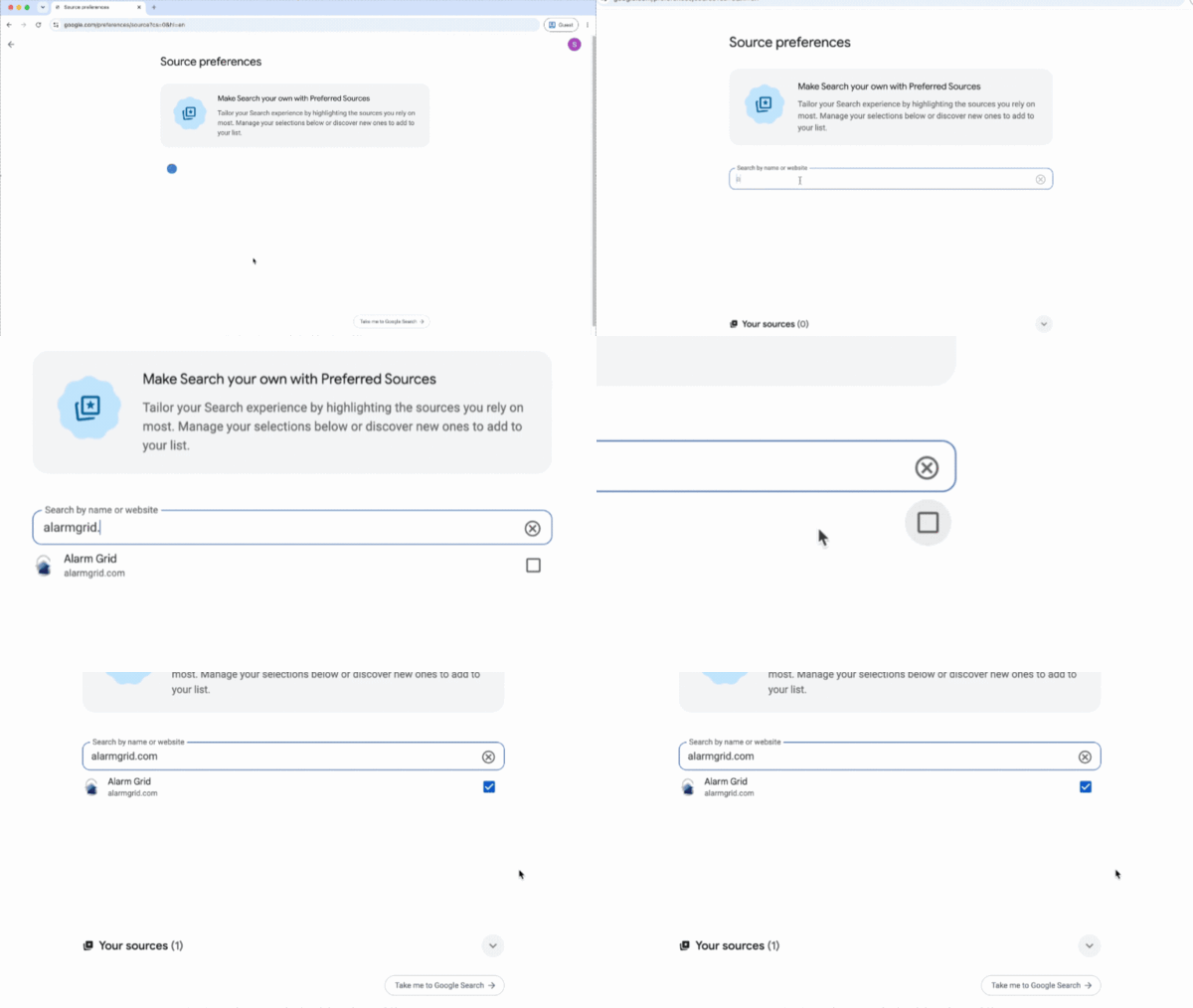
So, you typed a security question into Google and ended up on a forum from 2009 where "TechDad47" suggested you "just unplug it and plug it back in." Well, now there's a better way. Google has a feature called preferred sources. It lets you mark trusted sites so their results show up first.

What Are Preferred Sources and How Do They Work?

Preferred sources is a Google Search feature that lets you handpick up to three websites you trust. Once added, Google gives those sites priority placement in your results, sitting at or near the top with a small label identifying them as a source you follow.

It's not a filter and it's not a blocker. Other websites still show up. Google just puts your preferred sources toward the top so you find what you want faster. If your preferred source doesn't have content matching your search, Google returns normal results with no harm done. The setting lives in your Google account, so you can add it once on your laptop and it works on your phone, your tablet, even your smart fridge! Anywhere you're signed into your Google account it will work.


Here's How to Set It Up

Step 1: Open Google Search and head to Settings

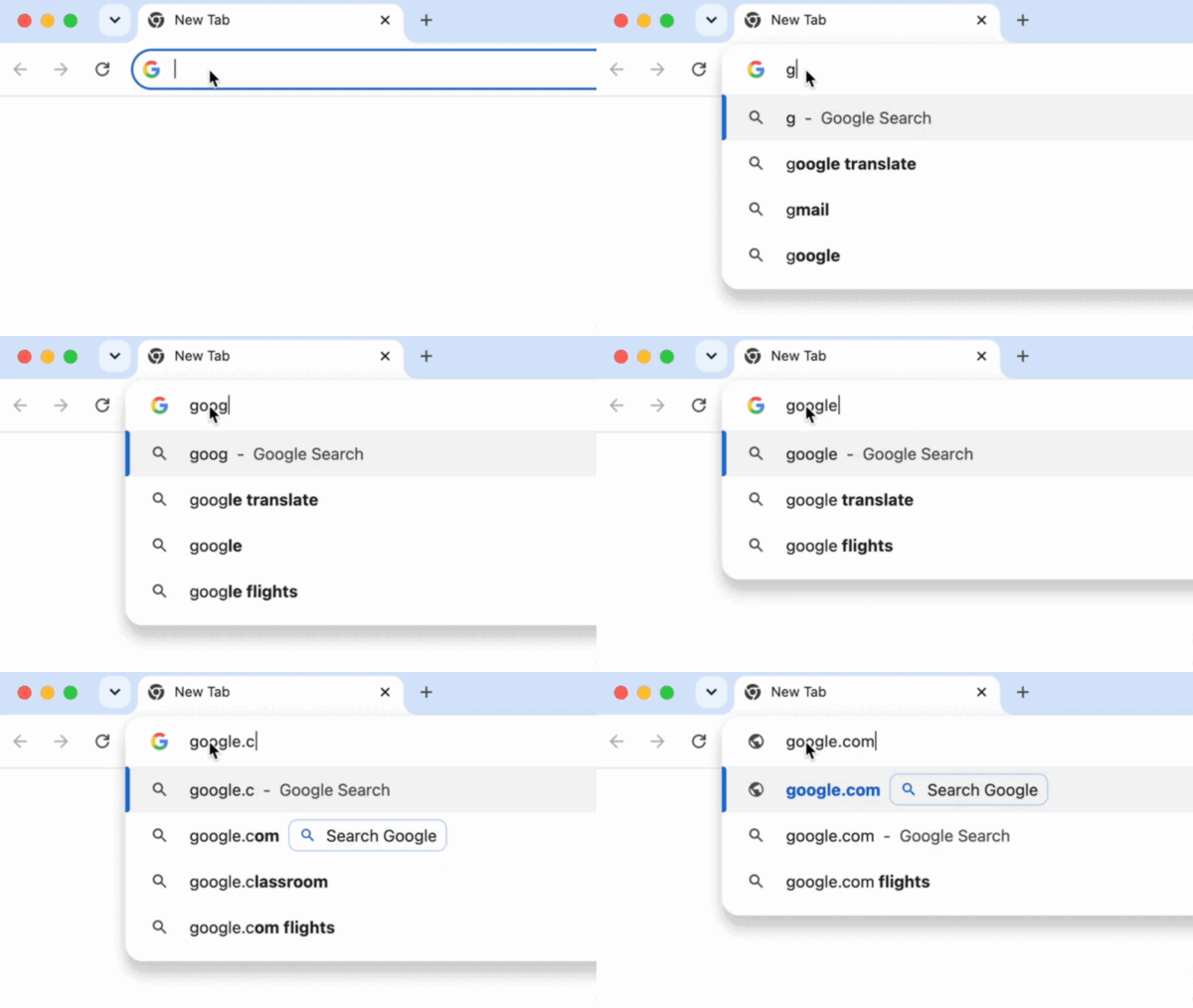
Head on over to Google.com in your browser.


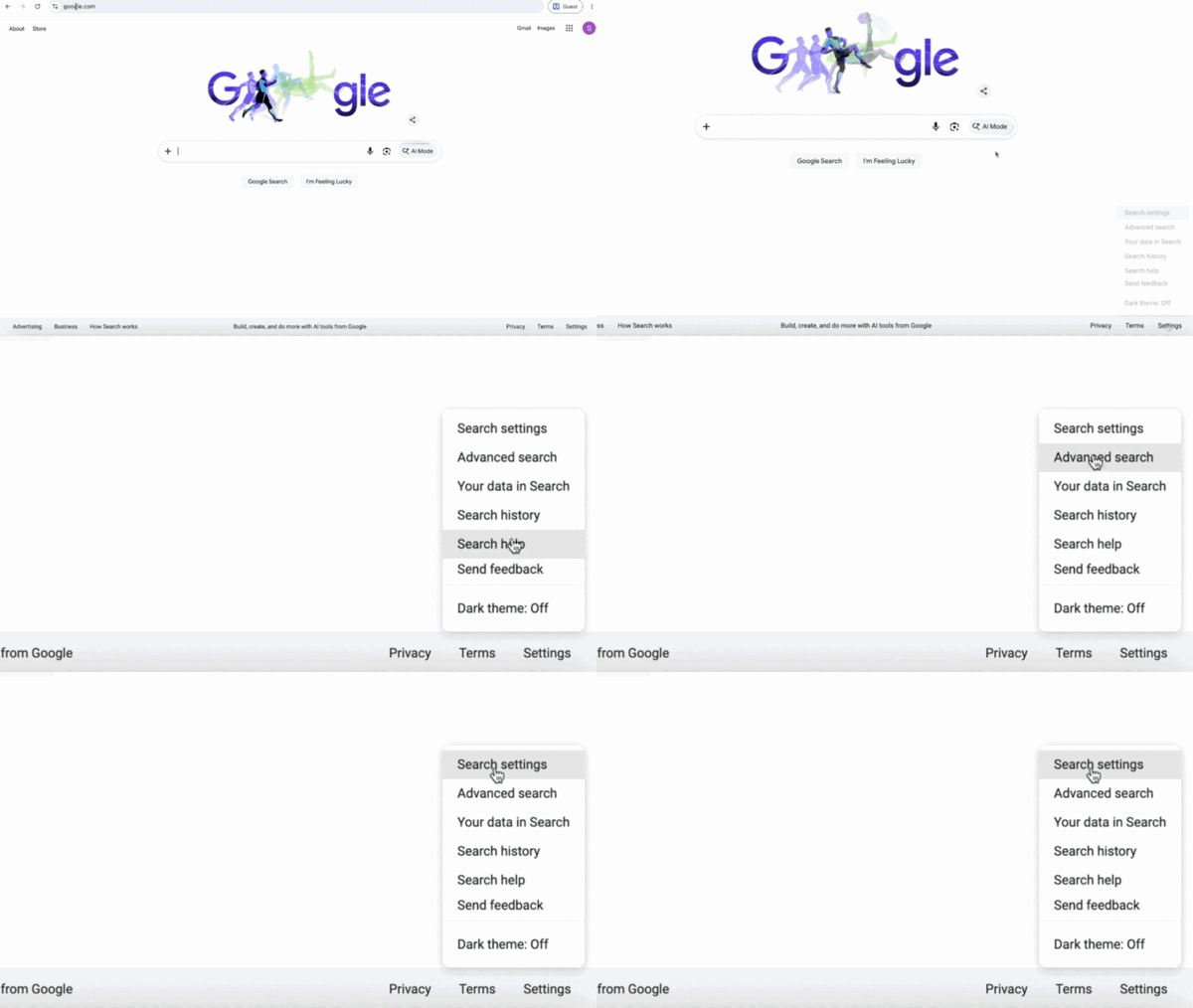
Then look for Settings at the bottom right of the page. Click it, then select Search settings from the popup menu.


Step 2: Find the "Search Personalization" section

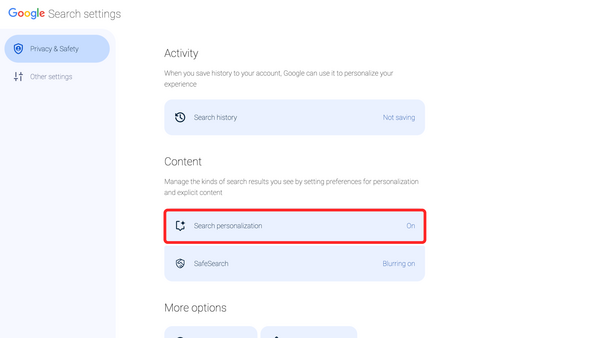
Once you're in Search Settings, scroll down until you spot the Search Personalization section.


Step 3: Click on the Source Preferences button,

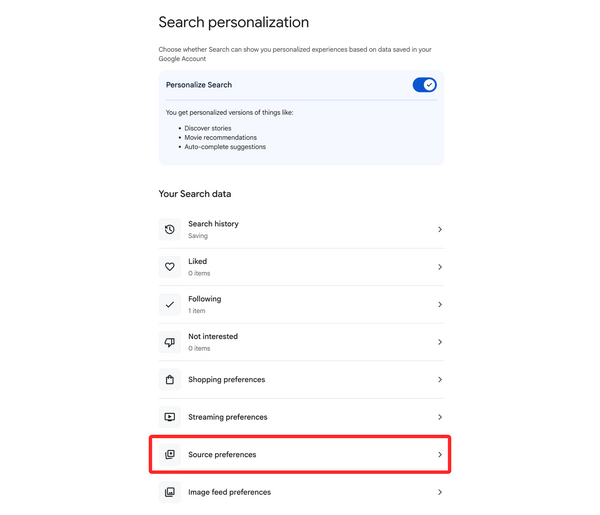
Now that you're in the Search personalization menu, scroll down until you see Source preferences and click on it. This will bring you to the Source preferences page.


Step 4: Add AlarmGrid as a preferred source


Click Add a source, then type in: alarmgrid.com

Click the checkbox next to alarmgrid.com to set it as a preferred source.

That's it. You just told Google, "Hey, I trust these people," and now when you Google search with a relevant question Alarm Grid will be prioritized.


That's all there is to it.

From here on out, when you search for anything security related: panel setup, sensor troubleshooting, z-wave devices, you name it, AlarmGrid results jump to the front of the line. No more TechDad47, no offense to him. Just real answers from people who actually know their way around a security system.


A couple of things worth knowing:

  • This setting is tied to your Google account, so it follows you across devices as long as you're signed in.
  • Google can still show results from other sites. This just moves AlarmGrid to the top of related results.
  • You can add up to three preferred sources total, so choose wisely. We're not saying pick us three times, but we're not not saying it.

Why AlarmGrid?

We've been writing detailed, no-fluff guides on home security systems for years. Our content is written by people who actually use and test this equipment, not scraped, not outsourced, not phoned in. If you want to browse what we've got, head to alarmgrid.com. There's a good chance we've already answered whatever you're about to Google.

If you need help or have questions about anything Alarm related, our support team is here Monday - Friday from 9:00 AM - 8:00 PM Eastern. You can contact us at 888-818-7728 or by emailing support@alarmgrid.com.

Tags: , , , , , , , ,

Comments


Posted By

Replacing a First Alert PROA7 or PROA7PLUS panel sounds simple enough. Alarm dealers perform replacements daily using AlarmNet360 (AN360), and when the recommended process is followed, everything works fine. But for a DIYer with no AN360 access, the proper order of things may not be clear.

DIY users often run into a unique problem. While in the process of replacing their existing PROA7 or PROA7PLUS, they also decide to add to the system and purchase new PROSIX sensors for that purpose. The hood's already up, might as well give it a tune up, right?

We've seen customers receive their replacement panel and immediately begin adding new sensors before performing the actual panel swap. We get it, new sensors are exciting! But please curb your enthusiasm until you've worked with one of our support agents to move all existing PROSIX sensors from the old panel to the new one. Otherwise, you may lose either your original PROSIX sensors or the new ones you've already added.

Why This Happens

Unlike older wireless sensors, PROSIX devices become permanently paired, or “married,” to a specific alarm panel during enrollment.

Once a PROSIX sensor is learned into a system, it cannot simply be moved to another panel later unless it is properly released from the original system first.

That means if you:

  • Power up a replacement PROA7 or PROA7PLUS
  • Enroll new PROSIX sensors into it
  • Then later perform a panel replacement in AN360

...you may unintentionally overwrite sensor programming during the restore process.

This can go wrong in any number of ways, but the end result of not following the proper steps is that you lose sensor programming, and the affected sensors may not be recoverable. Once a PROSIX sensor has been paired with a system and powered on for 24 hours or more, it can no longer be factory defaulted. So a sensor in this position, paired with a system that no longer exists with no possibility of being factory defaulted, is a sensor that must be replaced.

But the Panel Does Exist!

Yes...and no. When a PRO Series panel is registered and communicating properly with AlarmNet360, the panel and server stay in constant sync. If programming changes, AN360 updates the panel "image" stored on the server. During a panel replacement, this saved image is transferred to the new PROA7 or PROA7PLUS.

If you get a new panel and begin programming it with new PROSIX sensors, you're creating a new and separate image. One that isn't synced with AN360. When the panel pairs with a PROSIX sensor, it chooses a channel for communication. You may be familiar with this process from older 2.4 GHz WIFI networks. The panel makes its choice based on the least noisy channel at the time of sensor programming. This information becomes part of the new image.

If that channel later becomes noisy, the panel can switch to a cleaner channel and notify all enrolled PROSIX sensors to follow it. If a sensor misses that message, it may remain stuck trying to communicate on the old channel. For more information on PROSIX wireless best practices, check out this FAQ.

The proper channel setting, the encryption key for each PROSIX sensor, and all other panel programming are stored in AN360 as part of the original panel's "image". When you initiate a panel replacement, you're telling AN360 to send the most recent image taken from the old panel to the new one. By necessity, this process replaces the new panel image you began creating when you started adding PROSIX sensors to the new panel prior to the swap. There is no way to merge these two images together.

If the replacement succeeds, the new panel becomes an exact copy of the last synced version of the old panel. That's the intended result. However, if you enrolled new PROSIX sensors into the replacement panel beforehand, those sensors will be overwritten during the replacement process. If they were powered on and paired for more than 24 hours prior to this, they cannot be factory defaulted and will have to be replaced.

The Most Important Rule

If you are replacing a PROA7 or PROA7PLUS system: DO NOT power up or enroll any new PROSIX sensors before the panel replacement is fully completed.

This includes:

Leave any new sensors in the box until the replacement process is completely finished.

The Correct Way to Replace a PROA7 or PROA7PLUS

Follow these steps to avoid losing sensors or corrupting system programming:

  1. Don't power on the new panel. Leave the new panel powered completely down until you are ready to physically replace the old one. Don't perform any programming on the new panel. If you have gotten to this point and you realize you've made the mistake of powering on the new panel and adding PROSIX Sensors, you should factory reset the new panel, then once all PROSIX sensors have received the reset command, power the panel down completely. You can tell a PROSIX sensor has been released if you open or fault the sensor and the LED begins blinking rapidly. If it's going to be hours or days before you can complete the replacement through AN360, remove the batteries from the new PROSIX sensors to conserve power.
  2. If you happen to be replacing your existing panel with a used PROA7 or PROA7PLUS, be sure the "new" panel has the latest firmware. This ensures compatibility with all sensors. After updating, be sure to perform a factory reset before continuing. To do this, the panel will need to be powered on. As long as you complete these steps, then power back down before the swap is initiated in AN360, you're good. You'll need to work with your alarm dealer to arrange the firmware update, if one is needed.

  3. Verify the programming. At this stage, you may want to verify that the "image" of the old panel in AN360 matches the actual programming in the old panel as closely as possible. You'll need to work with your alarm dealer to do this, as end users don't have access to AN360. If the old panel is completely dead, just do your best to complete this step.
  4. Perform the panel replacement in AlarmNet360. Provide the MAC and MAC CRC from the new panel to your alarm dealer. They can now initiate the panel replacement process in AlarmNet360. If you plan to reuse the cellular module, PROWIFIZW*, or any other modules from the existing panel, power it down, remove those modules, and NEVER POWER THAT PANEL ON AGAIN WITHIN RANGE OF THE SENSORS unless your alarm dealer tells you to do so.
  5. *When replacing a PRO Series panel paired with Z-Wave devices, AN360 can bring those devices to the new panel, preventing you from having to exclude and then include them again. However, this is only possible when the PROWIFIZW module from the old panel is moved to the new one.

  6. Allow the replacement process to finish completely. After the replacement has been initiated in AN360, you should:
    • Power up the new PROA7 or PROA7PLUS.
    • Tap the Setup button for WIFI > choose your SSID > enter your password > Save > Connect.
    • Once connected to WIFI, tap Next, then tap Register.
    • Let the new panel fully sync with AlarmNet360. As it goes through the process of adding the existing PROSIX sensors, the panel will chime for each sensor.
    Do not interrupt this process. Depending on signal strength and the number of enrolled sensors, synchronization may take several minutes to complete. Be sure your alarm dealer also knows not to access the account in AN360 until the replacement process has fully finished.
  7. Confirm all existing sensors restored properly. Tap the hamburger menu icon (☰) at the bottom center of the Home screen, then tap Sensors. You should see a list of all enrolled sensors. Verify that the sensor names are correct. To the right of each sensor name, the panel will display the signal strength and battery status of the sensor. Initially, these fields may appear blank. As the panel completes synchronization with the sensors, the signal and battery indicators will gradually populate. The replacement process is not complete until every sensor shows both a valid signal strength and an accurate battery level.
  8. If the old panel was completely dead, or otherwise unable to communicate with the PROSIX sensors for an extended period of time, some sensors may show a low battery condition sooner than expected. PROSIX sensors continuously attempt to check in with the panel. If the panel does not respond, the sensors continue trying repeatedly, which can prematurely drain their batteries. If you suspect that an existing PROSIX sensor may have a dead battery, replace the batteries in the device and make sure it communicates fully with the panel before you enter panel programming.

  9. Add new PROSIX sensors. Only after completing the previous steps should you begin enrolling any newly purchased sensors. Once you have verified that all programming has been synced from AN360 to the new panel, you can add additional sensors and make any other necessary changes.

Final Thoughts

We understand why DIY users try to prepare the new panel ahead of time. It feels like the faster and more organized approach. Unfortunately, with PROA7 and PROA7PLUS systems using PROSIX sensors, doing this can actually create major problems during the replacement process.

The safest approach is simple:

  • Keep the replacement panel powered off.
  • Leave all new PROSIX sensors unopened and unpowered.
  • Work with your alarm dealer to complete the AlarmNet360 replacement first.
  • Verify old sensors restored correctly.
  • Finally, add any new devices and test for proper operation.

Following the proper order prevents lost programming, sensor lockouts, and hours of unnecessary troubleshooting. Alarm Grid customers who need to perform a PROA7, PROA7PLUS, or even VISTAH3 replacement with existing PROSIX sensors should contact support prior to taking any action on the replacement. Our support team is here Monday - Friday from 9:00 AM - 8:00 PM Eastern. You can contact us at 888-818-7728 or by emailing support@alarmgrid.com.

Tags: , , , , , , , , , , , , , , , , , , , , , ,

Comments