First Alert PROA7 Posts

Posted By

Replacing a First Alert PROA7 or PROA7PLUS panel sounds simple enough. Alarm dealers perform replacements daily using AlarmNet360 (AN360), and when the recommended process is followed, everything works fine. But for a DIYer with no AN360 access, the proper order of things may not be clear.

DIY users often run into a unique problem. While in the process of replacing their existing PROA7 or PROA7PLUS, they also decide to add to the system and purchase new PROSIX sensors for that purpose. The hood's already up, might as well give it a tune up, right?

We've seen customers receive their replacement panel and immediately begin adding new sensors before performing the actual panel swap. We get it, new sensors are exciting! But please curb your enthusiasm until you've worked with one of our support agents to move all existing PROSIX sensors from the old panel to the new one. Otherwise, you may lose either your original PROSIX sensors or the new ones you've already added.

Why This Happens

Unlike older wireless sensors, PROSIX devices become permanently paired, or “married,” to a specific alarm panel during enrollment.

Once a PROSIX sensor is learned into a system, it cannot simply be moved to another panel later unless it is properly released from the original system first.

That means if you:

  • Power up a replacement PROA7 or PROA7PLUS
  • Enroll new PROSIX sensors into it
  • Then later perform a panel replacement in AN360

...you may unintentionally overwrite sensor programming during the restore process.

This can go wrong in any number of ways, but the end result of not following the proper steps is that you lose sensor programming, and the affected sensors may not be recoverable. Once a PROSIX sensor has been paired with a system and powered on for 24 hours or more, it can no longer be factory defaulted. So a sensor in this position, paired with a system that no longer exists with no possibility of being factory defaulted, is a sensor that must be replaced.

But the Panel Does Exist!

Yes...and no. When a PRO Series panel is registered and communicating properly with AlarmNet360, the panel and server stay in constant sync. If programming changes, AN360 updates the panel "image" stored on the server. During a panel replacement, this saved image is transferred to the new PROA7 or PROA7PLUS.

If you get a new panel and begin programming it with new PROSIX sensors, you're creating a new and separate image. One that isn't synced with AN360. When the panel pairs with a PROSIX sensor, it chooses a channel for communication. You may be familiar with this process from older 2.4 GHz WIFI networks. The panel makes its choice based on the least noisy channel at the time of sensor programming. This information becomes part of the new image.

If that channel later becomes noisy, the panel can switch to a cleaner channel and notify all enrolled PROSIX sensors to follow it. If a sensor misses that message, it may remain stuck trying to communicate on the old channel. For more information on PROSIX wireless best practices, check out this FAQ.

The proper channel setting, the encryption key for each PROSIX sensor, and all other panel programming are stored in AN360 as part of the original panel's "image". When you initiate a panel replacement, you're telling AN360 to send the most recent image taken from the old panel to the new one. By necessity, this process replaces the new panel image you began creating when you started adding PROSIX sensors to the new panel prior to the swap. There is no way to merge these two images together.

If the replacement succeeds, the new panel becomes an exact copy of the last synced version of the old panel. That's the intended result. However, if you enrolled new PROSIX sensors into the replacement panel beforehand, those sensors will be overwritten during the replacement process. If they were powered on and paired for more than 24 hours prior to this, they cannot be factory defaulted and will have to be replaced.

The Most Important Rule

If you are replacing a PROA7 or PROA7PLUS system: DO NOT power up or enroll any new PROSIX sensors before the panel replacement is fully completed.

This includes:

Leave any new sensors in the box until the replacement process is completely finished.

The Correct Way to Replace a PROA7 or PROA7PLUS

Follow these steps to avoid losing sensors or corrupting system programming:

  1. Don't power on the new panel. Leave the new panel powered completely down until you are ready to physically replace the old one. Don't perform any programming on the new panel. If you have gotten to this point and you realize you've made the mistake of powering on the new panel and adding PROSIX Sensors, you should factory reset the new panel, then once all PROSIX sensors have received the reset command, power the panel down completely. You can tell a PROSIX sensor has been released if you open or fault the sensor and the LED begins blinking rapidly. If it's going to be hours or days before you can complete the replacement through AN360, remove the batteries from the new PROSIX sensors to conserve power.
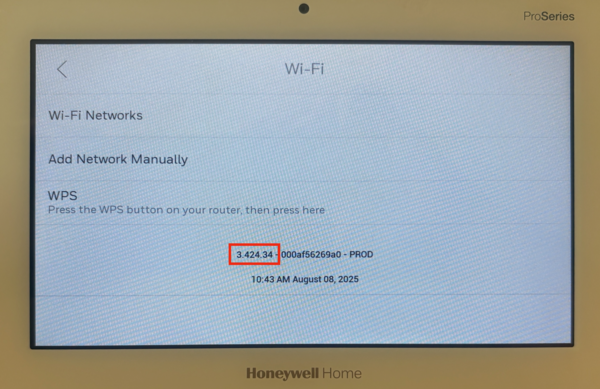
  2. If you happen to be replacing your existing panel with a used PROA7 or PROA7PLUS, be sure the "new" panel has the latest firmware. This ensures compatibility with all sensors. After updating, be sure to perform a factory reset before continuing. To do this, the panel will need to be powered on. As long as you complete these steps, then power back down before the swap is initiated in AN360, you're good. You'll need to work with your alarm dealer to arrange the firmware update, if one is needed.

  3. Verify the programming. At this stage, you may want to verify that the "image" of the old panel in AN360 matches the actual programming in the old panel as closely as possible. You'll need to work with your alarm dealer to do this, as end users don't have access to AN360. If the old panel is completely dead, just do your best to complete this step.
  4. Perform the panel replacement in AlarmNet360. Provide the MAC and MAC CRC from the new panel to your alarm dealer. They can now initiate the panel replacement process in AlarmNet360. If you plan to reuse the cellular module, PROWIFIZW*, or any other modules from the existing panel, power it down, remove those modules, and NEVER POWER THAT PANEL ON AGAIN WITHIN RANGE OF THE SENSORS unless your alarm dealer tells you to do so.
  5. *When replacing a PRO Series panel paired with Z-Wave devices, AN360 can bring those devices to the new panel, preventing you from having to exclude and then include them again. However, this is only possible when the PROWIFIZW module from the old panel is moved to the new one.

  6. Allow the replacement process to finish completely. After the replacement has been initiated in AN360, you should:
    • Power up the new PROA7 or PROA7PLUS.
    • Tap the Setup button for WIFI > choose your SSID > enter your password > Save > Connect.
    • Once connected to WIFI, tap Next, then tap Register.
    • Let the new panel fully sync with AlarmNet360. As it goes through the process of adding the existing PROSIX sensors, the panel will chime for each sensor.
    Do not interrupt this process. Depending on signal strength and the number of enrolled sensors, synchronization may take several minutes to complete. Be sure your alarm dealer also knows not to access the account in AN360 until the replacement process has fully finished.
  7. Confirm all existing sensors restored properly. Tap the hamburger menu icon (☰) at the bottom center of the Home screen, then tap Sensors. You should see a list of all enrolled sensors. Verify that the sensor names are correct. To the right of each sensor name, the panel will display the signal strength and battery status of the sensor. Initially, these fields may appear blank. As the panel completes synchronization with the sensors, the signal and battery indicators will gradually populate. The replacement process is not complete until every sensor shows both a valid signal strength and an accurate battery level.
  8. If the old panel was completely dead, or otherwise unable to communicate with the PROSIX sensors for an extended period of time, some sensors may show a low battery condition sooner than expected. PROSIX sensors continuously attempt to check in with the panel. If the panel does not respond, the sensors continue trying repeatedly, which can prematurely drain their batteries. If you suspect that an existing PROSIX sensor may have a dead battery, replace the batteries in the device and make sure it communicates fully with the panel before you enter panel programming.

  9. Add new PROSIX sensors. Only after completing the previous steps should you begin enrolling any newly purchased sensors. Once you have verified that all programming has been synced from AN360 to the new panel, you can add additional sensors and make any other necessary changes.

Final Thoughts

We understand why DIY users try to prepare the new panel ahead of time. It feels like the faster and more organized approach. Unfortunately, with PROA7 and PROA7PLUS systems using PROSIX sensors, doing this can actually create major problems during the replacement process.

The safest approach is simple:

  • Keep the replacement panel powered off.
  • Leave all new PROSIX sensors unopened and unpowered.
  • Work with your alarm dealer to complete the AlarmNet360 replacement first.
  • Verify old sensors restored correctly.
  • Finally, add any new devices and test for proper operation.

Following the proper order prevents lost programming, sensor lockouts, and hours of unnecessary troubleshooting. Alarm Grid customers who need to perform a PROA7, PROA7PLUS, or even VISTAH3 replacement with existing PROSIX sensors should contact support prior to taking any action on the replacement. Our support team is here Monday - Friday from 9:00 AM - 8:00 PM Eastern. You can contact us at 888-818-7728 or by emailing support@alarmgrid.com.

Tags: , , , , , , , , , , , , , , , , , , , , , ,

Comments


Posted By

Resideo recently released a new firmware version for its PRO Series. Firmware 03.2476.204 is now available for PROA7 and PROA7PLUS panels, improving touchscreen response, clarifying the disarm process, and restoring PROSIX signal strength display. Learn more in the official Resideo notice.

Silent Alarm Button Renamed to Police Alarm (Silent)

This is the most important change in the update and it applies to all PRO Series models. In previous versions, during an active alarm, some users were pressing the Panic icon and then pressing the Silent Alarm button to silence the alarm. In reality, what they were doing was sending a silent panic signal, telling central station dispatchers to send the police immediately.

Doing this did silence the alarm, but without warning, police officers were being sent to the address. To make the function clearer, Resideo has renamed the button to POLICE ALARM (SILENT) and provided the instructions to enter a PIN in bold. The behavior is unchanged. But the new description makes it obvious that pressing this button calls the police, and that entering your user code is the correct way to silence an alarm.


Before (left) and after (right) — the Silent Alarm button is now labeled Police Alarm (Silent)

Touchscreen Sensitivity Fix

The touchscreen fix applies specifically to PROA7-FA and PROA7PLUS-FA panels. A small number of these units have experienced inaccuracy or lag when using the touchscreen, and the new firmware adjusts the sensitivity to resolve it. If your panel has felt sluggish or inconsistent to the touch, this update should take care of it. Standard PROA7 and PROA7PLUS models are not affected by this issue, though they can still receive the update.

RFSIX (PROSIX) Signal Strength Display Fix

PROSIX sensors paired with a PRO Series panel show their signal strength, making it easy to confirm they’re communicating properly and to troubleshoot any supervision issues. The display updates daily at 1:00 AM local time, or within about two minutes after using walk test mode.

The third fix addresses an issue that affected some PROA7-FA panels updated to firmware versions 03.2476.174 or 03.2476.183 in August 2025. On those systems, the RFSIX signal strength bar graph could disappear from the screen after the update. This new firmware brings that display back for affected panels. PROA7PLUS-FA and earlier ProSeries models aren’t impacted and don’t require any action. However, it is always recommended to keep your system updated to the latest firmware.

How to Get the Update

The firmware is now available through the AlarmNet360 portal. Alarm dealers can push it remotely to installed panels, or apply it during a new installation if the panel in the box is on an older version. Before the update can be pushed, the panel should:

  • Be disarmed.
  • Be connected to WIFI.
  • Be free of alarm memory.
  • Not have an AC loss condition.
  • Not be actively reporting.
  • Not be in walk test or programming mode.

New PROA7-FA and PROA7PLUS-FA units are already being shipped with 03.2476.204 pre-installed, though it may take a few weeks for all distributor inventory to cycle through. The firmware revision is printed on a label on the side of the box if you want to verify the version before opening a unit.

For help with your PRO Series system, the Alarm Grid support team is available Monday through Friday from 9:00 AM - 8:00 PM Eastern Time. Email us at support@alarmgrid.com, call us at 888-818-7728, or chat with us on our website. Live chat agents are available from 9:00 AM - 6:00 PM Eastern.

Tags: , , , , , , , , , , , , , ,

Comments


Posted By

Z-Wave has come a long way since its introduction in the early 2000s. From the original standard to Z-Wave Plus and Z-Wave Plus V2, each generation brings meaningful improvements to range, battery life, and performance. Now, Z-Wave 800-Series represents the most significant leap forward yet.

The Evolution of Z-Wave

To understand what makes the 800-Series special, it helps to look at how Z-Wave has evolved over the years.

The original Z-Wave protocol established the foundation for mesh networking in home automation, allowing devices to communicate with each other and extend the network's reach. Z-Wave Plus (500-Series) arrived around 2013 and brought improvements including 50% better range, 250% longer battery life, and faster processing speeds compared to the original standard.

Z-Wave Plus V2 (700-Series), released in 2018, pushed the boundaries further with additional range improvements, enhanced security through S2 encryption, and SmartStart functionality that simplified device pairing. The 700-Series became the go-to choice for premium smart home devices and earned a reputation for reliability and efficiency.

What Makes Z-Wave 800-Series Different

The Z-Wave 800-Series, built on Silicon Labs' latest chipset technology, takes everything that worked well in previous generations and improves upon it significantly. Here's what sets it apart:

Extended Range

The 800-Series delivers up to 1.5 miles of range in open air with Z-Wave Long Range (ZWLR) mode. While real-world performance in homes will vary based on walls, interference, and building materials, this represents a massive improvement over previous generations. For large homes, outbuildings, or properties with detached garages, this extended range can eliminate the need for additional repeaters.

Faster Communication

With improved RF performance and optimized protocols, 800-Series devices communicate more efficiently. Commands execute faster, and the mesh network responds more quickly to changes. This translates to snappier control when you're turning on lights, locking doors, or adjusting thermostats.

Better Battery Life

Battery-powered devices like door sensors, motion detectors, and smart locks benefit from the 800-Series' improved power efficiency. Manufacturers report battery life improvements that can extend the time between battery changes by months or even years in some applications.

Enhanced Security

Building on the S2 security framework introduced with Z-Wave Plus V2, the 800-Series includes hardware-level security features that make it even more resistant to tampering and unauthorized access. All Z-Wave 800 devices support S2 authentication out of the box, ensuring encrypted communication throughout your smart home network.

Backward Compatibility

One of Z-Wave's greatest strengths has always been backward compatibility, and the 800-Series continues this tradition. Your existing Z-Wave and Z-Wave Plus devices will work with 800-Series controllers and hubs. This means you can upgrade your system gradually without replacing every device at once.

Z-Wave Long Range Support

Perhaps the most exciting addition is native support for Z-Wave Long Range (ZWLR). This new mode allows point-to-point communication over much greater distances than traditional mesh networking. While standard Z-Wave mesh mode remains available for dense installations, ZWLR opens new possibilities for properties where devices are spread across larger areas.

Security Panels That Support Advanced Z-Wave Features

If you're looking to build a smart home system around a modern security panel, several options from Alarm Grid support Z-Wave for home automation control. These panels integrate security monitoring with Z-Wave device management, allowing you to control locks, lights, thermostats, and other smart devices from a single interface.

IQ Panel 4

The IQ Panel 4 represents IQ's (formerly Qolsys) latest generation of touchscreen security panels. It features built-in Z-Wave support for home automation along with PowerG sensor compatibility for long-range wireless security. The panel's 7" HD touchscreen makes it easy to manage both security and smart home functions from one central location. The IQ Panel 4 must be on version 4.4.0+ to support Z-Wave Long Range.

The IQ Panel 4 is available in multiple configurations:

2GIG Edge

The 2GIG Edge is a sleek, modern security panel that combines a compact design with powerful features. It includes Z-Wave support for home automation devices and offers advanced capabilities like facial recognition for touchless disarming. In order to support Z-Wave Long Range, the panel must be on firmware version 3.1.3.011+.

Available versions include:

Honeywell Home ProSeries PROA7PLUS

The First Alert PROA7 and PROA7PLUS are professional-grade security panels with optional Z-Wave support. Out of the box, they support ProSeries encrypted wireless sensors. With the addition of a PROTAKEOVER module, they can also support many legacy wireless sensors, and when you install the PROWIFIZW module, the system adds WIFI connectivity and support for Z-Wave home automation devices. When paired with Total Connect 2.0, you can arm, disarm, and control compatible devices remotely through the app.

At this time, the PROWIFIZW does not take full advantage of everything Z-Wave 800-Series offers, including Z-Wave Long Range. Thanks to Z-Wave’s backward compatibility, 800-Series devices will still work, but they’ll behave more like 700-Series devices when used with this controller. You still get solid Z-Wave performance today, and if Resideo updates the platform in the future, these newer devices should be well-positioned to benefit.

Options include:

2GIG GC Touch

The 2GIG GC Touch is another excellent option that combines security and smart home control. With its 7" high-resolution display and Z-Wave gateway functionality, the GC Touch provides a comprehensive solution that includes home security, home automation, energy management, and emergency monitoring.

Available in:

Compatible Z-Wave Devices

When building out your Z-Wave network, you'll find a wide variety of compatible devices available. Popular categories include:

Smart Locks – Z-Wave deadbolts and lever locks from manufacturers like Yale, Schlage, and Kwikset allow you to lock and unlock doors remotely, create temporary access codes, and receive notifications when doors are locked or unlocked.

Smart Lighting – In-wall switches, dimmers, and plug-in modules let you control lighting throughout your home. Many users create scenes that turn on lights when the system disarms or turn off all lights when arming at night.

Thermostats – Z-Wave thermostats like the Honeywell T6 Pro integrate with your security system to provide energy savings. You can automatically adjust temperatures based on whether the system is armed or disarmed.

Garage Door Controllers – Z-Wave garage door controllers let you open, close, and monitor your garage door status from anywhere. Get alerts if the garage door is left open or automatically close it when arming your system.

Water Valves – Smart water valves can automatically shut off your main water supply if a leak is detected, helping prevent costly water damage. This is a perfect example of how automation, working in conjunction with an alarm system, can save you money and prevent messy cleanup.

Making the Switch to Z-Wave 800

If you're starting fresh with a new smart home installation, choosing Z-Wave 800-Series devices whenever possible makes sense. You'll get the best performance, longest battery life, and most advanced security features available.

For those with existing Z-Wave networks, there's no need to rush out and replace everything. Backward compatibility means your current devices will continue to work as you gradually add 800-Series products. Over time, as you replace older devices, your network will naturally evolve to take advantage of the latest technology.

When shopping for Z-Wave devices, look for the Z-Wave 800 or "800-Series" designation on product packaging and specifications. As more manufacturers release 800-Series products, the selection continues to grow across all device categories.

Getting Started

Whether you're building a new smart home from scratch or expanding an existing system, Z-Wave 800-Series technology provides a reliable, secure, and responsive foundation for home automation.

Ready to see what Z-Wave can do for your home? Browse our selection of Z-Wave compatible products and security systems that support home automation. If you’re not sure which panel or devices are right for your situation, our support team is happy to help.

You can call us at 888-818-7728 during our support hours of 9:00 AM – 8:00 PM Eastern Time, Monday – Friday, or send an email to support@alarmgrid.com.

Tags: , , , , , , , , , , , , , , , , , , , , , , , , , , ,

Comments


Posted By

Resideo recently announced that its VISTA and PRO Series panels are now fully certified to integrate with Control4 whole-home automation. Control4 is a premium automation platform, typically available only through authorized Control4 integrators, and it operates by using specialized drivers

Control4 drivers act as the essential software that enables communication between the Control4 automation system and various third-party devices. A certified Control4 driver allows for seamless integration and centralized control of different smart home products through the Control4 interface. The interface can be a touchscreen, an app, or even voice commands. For homeowners and installers, this means a unified experience where security, lighting, entertainment, and more can be managed from a single platform.

For homeowners, the benefits are clear. A certified integration allows the Resideo First Alert panel to do more than just secure the home, it becomes part of a larger ecosystem. Using Control4, you can arm the alarm system at night while having the doors lock automatically, the thermostat adjust to an energy-saving setting, and the lights dim across the house. That’s the type of seamless, one-touch automation that Control4 is known for, now enhanced with the proven reliability of a Resideo First Alert security system.

For dealers and installers, certification reduces guesswork and support headaches. Instead of relying on custom workarounds, they can now use official drivers that are tested and verified. This not only speeds up installation but also builds dealer confidence, by knowing their installations are backed by two major industry players working together.

The move also positions Resideo strongly in the high-end automation space. By joining the ranks of other security systems officially supported by Control4, VISTA and PRO Series panels are now a more compelling option for projects where premium automation is a requirement. It’s a win for integrators looking to expand their offerings, and a win for homeowners looking to unite all of their tech through a single interface.

VISTA panels use the 4232CBM Connected Building Module to integrate with Control4. The module connects the VISTA panel's ECP bus to the Control4 system through a wired serial RS232 or RS422 interface. This setup allows the Control4 driver to import zone alpha descriptors directly from the VISTA panel, which eliminates the need for manual programming of zone data within Control4. As a result, users can arm, disarm, and monitor the status of zones directly through the Control4 interface. Check out the 4232CBM Install Guide.

Another plus that shouldn't be overlooked is the fact that Control4 will import life-safety zones and descriptors. This allows an integrator to create automations based on fire or carbon monoxide zone triggers. For example, in the event of a fire alarm the system might automatically turn off the HVAC system and unlock the doors while turning on lights that illuminate a path out of the building.

Control4 and First Alert PRO Series Integration

You can find the steps for integrating the PRO Series panels with Control4 here. Here's a quick overview of what you'll need:

Before You Begin:

  • Control4 OS 4.1.0+ and Composer Pro Software.
  • PRO Series Firmware 03.2476.183+
  • PRO Series panel must have a PROWIFI or PROWIFIZW installed.
  • PRO Series panel should have all its partitions and zones configured before pairing with Control4, though you can add or remove zones after initial configuration.
  • Your alarm dealer must enable the Control4 feature through AlarmNet360. This is done as part of the Smart Home package (Packages > Smart Home > Add-Ons > Control4).
  • The Control4 system and the PRO Series panel must be connected to the same network through the same router.

After configuration with Control4’s Simple Service Discovery Protocol (SDDP), the PRO Series panel must always use the same IP address. SDDP is a lightweight protocol created by Control4 that lets WIFI enabled devices announce themselves on the network, making it easy for Control4 to find and identify them.

If the panel’s IP address changes, it will disconnect from Control4. Because setting a static IP directly on the alarm panel can be tricky, the better option is to reserve an IP address for the PRO Series panel in your router’s DHCP settings. Check your router’s documentation for instructions on how to set this up. Below is a list of names for this feature, and which manufacturers use each term:

  • DHCP Reservation – Netgear, ASUS, TP-Link (most common term)
  • Address Reservation – D-Link
  • IP Reservation – Linksys, Spectrum, Xfinity
  • Reserved IP Address – Some ISP-provided routers (AT&T, Verizon)

Basic Steps For Setup:

  1. Initiate discovery. From Control4 Composer Pro, initiate discovery (System Design > Items > Discovered).
  2. Create association. Double click on the PRO Series driver that you discovered in Step 1. If Composer Pro fails to discover the driver, make sure that all the prerequisites listed above have been met. Once the driver has been discovered and you double click, the driver is downloaded to your Control4 system. The panel's IP and other required information is sent to Composer Pro. The driver and the IP address can then be associated with one another within Composer Pro.
  3. Perform pairing. Within Composer Pro, click Actions > Start Pairing. You have 120 seconds to complete the next step. If two minutes elapse without a successful pairing, the process will timeout and you'll need to perform this step again.
  4. Pair PRO Series panel. On the PRO Series panel, tap Menu (≡) > Tools > Enter Installer Code (4112 by default) > Control4 Controller > Pair to Control4 Controller. When Composer Pro receives the pairing command, it will know, based on the panel's IP address, to associate the PRO Series driver with the panel and complete the pairing process. If the pairing is successful, the Control4 Controller information will automatically populate. If pairing fails this field will remain blank. In that case, verify that all of the requirements in "Before You Begin" have been met, and try again.

Complete Integration:

  1. Verify partition import. In Composer Pro select Properties. Partition information will be displayed here as the information is imported. Upon successful import, the partition state will update from "Unknown" to the current state. This process may take a minute, so please be patient. Verify that all partitions, along with proper status, are displayed in the left pane.
  2. Import and verify zone information. From Advanced Properties within Composer Pro select Get C4 Contacts to update and display individual PRO Series zones with proper status. The zones will also show in the left pane. When a zone is added (or removed), it will show which zones have been added or deleted there.
  3. Verify visibility. From a Control4 touchscreen, or the Control4 app, tap Security and verify that all partitions and zones are displayed. If a partition appears to be missing, check the visibility settings for that partition within Composer Pro:
    • In the left pane select PRO Series > Properties > Navigator.
    • Select Security in the navigator menu. This will display the Device Visibility settings. Partitions are either "Visible" or "Hidden". If any partition that should be visible within Control4 is listed as hidden choose the Modify option and move that partition from Hidden to Visible.
    • Click File > Refresh Navigators to update and display all partitions. Any partition that remains listed as hidden will not display on any Control4 touchscreen or within the Control4 app. Presumably, it will also remain hidden to any voice assistant you may be using.
  4. Test integration. Once the previous steps have been completed successfully, use the Control4 touchscreen or app to verify operation and status. Verify that all partitions show the proper status, i.e., Armed, Disarmed, etc. Walk around and fault zones, i.e., open and close doors, walk in front of motion detectors, etc. and verify that the status updates within the touchscreen or app.
Tags: , , , , , , , , , , , , , , , , , , , ,

Comments


Posted By

The problem outlined in this notice arises if you attempt to pair an older firmware ProSeries touchscreen keypad to a newer or recently updated ProSeries panel. If the keypad is on version 3.324.46 or lower, and the panel is on 03.3206.57+, then the keypad won't pair and ceases functioning.


ProSeries keypads, specifically the PROWLTOUCH and PROWLTOUCHC, may require a special upgrade process to install the latest firmware in certain cases. Normally, these keypads receive updates from the ProSeries panel. However, if the keypad can’t pair with the panel, or loses connection, it won’t be able to receive the update.

If you have a ProSeries panel and touchscreen keypad that stay paired, connected to WIFI, and in regular communication most of the time, you shouldn’t have any issues. When the panel updates its firmware via WIFI, it will pass along any available update to the keypad automatically. If your keypad has trouble staying connected, you may want to set it up using Access Point (AP) Mode. This helpful FAQ can show you how.

As we mentioned earlier, most users won’t run into this issue. However, certain situations make it more likely. For example, if you buy a used ProSeries touchscreen keypad, or if you purchase one from stock that has been sitting on the shelf for a long time, you may encounter the problem.

If your panel hasn’t been updated regularly, jumping from an older firmware straight to the latest release can cause the issue described above. It can also occur with panels that have been installed for a long time and communicate with AlarmNet360 only over cellular.

If your system has a PROWIFI or PROWIFIZW module, the panel and keypad may have been paired using AP Mode. Since the panel can’t update firmware over cellular, suddenly connecting it to WIFI could trigger an upgrade to the latest version, potentially leaving the keypad behind on older firmware.

If you purchase a new keypad that has been sitting in stock, and you discover it suffers from this issue, you should be able to return it to the dealer or distributor for a refund or replacement. However, if you buy a used keypad, inherit one with a home purchase, or receive a second-hand keypad as a gift, you may need to follow specific steps to update it. The first step is to check the firmware version.

Our Advice: If you’re considering buying a used touchscreen keypad, ask the seller to verify its firmware before you commit. Request a picture of the firmware screen as proof. Even if the keypad isn’t paired to a panel, you can still see its firmware version.

To check the firmware, power on the keypad and let it attempt to connect to a panel. Press "Pair to Panel". On the next screen, you’ll see options for connecting the keypad to WIFI. At the bottom of that screen, the current firmware version is displayed.


Once you know the keypad firmware, verify your ProSeries panel version. On the panel begin by tapping the Menu icon (≡) at the bottom center of the panel screen. Scroll down and tap Tools > Enter the Installer or Master Code (4112 or 1234, by default) > tap System Information > General. The panel firmware version will be displayed in a XX.XXXX.XX format.

If the keypad is on version 3.324.46 or lower and the ProSeries panel is on firmware version 03.2306.57 or higher, the touchscreen keypad will not pair with the panel. There is no way to make the keypad in this example pair with a panel at that firmware version. However, the keypad will still function if it is used with a panel on a lower firmware version that is then upgraded properly.

Important Note: You cannot downgrade the firmware on a ProSeries panel, per Resideo support.

Another drawback to this situation is that an end-user can't control when their panel updates, or to what version. The only control you have as an end-user is that if you remove your ProSeries panel from WIFI, it will not receive firmware updates. These panels don't update using cellular data.

Important Notes At A Glance:

  • Keypads on v3.324.46 or lower can’t pair with panels on v03.2306.57 or higher.
  • ProSeries panel firmware can’t be downgraded.
  • Panels update only over WIFI, not cellular.
  • Disconnecting WIFI stops panel updates.
  • Check firmware before buying a used keypad.
  • Contact your alarm dealer for upgrade help.

If you're a customer with concerns about this potential issue, contact your alarm dealer. They will be able to push the necessary upgrades to your ProSeries panel in the correct order. Alarm Grid has a list of customers with touchscreen keypads that may be susceptible and we are proactively reaching out via email or phone to those customers. If you are not an Alarm Grid customer your alarm dealer should have a similar list.


Tags: , , , , , , , , , , , , , , , , , , ,

Comments


Posted By

If you must replace a PROA7 or PROA7PLUS* panel, it is important to perform not only the proper steps but in the proper order. Failure to do so may cause some PROSIX sensors to become unresponsive, forcing a replacement of those sensors. In this blog, we'll outline the proper procedure.

As we've often noted, Resideo's SiX Series and PROSIX sensors are uniquely paired to the alarm panel during initial panel and sensor configuration. Once paired, they cannot be used with any other panel until they are properly unpaired from the original. Without this unpairing, a failed original panel can potentially render a sensor unusable.

AlarmNet360 (AN360) acts as an important safeguard. When a PRO Series panel is registered with AN360, it begins near-constant two-way communication. Any programming change at the panel triggers an upload of the panel's configuration to AN360. This creates a backup of the panel's current programming, including the essential configuration information for all PROSIX sensors.

In the event of a PRO Series panel failure, a replacement panel can be configured with the exact same zone and system programming parameters as the original. The sensor information, including wireless channel data and encryption keys, is transferred to the new panel, ensuring it matches the existing sensor programming. By following the proper replacement process, the existing PROSIX sensors function seamlessly, unaware of the panel change.

However, a significant problem arises when DIY users add new PROSIX sensors to the replacement panel before a proper AN360-based panel replacement is performed. We've observed this issue on several occasions. Customers, awaiting a scheduled panel replacement, decide to add new PROSIX sensors in the interim.

Because the panel replacement requires dealer involvement, and in the case of Alarm Grid customers, a scheduled appointment with an Alarm Grid activator, customers often utilize their wait time by tinkering with their system. This can include adding new PROSIX devices.

When the scheduled replacement occurs, customers often overlook the newly added sensors, failing to mention them to the activator. This oversight, due to the unique way PROSIX sensors function, can create a serious conflict.

PROSIX sensors communicate using 2.4 GHz, similar to some WIFI networks. Like WIFI, PROSIX sensors utilize channels within the 2.4 GHz band. If a PRO Series panel detects interference on its current channel, it can instruct all PROSIX sensors to switch to a less congested one. This ensures the most consistent ongoing communication.

During pairing, encryption keys and the designated communication channel are established. All PROSIX devices on a PROA7 or PROA7PLUS panel operate on the same channel. This channel information is regularly backed up to AN360 and transferred to the replacement panel during the swap.

Consequently, AN360 holds a complete backup of the original panel's configuration. However, the new panel now contains configuration information for the recently added sensors, including new encryption keys and a potentially different 2.4 GHz channel.

During the replacement process, the new panel's configuration is overwritten with the backup from the original panel. The information for the newly added PROSIX sensors is lost. Effectively, the new panel becomes the original panel. Unfortunately, the new sensors were paired with the actual new panel, not the restored version.

Consequently, from this point there is no mechanism to instruct the newly added sensors to release or unpair, allowing them to be paired with the restored panel. There is a narrow 24 hour window from the time of enrollment where most PROSIX sensors can be defaulted. If the window for default is missed, and the replacement through AlarmNet360 is completed, the newly added PROSIX sensors become unusable. For that reason, we recommend anyone replacing a PRO Series panel follow these steps.

Recommended Steps, In Order, For Replacing a PROA7 or PROA7PLUS:

  1. Make sure the replacement panel is the same revision, or higher, as the original panel. Work with your alarm dealer to verify the panel versions. It is possible to replace a PROA7 with a PROA7PLUS. It is NOT possible to replace a PROA7PLUS with a PROA7.
    NOTE: Firmware updates require WIFI. If your location doesn't have WIFI you can use a phone as a hotspot. This will be seen as a WIFI connection by the panel and AN360, and should allow you to perform the update. Obviously, this means the panel will need a PROWIFI or PROWIFIZW.
  2. Make sure both panels are powered down.
  3. Your alarm dealer will begin the replacement process in AN360. They will instruct you when to move to the next step.
  4. With both panels still powered down, remove any modules such as PROLTE-A/PROLTE-V2, PROTAKEOVER, PROWIFI/PROWIFIZW from the original panel and install them into the new panel. If you have a PROTAKEOVER, be sure you move the backplate from the old panel to the new panel as well. It contains the antennas for the PROTAKEOVER.
  5. Power up the NEW panel. You can immediately join the WIFI network when prompted, if applicable, or wait for the cellular module to initialize then press NEXT.
  6. Press REGISTER, when prompted. The panel will register then pull all available programming from AN360. When this process is finished, the panel will display the Home screen.
  7. If any PROWLTOUCH or PROWLTOUCHC WIFI keypads are associated with the panel, each will prompt you to "Pair to Panel". Do this at each keypad.
  8. If the original panel was a Version 01 or 02 and there were PROINDMV Motion Viewers associated with it, these will have to be repaired with the new system. Your alarm dealer will give you specific instructions on what to do. The alarm dealer will need to go to each PROINDMV zone within AN360, select EDIT, then select LEARN. At that point they will tell you to activate the Motion Viewer. You can either remove the cover, or remove and replace the batteries. The PROINDMV will then be repaired.
  9. Thoroughly test each component including zones, keypads, keyfobs, communicators, etc. Use the system test mode.
  10. It is now safe to add new PROSIX devices to the panel.
  11. If you're using BlueTooth Disarming, all cell phones will have to be manually paired with the new panel.
  12. If you used Alexa with the original panel, you'll need to set that up manually with the new panel.
  13. All Z-Wave devices that were paired with the original panel will need to be excluded then included with the new panel.
  14. All Total Connect 2.0 scenes will need to be recreated.

Resideo recently announced they would discontinue the Honeywell Home PROA7PLUS and would continue to produce the Resideo PROA7PLUSC. We now use PROA7PLUS and PROA7PLUSC interchangeably.

Tags: , , , , , , , , , , , , , , , ,

Comments


Posted By

Resideo and Honeywell Home unveil a new wall mount and charging station for PROWLTOUCH and VISTAHTCHWLC keypads. Redesigned with a 9VDC transformer, the PROWLTOUCHWA allows longer wire runs between the power outlet and the unit and offers improved stability while using wall-mounted keypads.


The original wall mount for PROWLTOUCH and PROWLTOUCHC keypads, the PROWLTOUCHWM, utilized a 5VDC power supply. This lower voltage restricted power wiring to a maximum of 34 feet (10.3 meters) when using 18 AWG wire. This limitation rendered the PROWLTOUCHWM unsuitable for some applications. Furthermore, when the touchscreen keypad was mounted on the PROWLTOUCHWM and used for system control, the keypad exhibited instability and a tendency to move.

With its 9VDC power supply, the PROWLTOUCHWA supports wire runs that are up to 277' (84m) long. That's more than 500% longer than with the PROWLTOUCHWM! The redesign also improves the stability of the keypad while it is mounted. So, no more "Galloping Gertie" while you try to control your system.

Wire Gauge and Length Chart For PROWLTOUCHWA

Wire Gauge
Max Length
Increase over PROWLTOUCHWM
#16 AWG 277 Feet (84m) N/A
#18 AWG 174 Feet (53m) 140 Feet (511%)
#20 AWG 110 Feet (33m) 89 Feet (524%)
#22 AWG 68 Feet (20m) 55 Feet (523%)
2 - #22 AWG
(Twisted Together)
136 Feet (41m) N/A

The PROWLTOUCHWA and PROWLTOUCHWM use different power supplies (9VDC and 5VDC, respectively). These power supplies are not interchangeable*. Using the 9VDC power supply with the PROWLTOUCHWM could damage the touchscreen keypad during charging. This is due to the incompatibility of the PROWLTOUCHWM's internal circuitry with the higher voltage.

*Per Resideo, there will be a very limited number of PROWLTOUCHWM units that can work with the 9VDC power supply. These units will have a date code on the product, which signifies their ability to support the higher input voltage.

Both the Honeywell Home PROWLTOUCHWA wall mount and the Honeywell Home PROWLTOUCHDM desk mount provide the convenience of a fixed keypad location with integrated battery charging. However, these mounts also offer the flexibility to detach the keypad for portable use. This is especially helpful during tasks like adding zones or programming Z-Wave devices, which often require direct interaction with the device being configured.

Due to the design modifications required for enhanced stability of the keypad when mounted, the PROWLTOUCHWA is no longer compatible with installation using a standard gang box. This is a minor inconvenience when compared with significant gains in stability and overall performance.


Alarm Grid has discontinued the original PROWLTOUCHWM and is now pleased to offer the enhanced PROWLTOUCHWA. If you haven't explored wall or desk mounting options for your touchscreen keypad, it is an add-on that we can wholeheartedly recommend. The ability to detach the keypad for mobile use during programming is game changing. Whether you have a new VISTAH3, a PROA7, or a PROA7PLUS system with an add-on touchscreen, this is a product that will quickly prove its worth.

Tags: , , , , , , , , , , , , , , , , ,

Comments


Posted By

Recently, while writing content about the installation of various add-on modules for the PROA7PLUS, I discovered the "Shutdown system" option. Being familiar with Resideo's definition of "Shutdown" I sent an email to support to find out exactly what this button does. The answer surprised me.

I was looking for a better way of powering down the panel for the purpose of adding hardware. Having to disconnect the battery and possibly unplug the DC power adapter is inconvenient and unnecessarily difficult. I was hoping for a menu option that would allow me to power down without physically disconnecting anything.

When you enter the menu options of the PROA7PLUS, PROA7, PROA7PLUSC, or PROA7C you see an option for Tools. If you select Tools, you'll be prompted to enter a code. Once you enter a valid code, and this includes both the Installer Code and the Master Code (4112 and 1234 respectively, by default) you'll then see a list of additional options.

At the bottom of this list is "Shutdown system". I was hoping this was an option to power down the system. Just above it in the menu list is "Reboot System" but rebooting doesn't help when you're attempting to add or remove hardware. Again, knowing Resideo as I do, I was afraid to simply try out the shutdown option, so I sent an email to their technical support to inquire about what this menu option does. I found the answer a little disturbing.

According to support, when you perform a system shutdown the system cannot be armed. Only 24-Hour emergency zones can be activated, and those alarms are local only because the system's communicator is also shut down. The burglary portion of the system is useless in this state. Access to the "Tools" menu is also disabled.

You might wonder, as I did, if the communicator is shut down, and the "Tools" menu is disabled how the heck do you recover from this state? According to technical support, it is still possible to send a command to the system from AlarmNet360. This is called a "Resume System" command. This option can only be performed by your alarm dealer.

My takeaways from this are: If your system is not registered with an alarm dealer DO NOT SELECT SHUTDOWN SYSTEM from the "Tools" menu. Doing so will likely cause your system to be permanently inoperable. It's unclear if an alarm dealer could register a system after the shutdown command has been implemented, and then send the Resume System command. I wouldn't recommend testing it.

For anyone who may have accidentally hit this menu option and who does have a registered system, contact your alarm dealer immediately. Let them know what happened and that you need to initiate a "Resume System" command through AlarmNet360. They should be able to help you get your system back up and running.

If you're an Alarm Grid customer who finds yourself in this position you can email us at support@alarmgrid.com, or call 1-888-818-7728. Our support team is here Monday - Friday from 9:00 am - 8:00 pm, with the exception of holidays. We will hopefully be able to send the command to Resume System using AlarmNet360.

Tags: , , , , , , , , , , ,

Comments


Posted By

The VERSA-2GIG sensors operate at 345 MHz and were created to work with all 2GIG panels, and with any Resideo panel that supports 2GIG Sensors. This includes the Lyric System and the PROA7 or PROA7PLUS with a PROTAKEOVER. Since its release, it has gone through a few changes to its programming.

The VERSA-2GIG Sensor with the cover removed:


To our knowledge, there have been three (3) iterations of the sensor. We'll discuss each iteration below. The VERSA-2GIG is an inexpensive alternative to other 2GIG or Honeywell/Resideo door/window sensors. It operates as a single alarm input, meaning that each VERSA-2GIG can monitor a single opening. It is almost the exact same sensor as the Resideo 5800MINI.

The 5800MINI Sensor with the cover removed:


First Iteration:

When the VERSA-2GIG Sensor was first released, it was programmed using Loop 2. During this time, the sensor had a pop-off cover that usually required some type of tool to remove it. It had five (5) notches on one side to indicate where the magnet should be placed to line up properly with the internal reed switch.

It may seem odd for a single input sensor to use Loop 2 instead of Loop 1, but this follows the programming of the 5816. This is the ubiquitous Ademco/Honeywell/Resideo wireless door/window contact. It has been around since modern wireless systems were first introduced.

The 5816 has two (2) available inputs. There are two screw terminals that you can wire a Normally Closed conventional wired door/window contact into. This input uses Loop 1. It also has a built-in reed switch that you can use with a magnet to monitor an opening. This input uses Loop 2. By using both inputs, the 5816 can take up two (2) separate panel zones and monitor two (2) separate openings, or monitor two (2) separate items on a single opening. The VERSA-2GIG is similar to a 5816, but without the terminals for a wired input.


If I were to venture a guess, I'd say there are millions of the 5816 wireless door contacts either still in use or having recently been replaced. They were so easy to install using only the magnet and the reed switch there are probably still installers out there who don't know the 5816 can support a Loop 1. Its use was so prevalent that when 2GIG made their own door/window sensor, the 2GIG-DW10-345, they mirrored the operation of the 5816. For all these reasons, the VERSA-2GIG programming on Loop 2 made sense to professional installers. For DIYers, it was a different story. There was a learning curve. Eventually, we all got on the same page.

Second Iteration:

Although using Loop 2 makes sense, the second iteration of the VERSA-2GIG required programming using Loop 1. Aside from the change to the way it programs, there were also some physical changes with this version.

The pop-off cover was replaced with a slide-off cover so that it can be opened without using any tools (and without damage to the plastic). In addition, on the side of the plastic cover over the reed switch, instead of five (5) lines indicating where the magnet should go, this second version has a single line showing where you should line up the magnet.

Below is a third iteration VERSA-2GIG. It has a slide-on cover and a single magnet placement notch, and it programs using Loop 2:


So, at this point, if you had a VERSA-2GIG with a pop-off cover and multiple lines on the side where the magnet goes, you used Loop 2, and if you had a slide-off cover with a single line showing where the magnet goes, you programmed using Loop 1 (usually).

In support, we've encountered VERSA-2GIG sensors that didn't program as we expected based on their physical characteristics. In those cases, we learned the sensor into the panel so that we could determine what Loop Number it was transmitting on.

Third Iteration:

The newest change to the VERSA-2GIG involves programming only. The newest VERSA-2GIG devices program using Loop 2 again. They still have the slide-off cover, and the single line on the side indicating where the magnet should be placed.

The problem is that the third iteration and the second iteration are physically the same. So, how can you tell which Loop Number to program? The easiest thing to do is to learn the sensor into the panel. When you do this, you need to be sure that you learn it while the VERSA-2GIG's cover is securely in place, and by having the magnet next to the sensor, then pulling it away, and then putting it back next to the sensor mimicking the opening and closing of the door or window. You may need to do this more than once before the serial number and loop number pop up, depending on your panel.

If the sensor is already mounted, then just be sure the cover is securely in place, then open and close the door or window as many times as it takes for your panel to learn the serial number and loop number. This will vary depending on which panel you're using.

And speaking of panels, I want to briefly discuss panel compatibility. As mentioned above, any 2GIG panel should support the use of the VERSA-2GIG. The Resideo (formerly Honeywell) panels that support it are the Lyric (as long as it has firmware version MR3 or higher) and the PROSeries.

This includes the PROA7 and PROA7PLUS, which are marketed under the Honeywell Home brand, as well as the PROA7C and PROA7PLUSC, which are marketed under the Resideo brand. The Resideo brand concentrates on commercial customers while the Honeywell Home brand focuses on residential ones. Like their Honeywell Home counterparts, the PROA7C and PROA7PLUSC require that the PROTAKEOVER be installed before they can support the VERSA-2GIG.

One more note about the PROSeries panels. A Lyric panel can support both Honeywell 345 MHz sensors and 2GIG ones. However, the PROTAKEOVER can only support one or the other. So, if you have a Lyric with both Honeywell and 2GIG sensors, and you want to upgrade to a PROSeries panel, you'll need to pick which legacy sensors you want to keep, and which you want to replace.

There is one more product line that supports the VERSA-2GIG sensors and that's the Qolsys IQ4 panels that support 345 MHz sensors:

Tags: , , , , , , , , , , ,

Comments


Posted By

The logical replacement for a Honeywell Lyric Panel is one of the new Resideo PRO Series systems. However, there is one small difference between the two that makes a big difference in usability. Quite simply, it is impossible to clear alarm memory from a PRO Series panel using Apple HomeKit.


Of course, if you aren't using Apple HomeKit, then this is a non-issue, but since the Lyric Panel has been the most successful professionally sold and installed system to work with HomeKit, there are many folks for whom this is potentially a big problem.

When we talk about the Resideo PRO Series panels, we're actually talking about both the Resideo and Honeywell Home versions of two separate panels. Resideo offers the PROA7C and the PROA7PLUSC. Honeywell Home offers the PROA7 and the PROA7PLUS.

Important! We discuss features of all PRO Series panels in this post, but only the PROA7PLUS and the PROA7PLUSC support Apple HomeKit.

The only difference between versions ending with the letter 'C' and those without is the badge and the term 'Home'. The 'C' signifies the commercial version, while the Honeywell Home variant is residential. A Resideo branded PRO Series panel will never display the word 'Home'. For example, instead of arming "Home" on the PROA7C and PROA7PLUSC, you arm "Stay."

The differences in Apple HomeKit integration aren't the only ones. We recently answered the question of whether all of the sensors used on a Lyric panel can be used on a new PRO Series panel. If you read that FAQ, you'll see that there are some scenarios where the answer to that question is no.

With regard to the PRO Series panels, the PROA7 and PROA7C don't come from the factory with WIFI capability. You must add either a PROWIFI (WIFI only) or a PROWIFIZW (WIFI and Z-Wave Plus) module. There are more differences between the PLUS and NON-PLUS versions, detailed in our comparison here.

At Alarm Grid, we have always recommended that customers who use Apple HomeKit also use Total Connect 2.0. This is not just because it's better for us since HomeKit is a free service. On panels that use Apple HomeKit for notification, only burglary sensors can be monitored precisely using HomeKit. This means smoke detectors, carbon monoxide detectors, and environmental sensors won't send detailed notifications to the end-user if an alarm or a trouble condition occurs.

As mentioned above, HomeKit requires a WIFI connection. WIFI is the method used for the PRO Series panel to communicate to the Apple HomeKit Hub (another requirement for remote control and notification). If WIFI goes down, you'll receive no notifications and you won't be able to control your system or view its status.

Alternatively, a PRO Series panel that has a cellular connection can still be fully monitored and controlled using Total Connect 2.0 and a central station if desired. There are many more scenarios I could bring up, but you can review a comparison between Total Connect 2.0 and Apple HomeKit in this helpful FAQ. Then, decide for yourself.

What I really wanted to discuss today is the major difference between the Honeywell Lyric and the Resideo or Honeywell Home PRO Series panels as they pertain to Apple HomeKit. That is, on a PROA7PLUS or PROA7PLUSC, after a burglary alarm a user cannot clear alarm memory using HomeKit.

Once the alarm notification comes up on your phone, you can disarm the panel, which will silence the alarm. However, after this first disarm, the zone that went into alarm will still display an alarm memory, and a second disarm is required in order to clear it. Alarm memory must be cleared before the system can be re-armed. The only way to achieve the required second disarm is to either disarm locally at the panel, through a secondary keypad, or to disarm through Total Connect 2.0.

You may be wondering, "What is alarm memory?" Alarm memory occurs so that you can't have an alarm while you're away from home that you're unaware of. It's easily explained with a scenario:

  1. You leave home, arming your system to the Away mode.
  2. While you're away a burglar alarm occurs.
  3. Locally, the alarm sounds and the panel sends a report, if it's being monitored.
  4. It sends notifications via HomeKit or TC2 (or both) if applicable.
  5. For some reason, you don't receive any of these reports or notifications.
  6. After a number of minutes, four (4) by default, the alarm stops sounding. (In many jurisdictions, it is against local ordinances to allow an alarm to sound indefinitely.)
  7. In this scenario, the system is still armed.
  8. When you come home, completely unaware that your system has had an alarm, you disarm your system.
  9. If there were no alarm memory, you could remain completely unaware that an alarm had occurred while you were away. You may not know until you check your voice messages, or depending on your monitoring plan, you might never know. As it is, you will see that an alarm occurred in your absence and you will have to disarm the system again to clear the alarm. This is why alarm memory is important.

The Lyric Panel had a workaround available for this issue. On a Lyric Panel, after an alarm, if you disarmed to silence the alarm you could then attempt to arm again. This arming attempt would fail because of alarm memory, but in spite of this, you could then send a new disarm command, which would clear the alarm. Then, you could arm again. This operation is a fluke and is not how the system was designed.

In reality, the problem is that Apple HomeKit will not send a disarm command to the system when it knows that the system is already in a disarmed state. Presumably, this is an effort at efficiency and to keep network traffic to a minimum.

So, I'm not sure if this will require a change on Apple's part, on Resideo's part, or perhaps both. I just know that in the meantime, if you used a Lyric with Apple HomeKit, and you plan to update, or have updated to a Honeywell Home PROA7PLUS or a Resideo PROA7PLUSC panel, the process for clearing an alarm and re-arming when you're away from the monitored location is different. And if you plan to use HomeKit as your only source of system monitoring, this may be a reason to stick with the Lyric for now or to add Total Connect 2.0 to your setup.

Tags: , , ,

Comments