Buying Alarm Equipment from Third Parties: What to Know
Posted By Julia RossAt Alarm Grid, we believe customers should have the freedom to purchase alarm equipment from the source that works best for them. That includes third-party distributors, online marketplaces, and even other end users.
We do not discourage customers from bringing their own equipment. However, it is important to understand that purchasing equipment outside of Alarm Grid can come with certain risks.
One of the most common issues involves used or outdated equipment. While a device may power on and appear functional, it could have hidden problems. Sensors may have reduced battery life, keypads could show excessive wear, and communicators might not perform as expected. In some cases, equipment may be damaged, outdated, or missing critical components.
We have also encountered activation issues with older LTEM-P, LTEM-PX, and IP-COM communicators purchased through third-party sellers. Some older stock did not receive a required critical firmware update and can no longer be serviced. Units with MAC addresses beginning with B82CA0, typically manufactured around 2020 or 2021, and some beginning with 48A2E6, may be affected. Even if these communicators are new in box, they may not be capable of activation.
Another serious concern is account association. Many alarm communicators are registered to an AlarmNet or Alarm.com account. If a used communicator was previously installed and removed during an upgrade, it may automatically attempt to re-register to the original account.
When that happens, the communicator ties back to the previous dealer or seller. If they do not release it, we cannot activate or service the unit. In some cases, the only options are to convince the seller to release the device or purchase a new communicator, which can delay monitoring by days.
Before purchasing from a third party, confirm the seller has a clear return policy. Verify that the communicator firmware is current and that it does not have a B82CA0 or 48A2E6 MAC prefix. Whenever possible, purchase newer equipment from a reputable distributor or retailer.
If you already have a communicator, and you suspect it may be affected by this issue, do not connect it to a wired network before activation. Immediately after powering it up, press and hold the test or registration button for 30 seconds, then release it to default the unit. Completing this step prior to your activation appointment can help prevent registration conflicts.
Ultimately, the simplest way to avoid these issues is to purchase new equipment from a trusted source. When a communicator is purchased through Alarm Grid and found to be defective, we can typically process a replacement in less than 24 hours, helping to minimize downtime.
Alarm Grid is here to support our current and future monitored customers, no matter where you purchase your equipment. We simply want you to begin the process informed and prepared. Our team is available Monday through Friday from 9:00 AM to 8:00 PM. If you have questions, reach out to us by email at support@alarmgrid.com or by phone at 888-818-7728. You can also use the live chat feature available on our website at alarmgrid.com.
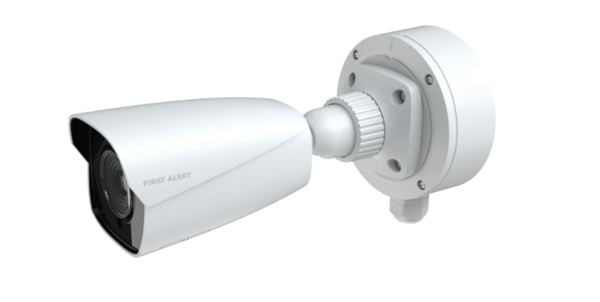
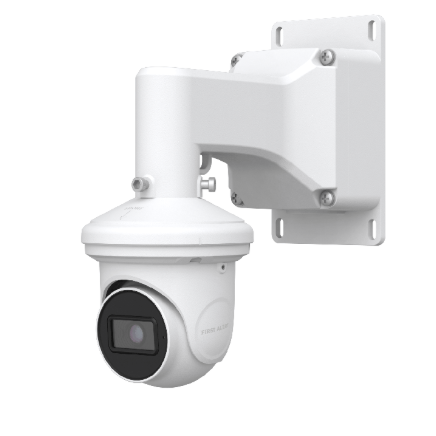 The First Alert CX4T blends the flexibility of a dome with the clarity of a bullet.
 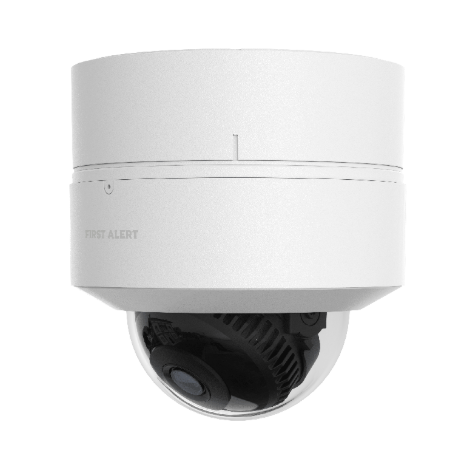 The CX4D Dome Camera combines durability with a discreet look, making it perfect for both indoor and outdoor spaces. Unlike the more visible bullet camera or the more easily adjusted turret, the dome’s protective housing makes it more difficult to adjust after installation. However, the exterior dome helps guard against tampering, particularly when mounted outdoors. With wide coverage and built-in resiliance, it’s an ideal choice for monitoring lobbies, storefronts, hallways, and other high-traffic areas where both performance and aesthetics matter.