First Alert Posts

Posted By

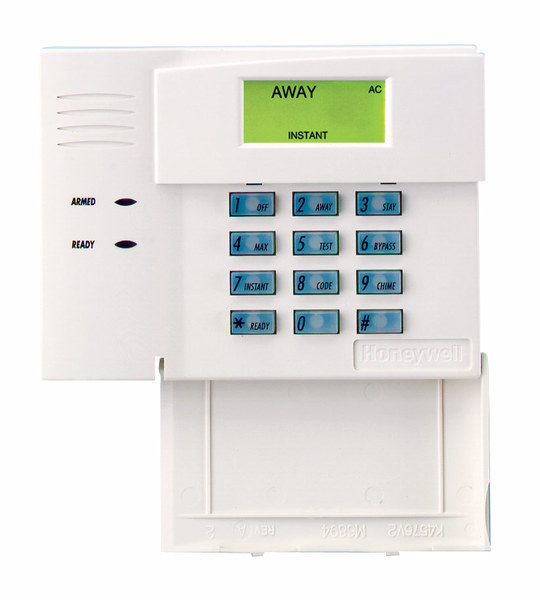
Resideo announced this week that the 6148 keypad family is discontinued upon stock exhaustion. The official technical notification confirms that the 6148, 6148ICON, 6148EX, and 6148SP are all going away. If you need a similar, budget-friendly alternative look no further than the 6150.


The 6148 was never a glamorous keypad. It didn't have a touchscreen. It didn't talk to you. It was just a simple, reliable Fixed English keypad that did exactly what it was supposed to do. And honestly, that's what made it great.

The 6148 was the kind of keypad you could explain to your grandmother over the phone. You pressed buttons, the system responded, and that was that. No learning curve. No software updates. No wondering if the display would freeze. Back when touchscreens were still a novelty, most homeowners just wanted something that worked. The 6148 worked.

The 6148ICON was the same idea but with pictures instead of words. Little icons showed you what each button did. Some installers loved it. Others thought it was unnecessary. But it found its audience with customers who preferred visual cues over text.

The 6148EX added a tamper switch, which made it popular for commercial installations where someone might try to mess with the keypad. The 6148SP served Spanish-speaking customers. Each version filled a specific need in the market.

Now they're all going away because that's how this industry works. Parts become obsolete. Manufacturing priorities shift. Products that served us well for years eventually reach the end of their run.

The good news is that Resideo has recommended solid replacements. The Honeywell 6150 Fixed English Keypad takes over for the 6148, 6148ICON, and 6148EX. It has the same Fixed English display and basic functions, plus four dedicated function keys for quick arming and emergency buttons. The only thing missing is the tamper feature from the 6148EX, so keep that in mind if tamper protection matters to your installation.

For the 6148SP, Resideo suggests upgrading to the First Alert VISTAH3 system with the VISTAHPKP or VISTAHLKP keypads. These offer Spanish and Portuguese language support on a 2x16 alpha display.

If you're still running 6148 keypads on your VISTA system, now is the time to think about stocking up or planning your upgrade. Once the remaining inventory is gone, it's gone for good.

It's strange to get sentimental about a keypad. But the 6148 represents an era of alarm products that valued simplicity and reliability above all else. No apps. No cloud connections. Just a keypad on the wall that lets you arm and disarm your system. There's something to be said for that.

The alarm industry keeps moving forward. Panels get smarter. Keypads get touchscreens. Everything connects to the internet. That's progress, and it's mostly good. But every now and then, when a product like the 6148 gets discontinued, I think about how far we've come and what we've left behind along the way.

If you have questions about replacing your 6148 keypads or need help choosing the right option for your VISTA system, reach out to us at Alarm Grid. The best way to reach us is at support@alarmgrid.com. We're here from 9:00 AM - 8:00 PM EST Monday - Friday and we're happy to help you navigate the transition. Check out our alarm monitoring plans while you're at it.

Tags: , , , , , , , , , , , , , , , , , , ,

Comments


Posted By

Resideo Technologies has announced an automatic firmware update rollout for several AlarmNet LTE communicators used in security systems. These updates are designed to enhance cellular connectivity and ensure a more stable, reliable link between your system and the AlarmNet cellular network.

According to MyWebTech Technical Notification #136, Resideo will begin pushing firmware updates over the air within the next 30 days to select radios used in burglary and residential fire applications. These updates are part of an ongoing effort to maintain optimal performance and address prior cellular connectivity issues.

Affected Radios & Latest Firmware Versions

  • Honeywell Home LTE-IV — Firmware 4.1.31.0
  • Honeywell Home LTE-IA — Firmware 4.1.31.0
  • Honeywell Home LTE-XV — Firmware 4.0.62.0
  • Honeywell Home LTE-XA — Firmware 4.0.62.0
  • Honeywell Home LTE-L3V — Firmware 4.0.54.0
  • Honeywell Home LTE-L3A — Firmware 4.0.54.0
  • Honeywell Home LTE-HSV — Firmware 2.14.16

Many of the affected communicators, though still active in the field, have been discontinued by Resideo and AlarmNet. Because they are no longer offered by Alarm Grid, discontinued products are not linked above.

These updates will occur automatically, and no action is required from end users in most cases. However, communicators with low backup battery voltage, or with a missing backup battery, may not successfully complete the update. In those instances, the communicator battery should be replaced so that the update can occur.

A small number of systems may briefly display a “radio trouble” condition when the communicator reboots after the update. This condition can typically be cleared by entering a valid user code + 1 (Off) twice on the system keypad.

Notes on Fire Radios

The same technical notice also reminds users about firmware updates for certain commercial fire communicators (HWF2V-COM, HWF2A-COM, LTE-CFV, LTE-CFA). However, Alarm Grid does not support commercial fire alarm systems, and these devices are not sold or supported by us. If you work with fire alarm communicators, contact your fire system provider or Resideo technical support for further assistance.

Summary

Resideo’s automatic update process ensures continued reliability for AlarmNet-connected communicators. As long as your communicator is in good working order and has adequate power and a good backup battery, it is likely that no action will be required on your part. With a possible exception of a disarm command to clear a communicator trouble display on some VISTA systems.

Alarm Grid will continue to keep you informed of any further changes that may affect system performance or connectivity.

Tags: , , , , , , , , , , , , , , , , , , , , , , ,

Comments


Posted By

We first told you about the new lineup of First Alert CX4 cameras in September. At that time, there wasn't much information available about the cameras and their specs. Now, Resideo has announced the release of the cameras and mounting accessories. So, let's take a closer look at them.

Each camera in the new CX4 lineup offers 8MP ultra-high-definition image quality. Intelligent AI-based event detection can distinguish people, vehicles, animals, and packages. The main differences between the various camera styles come down to design, mounting style, and placement options. Below is a quick reference table showing how each camera fits into your installation plan, along with the compatible accessories for that model.

First Alert CX4 Camera Product Matrix

Image Product Key Features & Accessories
First Alert CX4B Bullet Camera First Alert CX4B 8MP AI Bullet Camera
Model: CX4BE08F28PW
  • Long-range coverage and visible deterrent design
  • Ideal for driveways, parking lots, and exterior perimeters
  • IP67 weather-rated housing
  • 2.8mm fixed lens (104° horizontal FOV)
  • PoE or 12VDC power options
  • Built-in microphone for one-channel audio
CX4AJBFTB – Fixed Turret/Bullet Extended Junction Box Provides space for cable connections; allows cleaner weather-sealed installations.
CX4AGBCP – Gangbox Converter Plate Adapter plate for mounting to existing electrical boxes or retrofit surfaces.
First Alert CX4T Turret Camera First Alert CX4T 8MP AI Turret Camera
Model: CX4TE08F28PW
  • Ball-and-socket design for flexible aiming
  • Built-in microphone for one-channel audio
  • Ideal for indoor or outdoor areas
  • Anti-glare design reduces IR reflection
CX4AWMFTJB – Wall Mount with Junction Box Wall mount providing added depth and protection for turret camera wiring.
CX4AWMFTDB – Wall Mount Bracket Used for angled installations or combined with other mounts.
CX4AJBFTB – Extended Junction Box Shared accessory for turret or bullet cameras; conceals cabling for neat installs.
CX4AGBCP – Gangbox Converter Plate Adapter plate for gangbox mounting.
First Alert CX4D Dome Camera First Alert CX4D 8MP AI Dome Camera
Model: CX4DE08F28PW
  • Discreet, low-profile design
  • IK10 rated tamper-resistant dome housing
  • 125° field of view for wide coverage
  • Perfect for retail, lobbies, or offices
  • Built-in microphone for one-channel audio
CX4AJBFD – Fixed Dome Extended Junction Box Adds space for wiring and conduit; helps weather-seal cable entry.
CX4AWMFDJB – Wall Mount with Junction Box Mounts dome camera securely on vertical surfaces; includes cable space.
↳ CX4AWMFTDB – Fixed Turret/Dome Wall Mount Bracket Universal bracket shared between turret and dome models.
CX4ACMFD – Fixed Dome Ceiling Flush Mount Provides clean, recessed ceiling mounting option for a low-profile look.
CX4AGBCP – Gangbox Converter Plate Adapter for dome camera installations using standard gangbox openings.

*All accessories are rated for operation from -40°F to 140°F (-40°C to 60°C) and are constructed of durable aluminum alloy or PC+ABS materials. Junction boxes are sold separately and recommended for clean, weather-resistant installations.

First Alert CX4 Product Feature Matrix

Feature CX4B
Bullet
CX4T
Turret
CX4D
Dome
Model Number CX4BE08F28PW CX4TE08F28PW CX4DE08F28PW
Form Factor Bullet – visible deterrent Turret – flexible aiming Dome – discreet, tamper-resistant
Supports WIFI No, Ethernet is required • Power over Ethernet is optional
Image Sensor / Resolution 8 MP (3840 × 2160) • 1/2.8″ CMOS • Fixed 2.8 mm Lens FOV: 104° Horizontal / 55° Vertical / 125° Diagonal)
Wide Dynamic Range 120 dB 120 dB 120 dB
Infrared (IR) Range 98 – 165 ft (30–50 m) 65 – 98 ft (20–30 m) 65 – 98 ft (20–30 m)
Built-In Microphone Yes Yes Yes
Edge Recording microSDXC slot (up to 1 TB) for 24/7 edge storage • microSDXC card sold separately
Cloud Storage Event-based clips via AlarmNet 360™ Plans (1–12 device options; 7 or 30 days) — Total Connect 2.0 account required
AI Event Detection Detects people, vehicles, packages, and animals to reduce false alerts
Video Compression / Frame Rate H.264 / H.265 • 15 fps @ 8 MP (3840×2160)
Ingress Protection / Impact Rating IP67 IP67 IP67 + IK10 (impact-resistant dome)
Operating Temperature –22 °F to 140 °F (–30 °C to 60 °C) –22 °F to 140 °F (–30 °C to 60 °C) –22 °F to 140 °F (–30 °C to 60 °C)
Power Options / Usage PoE (802.3af) or 12 VDC • <9 W
Integration / Apps Total Connect 2.0 (App + Web) • ProSeries AIO and VISTAH3 panels • AlarmNet 360 Dealer Portal
Security Protocols Secure boot • AES-256 encryption • TLS 1.2/1.3 • Encrypted video at rest and in transit • Automatic firmware updates
Regulatory Compliance NDAA Section 889 Compliant • RoHS • WEEE • REACH (EC 1907/2006)
Physical Dimensions / Weight 8.57" × 3.17" × 3.16" (21.76cm x 8.05cm x 8.02cm) • 1.5 lb (.68kg) Ø 3.72 × 3.25 in (94.6mm x 82.8mm) • 1.0 lb (.453kg) Ø 4.69" × 3.47" (119mm x 88mm) • 1.4 lb (.653kg)
Compatible Accessories CX4AJBFTB • CX4AGBCP CX4AWMFTDB • CX4AWMFTJB • CX4AJBFTB • CX4AGBCP CX4ACMFD • CX4AWMFTDB • CX4AWMFDJB • CX4AJBFD • CX4AGBCP

Each of the new First Alert CX4 Cameras offers the same 8MP ultra-HD clarity, AI-driven motion analytics, and Total Connect 2.0 integration, but each form-factor has distinct advantages:

  • The CX4B Bullet Camera is best for exterior spaces where visibility and deterrence are of particular importance.
  • The CX4T Turret Camera offers the best balance between installation flexibility and features, making it a great all-around option for both indoor and outdoor use.
  • Meanwhile, the CX4D Dome Camera delivers a sleek, tamper-resistant design suited for interiors like offices, stores, and lobbies, and outdoors such as parking lots, driveways, and exterior entrances where both aesthetics and protection against vandalism are key.

We’re genuinely excited to see how these new CX4 cameras help our customers feel safer and more connected. Whether you’re adding your first camera or upgrading to a full Pro Series or VISTAH3 system, these new models make it easier than ever to protect what you care about most.

To unlock remote viewing, cloud storage, and full Total Connect 2.0 integration, you’ll need a professional monitoring plan. If you’re not already set up, you can explore our no-contract monitoring plans here. If you have questions, we'd be glad to help, email us at support@alarmgrid.com. We're here Monday - Friday from 9:00 AM - 8:00 PM EST/EDT.

Tags: , , , , , , , , , , , , , , , , , , , , , , , , , , ,

Comments


Posted By

Back in 2019 we told you about the Lyric Gateway's end-of-life. Recently we found that an unregistered Lyric Gateway can't be activated. This is because of a disconnect between AlarmNet360, the platform used to register, and the panel. If you have a registered Gateway, you are not affected.


Since the Lyric Gateway hasn't been available since 2019, this is likely not an issue that will affect a lot of people. But, since the secondary market for alarm panels is alive and well on platforms like ebay, and because the Lyric Gateway can't be programmed through the panel's touchscreen, it's still necessary to get this information out there.

When Resideo discontinues a product, they continue to fully support that product for five (5) years, then it moves to limited support. That means Resideo will only provide written documentation for the product to anyone requesting support. They will not provide over-the-phone troubleshooting.

Between 2019 and now, if we had an issue with a Lyric Gateway not registering properly, we could contact Resideo technical support and they would assist with the registration. Their support team has access to tools that we don't and can resolve some issues with registration that we can't. However, now that the Gateway has entered limited support, Resideo tech support will no longer offer this assistance.

So, if you see a Lyric Gateway for sale in some secondary marketplace, we recommend you give it a pass. If you have an unregistered Lyric Gateway with any SIX Sensors paired with it, you'll need to take special steps to keep those sensors viable for use with a new panel.

  1. Be sure sensors are powered on. Be sure that every SIX sensor that is paired with the Gateway panel is powered on and within range of the panel.
  2. Default the Lyric Gateway When you're ready to move the SIX sensors to a new First Alert PROA7, PROA7PLUS, or VISTAH3 panel, remove the set screw in the bottom edge of the panel, then either pull the rear cover off, or pull the panel away from the rear cover (if wall mounted). This will expose the battery, RJ45 port, and the microswitches on the back of the panel.
    • For Rev. 1.00 panels, reboot the panel. To do so, using a paper clip or similar small tool, depress the center microswitch on the back of the panel (see image below) until the panel reboots. Once the panel boots back up, you have five (5) minutes to complete the default. Otherwise, you'll need to reboot again.
    • For Rev. 1.01.0215.531+ you can skip the power cycle and move straight to Step 3.
  3. Perform the default. On the rear of the panel, just below the RJ45 Ethernet port you'll see three microswitches. As you face the back of the panel use a small tool, paper clip, or similar item to press and hold down the left switch for twenty seconds, or until the panel prompts you to enter the Installer Code. After twenty seconds, or once prompted for the Installer Code, release the switch. If prompted for the code enter the panel's current Installer Code. This will set the panel back to factory defaults. As part of the default, a signal will be sent from the panel to all SIX sensors releasing them so that they are no longer paired. All SIX sensors previously programmed with the panel that receive this message are now free to be paired with a new panel.

Any paired SIX sensor that doesn't receive a release signal from the panel, either by the sensor being removed via AlarmNet360 or by defaulting the panel, will be unable to pair with a new panel.

Tags: , , , , , , , , , , , , , ,

Comments


Posted By

The Resideo PROSIX line of wireless sensors currently works with the PROA7, PROA7PLUS, and VISTAH3 panels. These encrypted sensors offer excellent range, reliability, and security. But to get the most out of your investment, it helps to follow some basic rules for installation and upkeep.

New to PRO Series sensors? This simple guide shows you how to place, pair, and care for Resideo PROSIX devices with your PROA7 or PROA7PLUS panel.

What To Do First

  1. Plan install locations: Walk your home and decide where each sensor should be mounted. We'll talk more about mounting considerations next.
  2. Name your zones: Make a short list like “Front Door,” “Kitchen Window,” “Hall Motion.” This makes setup quick and easy.

Sensor Placement Basics

Door/Window Contacts

  • Protect any opening a person can reach from outside. If you’re on a budget, start with the highest-risk spots: ground-level doors and windows, especially those at the back of the home or in darker, hidden areas. Cover additional openings as your budget allows.
  • Mount the sensor on the frame and the magnet on the moving portion of the door or window.
  • Keep the magnet and sensor properly aligned and as close together as possible when closed. Check your model’s maximum gap specification and make sure the closed gap doesn’t exceed it.
  • Avoid mounting directly on ferrous metal. If the frame is metal, use included spacers if provided. Aluminum doors usually don't pose a problem. A PROSIXCTV can be used to add a separate contact, such as the Honeywell 947-75T, that is made specifically for mounting on steel doors.

Motion Sensors

  • Place on a wall or in a corner with a clear view of the room, about 6–8 feet high.
  • Avoid pointing at windows, fans, or HVAC vents.
  • Do not aim directly at heat sources (ovens, space heaters, sunny glass).
  • If you have pets, follow the specific mounting instructions in the installation guide. The PROSIXPIRV offers up to 80 pound (36kg) pet immunity when the instructions for pet immunity are strictly followed. Generally speaking, mount where any animal, regardless of size, can't come within six (6) feet of the front of the sensor.

Glass Break Sensors

  • Verify in the installation instructions that the PROSIXGB is suitable for the type and size of glass you want to protect.
  • Mount the PROSIXGB in the same room as the glass to be protected.
  • Avoid thick curtains or heavy drapes between the sensor and the protected glass.
  • Set the sensitivity level for the PROSIXGB based on the distance between the detector and the protected glass.
  • Mount on a wall or ceiling with a clear “line of sound” no more than 25' (7.6m) from the protected glass.

Tip: If you’re unsure about a mounting location, temporarily tape the sensor in place, finish setup, and test the glass break before permanently mounting.

How to Pair a PROSIX Sensor

  1. On the panel, tap Menu (≡) > Tools > Installer Code (Default 4112) > Programming > Peripherals > + Key (upper right). The panel is now in listening mode.
  2. Put the sensor into enrollment by pulling the battery tab on brand new sensors, or by opening the device's cover to activate the tamper.
  3. Once the panel detects the sensor, give it a clear name, such as “Front Door” or “Living Room Motion.” Program any other sensor-specific fields, such as Response Type and Service for sensors that can use more than one zone, e.g., PROSIXCTV and PROSIXSMOKEV. For sensors with a single function Service will be filled automatically.
  4. Be sure to click Save and close the sensor cover if the tamper was used to pair it with the panel.
  5. Once you exit programming tap Menu (≡) > Sensors and check the signal strength of each PROSIX sensor in the location where it will be permanently mounted. Once a good communication path is confirmed, permanently mount each sensor and do a final signal strength check.

Important Note: If a sensor won’t enroll, confirm it isn’t paired to another panel. An unpaired sensor shows a rapidly blinking LED when you pull the battery tab, fault the sensor, or open the cover. A slow blink indicates the sensor is already paired. If possible, factory-default the sensor; otherwise, remove/release it from the previous panel, then enroll to the new one.

Battery Care

  • Use only the battery type listed on the sensor’s Install Guide, or Data Sheet.
  • Always remove all batteries, wait a full ten seconds, then insert new batteries. This helps to clear any low battery signal. Always read the sensor instructions for any special notes about installing new batteries. For example, the PROSIXCMBOV requires that all new batteries be installed within 15 seconds of beginning the battery install process.
  • For sensors with multiple batteries, always change all batteries at the same time. Don't mix old and new batteries and don't mix batteries from different manufacturers.
  • You can check the battery level of other sensors by tapping Menu (≡) > Tools > Installer or Master Code (4112 and 1234 by default, respectively) > System Test > Test Sensors > Start Test > OK. The siren will sound for a few seconds. Go around and fault each sensor. Then check the panel for the signal strength and battery level of all tested sensors. If any other sensor batteries are low you can go ahead and change them to prevent future low battery messages on the panel.

Important Note: PROSIX sensors use two-way supervision, meaning they require an acknowledgement (ACK) from the panel after sending a check-in signal. If the panel is powered down or removed, a sensor will repeatedly attempt to check-in, quickly draining its battery. To preserve battery life, remove the batteries from your PROSIX sensors whenever the panel will be out of service for an extended time.

When powering the system back up, always power on the PROSIX transmitters before the PRO Series panel. The panel uses Frequency Agility to select the best RF channel and then instructs the sensors to follow. If the panel changes channels while the sensors are still off, they won’t receive the update. This leaves them in a state of limbo, unable to communicate with the current panel or with any new or defaulted panel.

Monthly Test

  1. Put the system in test mode with your monitoring company if you subscribe to full monitoring. You'll need to provide your name, address, and false alarm password, as well as a duration for the test.
  2. Enter the panel's Walk Test Mode.
  3. Open and close each protected door/window and confirm it shows on the panel.
  4. For motion detectors, follow the sensor's instructions for entering Walk Test Mode. For the PROSIXPIRV remove and replace the batteries. This removes any transmit inhibit designed to conserve battery life and enables the sensor LED. The motion will remain in Walk Test Mode for ten minutes. Walk in front of each motion sensor and verify you see it trigger when you walk in the protected area.
  5. For glass break sensors, we linked above to an FAQ on using the Honeywell FG701 to perform a functional test. The FAQ is written describing the steps with a Honeywell 5853, but they translate to the PROSIXGB very well.
  6. Exit test mode and confirm the system displays the proper status with no trouble conditions present.

Safety and Mounting Tips

  • Use the included screws for permanent installs where possible.
  • Clean the mounting surface before using double-sided foam tape. Press firmly in place for a full 30 seconds.
  • Keep sensors dry and indoors unless the model is rated for outdoor use.

Quick Reference: Which Sensor Goes Where?

Area Suggested Sensor Notes
Front/Back Door Opening:
PROSIXCTV
PROSIXMINI
PROSIXMINI3
Align magnet closely with sensor on closed door.
Sliding Glass Door Opening:
PROSIXCTV
PROSIXMINI
PROSIXMINI3
Glass Breakage:
PROSIXGB
Use both for open/close and glass break detection.
First-Floor Windows Opening:
PROSIXCTV
PROSIXMINI
PROSIXMINI3
Glass Breakage:
PROSIXGB
Contacts for open/close. Glass Break for shatter detection.
Hallway/Living Room/Bedroom Motion Detection:
PROSIXPIRV
Mount 6' - 8' high, away from heat and direct sun.
Kitchen Motion Detection:
PROSIXPIRV
Opening:
PROSIXCTV
PROSIXMINI
PROSIXMINI3
Avoid pointing motions at ovens and vents; consider contacts on exterior doors and windows.
Additional Protection CO Detection:
PROSIXCOV
PROSIXCMBOV
Flood:
PROSIXFLOOD
Temperature:
PROSIXTEMP
Carbon Monoxide detection and combination smoke/heat/CO detection
Flood protection
Freeze/High Temp detection


Keep Your Panel Updated

Connect your panel to WIFI so it can receive the latest over-the-air (OTA) firmware updates. The PRO Series panels will not download firmware using cellular data. The PROA7PLUS comes from the factory with the PROWIFIZW installed. The PROA7 comes with no built-in communicator, so it will need to have a PROWIFI or PROWIFIZW added.

Firmware updates can improve stability and sensor compatibility. When firmware updates for PROSIX sensors are available, they are included in the panel's firmware package. Once the panel updates, the sensor firmware will be pushed by the alarm panel to each sensor.

Need a Hand?

Alarm Grid supports DIYers every day. If you want help selecting, placing, or pairing PROSIX sensors, we can help. We provide free technical support to our monitored customers M - F from 9:00 AM - 8:00 PM Eastern Time. You can reach us by calling 1-888-818-7728 or via email at support@alarmgrid.com.

Tags: , , , , , , , , , , , , , , , , , , , , ,

Comments


Posted By

Resideo recently announced that its VISTA and PRO Series panels are now fully certified to integrate with Control4 whole-home automation. Control4 is a premium automation platform, typically available only through authorized Control4 integrators, and it operates by using specialized drivers

Control4 drivers act as the essential software that enables communication between the Control4 automation system and various third-party devices. A certified Control4 driver allows for seamless integration and centralized control of different smart home products through the Control4 interface. The interface can be a touchscreen, an app, or even voice commands. For homeowners and installers, this means a unified experience where security, lighting, entertainment, and more can be managed from a single platform.

For homeowners, the benefits are clear. A certified integration allows the Resideo First Alert panel to do more than just secure the home, it becomes part of a larger ecosystem. Using Control4, you can arm the alarm system at night while having the doors lock automatically, the thermostat adjust to an energy-saving setting, and the lights dim across the house. That’s the type of seamless, one-touch automation that Control4 is known for, now enhanced with the proven reliability of a Resideo First Alert security system.

For dealers and installers, certification reduces guesswork and support headaches. Instead of relying on custom workarounds, they can now use official drivers that are tested and verified. This not only speeds up installation but also builds dealer confidence, by knowing their installations are backed by two major industry players working together.

The move also positions Resideo strongly in the high-end automation space. By joining the ranks of other security systems officially supported by Control4, VISTA and PRO Series panels are now a more compelling option for projects where premium automation is a requirement. It’s a win for integrators looking to expand their offerings, and a win for homeowners looking to unite all of their tech through a single interface.

VISTA panels use the 4232CBM Connected Building Module to integrate with Control4. The module connects the VISTA panel's ECP bus to the Control4 system through a wired serial RS232 or RS422 interface. This setup allows the Control4 driver to import zone alpha descriptors directly from the VISTA panel, which eliminates the need for manual programming of zone data within Control4. As a result, users can arm, disarm, and monitor the status of zones directly through the Control4 interface. Check out the 4232CBM Install Guide.

Another plus that shouldn't be overlooked is the fact that Control4 will import life-safety zones and descriptors. This allows an integrator to create automations based on fire or carbon monoxide zone triggers. For example, in the event of a fire alarm the system might automatically turn off the HVAC system and unlock the doors while turning on lights that illuminate a path out of the building.

Control4 and First Alert PRO Series Integration

You can find the steps for integrating the PRO Series panels with Control4 here. Here's a quick overview of what you'll need:

Before You Begin:

  • Control4 OS 4.1.0+ and Composer Pro Software.
  • PRO Series Firmware 03.2476.183+
  • PRO Series panel must have a PROWIFI or PROWIFIZW installed.
  • PRO Series panel should have all its partitions and zones configured before pairing with Control4, though you can add or remove zones after initial configuration.
  • Your alarm dealer must enable the Control4 feature through AlarmNet360. This is done as part of the Smart Home package (Packages > Smart Home > Add-Ons > Control4).
  • The Control4 system and the PRO Series panel must be connected to the same network through the same router.

After configuration with Control4’s Simple Service Discovery Protocol (SDDP), the PRO Series panel must always use the same IP address. SDDP is a lightweight protocol created by Control4 that lets WIFI enabled devices announce themselves on the network, making it easy for Control4 to find and identify them.

If the panel’s IP address changes, it will disconnect from Control4. Because setting a static IP directly on the alarm panel can be tricky, the better option is to reserve an IP address for the PRO Series panel in your router’s DHCP settings. Check your router’s documentation for instructions on how to set this up. Below is a list of names for this feature, and which manufacturers use each term:

  • DHCP Reservation – Netgear, ASUS, TP-Link (most common term)
  • Address Reservation – D-Link
  • IP Reservation – Linksys, Spectrum, Xfinity
  • Reserved IP Address – Some ISP-provided routers (AT&T, Verizon)

Basic Steps For Setup:

  1. Initiate discovery. From Control4 Composer Pro, initiate discovery (System Design > Items > Discovered).
  2. Create association. Double click on the PRO Series driver that you discovered in Step 1. If Composer Pro fails to discover the driver, make sure that all the prerequisites listed above have been met. Once the driver has been discovered and you double click, the driver is downloaded to your Control4 system. The panel's IP and other required information is sent to Composer Pro. The driver and the IP address can then be associated with one another within Composer Pro.
  3. Perform pairing. Within Composer Pro, click Actions > Start Pairing. You have 120 seconds to complete the next step. If two minutes elapse without a successful pairing, the process will timeout and you'll need to perform this step again.
  4. Pair PRO Series panel. On the PRO Series panel, tap Menu (≡) > Tools > Enter Installer Code (4112 by default) > Control4 Controller > Pair to Control4 Controller. When Composer Pro receives the pairing command, it will know, based on the panel's IP address, to associate the PRO Series driver with the panel and complete the pairing process. If the pairing is successful, the Control4 Controller information will automatically populate. If pairing fails this field will remain blank. In that case, verify that all of the requirements in "Before You Begin" have been met, and try again.

Complete Integration:

  1. Verify partition import. In Composer Pro select Properties. Partition information will be displayed here as the information is imported. Upon successful import, the partition state will update from "Unknown" to the current state. This process may take a minute, so please be patient. Verify that all partitions, along with proper status, are displayed in the left pane.
  2. Import and verify zone information. From Advanced Properties within Composer Pro select Get C4 Contacts to update and display individual PRO Series zones with proper status. The zones will also show in the left pane. When a zone is added (or removed), it will show which zones have been added or deleted there.
  3. Verify visibility. From a Control4 touchscreen, or the Control4 app, tap Security and verify that all partitions and zones are displayed. If a partition appears to be missing, check the visibility settings for that partition within Composer Pro:
    • In the left pane select PRO Series > Properties > Navigator.
    • Select Security in the navigator menu. This will display the Device Visibility settings. Partitions are either "Visible" or "Hidden". If any partition that should be visible within Control4 is listed as hidden choose the Modify option and move that partition from Hidden to Visible.
    • Click File > Refresh Navigators to update and display all partitions. Any partition that remains listed as hidden will not display on any Control4 touchscreen or within the Control4 app. Presumably, it will also remain hidden to any voice assistant you may be using.
  4. Test integration. Once the previous steps have been completed successfully, use the Control4 touchscreen or app to verify operation and status. Verify that all partitions show the proper status, i.e., Armed, Disarmed, etc. Walk around and fault zones, i.e., open and close doors, walk in front of motion detectors, etc. and verify that the status updates within the touchscreen or app.
Tags: , , , , , , , , , , , , , , , , , , , ,

Comments


Posted By

Resideo is about to launch three new surveillance cameras: the CX4B bullet, CX4T turret, and CX4D dome. Each model features impressive 8MP resolution with an advanced image sensor, ensuring a clear view of faces, license plates, and other important details for clear and dependable viewing.

Resideo has announced that the new CX4 cameras are expected to arrive in late Q3 or early Q4 of 2025. Alarm Grid will have them listed and ready to order as soon as they’re released. For now, you can click the links below to view each camera’s product page, but purchasing isn’t available just yet — stay tuned!

New First Alert CX4 Cameras

If you haven’t been following Resideo closely, you might be surprised to see these cameras branded as First Alert. When Resideo spun off from Honeywell, it originally used the Resideo name, a portmanteau of “residence” or “residential” and “presidio.” Most readers will recognize “residential,” but for reference, Merriam-Webster defines a presidio as “a military post or fortified settlement.”

Traditionally, Honeywell Home branding has been used for Resideo’s residential products, while the Resideo name identified commercial offerings. Over the past year, however, the company has shifted to the First Alert brand. First Alert has been established for decades and offers strong name recognition, without tying back to Honeywell, which is now a separate entity.

Important Note: All the cameras pictured below are shown mounted with junction boxes. Any junction box used must be purchased separately.

Each of these cameras have the following features:

  • Smart AI motion analysis helps identify genuine activity and minimizes false alerts, so you're notified only when it truly matters.
  • High-definition 8MP imaging captures fine detail, ensuring reliable recognition of people, license plates, and objects.
  • Flexible video storage with built-in edge recording plus secure cloud event archiving, gives you control over how footage is kept and accessed.
  • Wide operating temperature range allows dependable performance in harsh environments, from -22°F - +140°F (-30°C - +60°C).
  • Seamless system integration with ProSeries AIO and VISTA®H3 panels, while Total Connect® 2.0 and AlarmNet 360™ apps deliver full remote control and monitoring convenience from any location with internet access.

First Alert CX4B Bullet Camera


We don’t yet have specifications on these cameras, but generally speaking, bullet-style cameras are often optimized for longer viewing distances as compared to dome cameras. They are ideal for monitoring driveways, parking lots, and perimeters. Once mounted, these cameras typically can’t be adjusted remotely.

First Alert CX4T Turret Camera

The First Alert CX4T blends the flexibility of a dome with the clarity of a bullet. With no domed housing, issues with glare, scratches, or IR reflection are eliminated. Turret-style cameras are Ideal for both indoor areas like offices, retail spaces, and hallways, and outdoor spots including porches, entrances, parking lots. The CX4T will likely be suited for both wide-angle and medium-range surveillance. It's ideal for areas where facial recognition and detail are important, especially at night. We'll have to wait and see if remote camera repositioning is a possibility. Turret-style cameras are often limited to manual adjustment.

First Alert CX4D Dome Camera

The CX4D Dome Camera combines durability with a discreet look, making it perfect for both indoor and outdoor spaces. Unlike the more visible bullet camera or the more easily adjusted turret, the dome’s protective housing makes it more difficult to adjust after installation. However, the exterior dome helps guard against tampering, particularly when mounted outdoors. With wide coverage and built-in resiliance, it’s an ideal choice for monitoring lobbies, storefronts, hallways, and other high-traffic areas where both performance and aesthetics matter.

These are the most professional cameras yet from Resideo that work with its Total Connect 2.0 remote platform. With edge and cloud storage, you have flexible options for monitoring and saving AI-based video alerts. The cameras can differentiate between people, vehicles, animals and packages to provide notifications tailored to your needs.

Tags: , , , , , , , , , , ,

Comments