Alarm Monitoring Posts

Posted By

Thanksgiving is here once again! The Alarm Grid offices will be closed on Thursday, November 27th, so our team can enjoy time with their families. Our office will be open and back to normal hours on Friday, November 28th, at 9:00 AM EST. Despite our office being closed, central station monitoring will be handled as it always is; quickly and professionally.

Monitoring Station Contact Information

Even though our office is closed, your security system keeps working around the clock. Our central station partners at Criticom Monitoring Services (CMS) and Rapid Response will be monitoring systems and responding to alarms all day Thursday. We appreciate their professionalism and commitment to keeping our customers safe.

If you need to contact the monitoring station during the holiday to report a false alarm or put your system on test mode, here's who to call:

US Customers: Call CMS at (888) 818-7728 and press Option [9]. Have your name, address, and false alarm password handy when the operator picks up.

Canadian Customers: Call Rapid Response at (800) 932-3822 with your name, address, and false alarm password ready.

Quick heads-up: Make sure you give them the correct information. If you accidentally provide an incorrect password or your Duress password instead of your false alarm password, they'll dispatch help. Because that's exactly what the Duress password is designed to do.

For Technical Support - Email Us Instead

Here's something important: the monitoring station only handles alarms and emergencies. They can't help with technical issues, programming questions, or changes to your account settings like zone names or contact lists.

For anything like that, shoot us an email at support@alarmgrid.com. We'll get back to you as soon as we're back in the office. The holidays sometimes create a bit of a backlog, so thanks in advance for your patience when we return!

Thanksgiving Safety Tips

If you're traveling for Thanksgiving, please be sure to arm your system before you hit the road. Also, double-check that you know your false alarm password before you leave. Nothing says "happy holidays!" quite like realizing you can't remember your false alarm password while you're three hours, or even three states away.

If you're cooking this year, kitchen smoke and steam are notorious for setting off smoke detectors. If yours is connected to your alarm system and it goes off, just silence it quickly. For all-in-one panels like the IQ Panel 4 or PROA7PLUS, you'll see a prompt on the screen asking for your disarm code. For older VISTA systems, just enter your User Code and press 1 (Off), exactly like you're disarming the system.

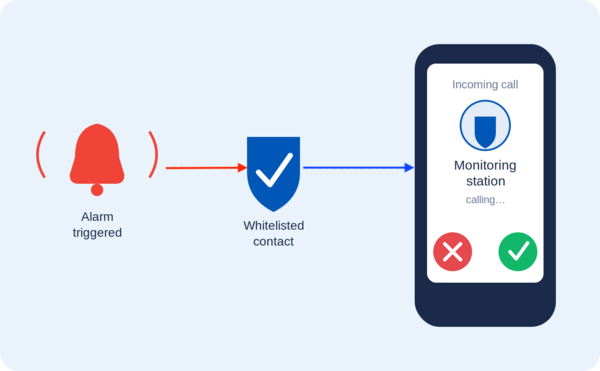
The monitoring station will call you when a smoke alarm goes off. If it's just your burning turkey setting off the detector (we've all been there), let them know and give them your false alarm password. They'll ask some questions to make sure everything's okay, and you can decide together whether the fire department really needs to stop by.

Important: Carbon Monoxide Alarms

If your carbon monoxide (CO) detector goes off, get everyone out of the house immediately. Carbon monoxide is completely invisible and odorless, and it's dangerous - especially for little ones, like kids and pets.

The monitoring station is required to send help on CO alarms no matter what. Even if you call them and say you're fine, they're still dispatching the fire department. It's for your safety. The fire department has special equipment to detect carbon monoxide and make sure your home is safe to re-enter.

Happy Thanksgiving!

Thank you for choosing Alarm Grid. Whether you're hosting, traveling, staying home for a quiet day, or working through the holiday, we hope your Thanksgiving is exactly what you want it to be. May your turkey be moist, your family drama be minimal, and your smoke detectors stay silent!

Tags: , , , , , , , , , ,

Comments


Posted By

This post is a quick intro to the new 2GIG GC Touch, plus the top initial questions and answers circulating among dealers and forums. Documentation is still scarce at launch, so this post collects the most commonly asked questions we’ve seen and summarizes the early answers.

Caveat: This information is based on initial reports and community/dealer chatter about the GC Touch and may contain errors. Consider the Q&A below to be “early info” rather than final specs, we’ll update this post as more official documentation becomes available.

2GIG GC Touch:

Quick overview

The 2GIG GC Touch (Verizon LTE version and AT&T version) is positioned as a budget-friendly successor to the GC2/GC2e series: a modern touchscreen panel that retains broad backward-compatibility with legacy sensors but trims some premium features found on 2GIG’s flagship 2GIG Edge (Verizon LTE and AT&T LTE) model.

Early reports indicate the GC Touch emphasizes compatibility and value. It supports legacy 345 MHz sensors, adds support for encrypted 345S/eSeries devices, and improves wireless zone capacity over the old GC2 family.

Below are the top 20 questions installers and end users are asking right now, grouped by topic, followed by the current answers being reported. Again this is early info and may change.

Upgrading & Compatibility

  1. Can I replace my old 2GIG GC2 or GC2e with the GC Touch?
    Yes. It is designed as the direct "budget-friendly" successor to the GC2e series.
  2. Will my existing 2GIG sensors (legacy 345 MHz) work with the GC Touch?
    Yes, it is fully backward compatible with legacy 2GIG 345 MHz sensors and Honeywell 5800 series sensors.
  3. Can I use my old GC2 power supply with the new panel?
    No. The GC Touch uses a 14VDC adapter. You must swap out the old 12VDC transformer to avoid damaging the new unit.
  4. Does the GC Touch fit the same mounting holes/backplate as the GC2?
    ○ It covers a similar wall footprint, but the backplate is new and must be replaced.
  5. Will my old TS1 secondary keypad work with the GC Touch?
    No. The legacy TS1 keypad is not compatible. You will need to use the Alarm.com app or a newer compatible secondary touchscreen. We don't currently know if one will be available.
  6. Does it work with 2GIG eSeries (Encrypted) sensors?
    Yes, it supports both the older non-encrypted sensors and the newer encrypted “eSeries” / “345S” sensors.

Features vs. 2GIG Edge

  1. What is the main difference between the GC Touch and the 2GIG Edge?
    ○ The Edge is the “flagship” with Facial Recognition and a glass-to-edge screen. The GC Touch is the value model with a plastic bezel and no facial recognition.
  2. Does the GC Touch have Facial Recognition disarm?
    No, that feature is exclusive to the 2GIG Edge.
  3. Does the GC Touch have Bluetooth disarming?
    Yes, you can pair a smartphone to disarm the system automatically when you arrive home.
  4. Does it have a built-in glass break detector?
    No, the Edge has a built-in glass break; the GC Touch does not.
  5. Does the GC Touch support Z-Wave Long Range (LR)?
    ○ It features the Z-Wave 800-series chip, which supports Z-Wave long range. However, the panel software must also support it, and it's unknown at this time if it does. Regardless, even without the addition of Z-Wave long range, the Z-Wave 800-series chip offers a significant improvement in range and speed over the older 500-series chip found in the GC2e.

Installation & Troubleshooting

  1. What is the default Installer Code for the GC Touch?
    1561 (standard 2GIG default).
  2. How do I reboot (power cycle) the panel without opening it?
    ○ Usually via the menu: Toolbox > Advanced > Reboot.
  3. Why does the screen look different than my old panel? (Dark Mode)
    ○ The GC Touch introduces a “Dark Mode” UI that matches the 2GIG Edge style — a major visual change from the bright GC2 interface.
  4. How do I add the new “345S” sensors?
    ○ With no installation documentation available, the exact process for adding sensors is not available. We'll provide full documentation as soon as it becomes available.
  5. Does it support 5G cellular?
    No. It uses an LTE (4G) communicator (AT&T or Verizon), which is standard for security systems today.

General & Smart Home

  1. Can I view my Alarm.com cameras on the panel screen?
    Yes, like the Edge, the GC Touch supports live view of compatible Alarm.com doorbells and cameras.
  2. Does it work with Apple HomeKit?
    Not directly. It integrates with Alarm.com, which can be bridged to HomeKit via Siri Shortcuts — there is no native HomeKit support on the panel itself.
  3. How many wireless zones does it support?
    Up to 128 wireless zones, which is double the capacity of the older GC2 (which maxed at 60).
  4. Is there a secondary keypad available for it?
    ○ At launch, users are typically directed to use the mobile app, but a dedicated wireless keypad (like the 2GIG-PAD1-345) can typically be used for basic arming/disarming.

The 2GIG GC Touch looks to be a sensible, value-focused upgrade for GC2/GC2e customers. It has a modern touchscreen, broader sensor compatibility, and a big jump in wireless zone capacity, while intentionally leaving some flagship features (like facial recognition) to the 2GIG Edge.

Keep in mind this post compiles early reports and community feedback, so details may change as official documentation is released. Installers should confirm power, backplate, and keypad compatibility before a takeover, and end users should contact their alarm dealer for provisioning or account setup. We’ll update this page as 2GIG publishes final specs and installation guides so check back for the latest, and download this initial FAQ for a quick reference.

Tags: , , , , , , , , , , , , , , , , , ,

Comments


Posted By

Resideo Technologies has announced an automatic firmware update rollout for several AlarmNet LTE communicators used in security systems. These updates are designed to enhance cellular connectivity and ensure a more stable, reliable link between your system and the AlarmNet cellular network.

According to MyWebTech Technical Notification #136, Resideo will begin pushing firmware updates over the air within the next 30 days to select radios used in burglary and residential fire applications. These updates are part of an ongoing effort to maintain optimal performance and address prior cellular connectivity issues.

Affected Radios & Latest Firmware Versions

  • Honeywell Home LTE-IV — Firmware 4.1.31.0
  • Honeywell Home LTE-IA — Firmware 4.1.31.0
  • Honeywell Home LTE-XV — Firmware 4.0.62.0
  • Honeywell Home LTE-XA — Firmware 4.0.62.0
  • Honeywell Home LTE-L3V — Firmware 4.0.54.0
  • Honeywell Home LTE-L3A — Firmware 4.0.54.0
  • Honeywell Home LTE-HSV — Firmware 2.14.16

Many of the affected communicators, though still active in the field, have been discontinued by Resideo and AlarmNet. Because they are no longer offered by Alarm Grid, discontinued products are not linked above.

These updates will occur automatically, and no action is required from end users in most cases. However, communicators with low backup battery voltage, or with a missing backup battery, may not successfully complete the update. In those instances, the communicator battery should be replaced so that the update can occur.

A small number of systems may briefly display a “radio trouble” condition when the communicator reboots after the update. This condition can typically be cleared by entering a valid user code + 1 (Off) twice on the system keypad.

Notes on Fire Radios

The same technical notice also reminds users about firmware updates for certain commercial fire communicators (HWF2V-COM, HWF2A-COM, LTE-CFV, LTE-CFA). However, Alarm Grid does not support commercial fire alarm systems, and these devices are not sold or supported by us. If you work with fire alarm communicators, contact your fire system provider or Resideo technical support for further assistance.

Summary

Resideo’s automatic update process ensures continued reliability for AlarmNet-connected communicators. As long as your communicator is in good working order and has adequate power and a good backup battery, it is likely that no action will be required on your part. With a possible exception of a disarm command to clear a communicator trouble display on some VISTA systems.

Alarm Grid will continue to keep you informed of any further changes that may affect system performance or connectivity.

Tags: , , , , , , , , , , , , , , , , , , , , , , ,

Comments


Posted By

The Resideo PROSIX line of wireless sensors currently works with the PROA7, PROA7PLUS, and VISTAH3 panels. These encrypted sensors offer excellent range, reliability, and security. But to get the most out of your investment, it helps to follow some basic rules for installation and upkeep.

New to PRO Series sensors? This simple guide shows you how to place, pair, and care for Resideo PROSIX devices with your PROA7 or PROA7PLUS panel.

What To Do First

  1. Plan install locations: Walk your home and decide where each sensor should be mounted. We'll talk more about mounting considerations next.
  2. Name your zones: Make a short list like “Front Door,” “Kitchen Window,” “Hall Motion.” This makes setup quick and easy.

Sensor Placement Basics

Door/Window Contacts

  • Protect any opening a person can reach from outside. If you’re on a budget, start with the highest-risk spots: ground-level doors and windows, especially those at the back of the home or in darker, hidden areas. Cover additional openings as your budget allows.
  • Mount the sensor on the frame and the magnet on the moving portion of the door or window.
  • Keep the magnet and sensor properly aligned and as close together as possible when closed. Check your model’s maximum gap specification and make sure the closed gap doesn’t exceed it.
  • Avoid mounting directly on ferrous metal. If the frame is metal, use included spacers if provided. Aluminum doors usually don't pose a problem. A PROSIXCTV can be used to add a separate contact, such as the Honeywell 947-75T, that is made specifically for mounting on steel doors.

Motion Sensors

  • Place on a wall or in a corner with a clear view of the room, about 6–8 feet high.
  • Avoid pointing at windows, fans, or HVAC vents.
  • Do not aim directly at heat sources (ovens, space heaters, sunny glass).
  • If you have pets, follow the specific mounting instructions in the installation guide. The PROSIXPIRV offers up to 80 pound (36kg) pet immunity when the instructions for pet immunity are strictly followed. Generally speaking, mount where any animal, regardless of size, can't come within six (6) feet of the front of the sensor.

Glass Break Sensors

  • Verify in the installation instructions that the PROSIXGB is suitable for the type and size of glass you want to protect.
  • Mount the PROSIXGB in the same room as the glass to be protected.
  • Avoid thick curtains or heavy drapes between the sensor and the protected glass.
  • Set the sensitivity level for the PROSIXGB based on the distance between the detector and the protected glass.
  • Mount on a wall or ceiling with a clear “line of sound” no more than 25' (7.6m) from the protected glass.

Tip: If you’re unsure about a mounting location, temporarily tape the sensor in place, finish setup, and test the glass break before permanently mounting.

How to Pair a PROSIX Sensor

  1. On the panel, tap Menu (≡) > Tools > Installer Code (Default 4112) > Programming > Peripherals > + Key (upper right). The panel is now in listening mode.
  2. Put the sensor into enrollment by pulling the battery tab on brand new sensors, or by opening the device's cover to activate the tamper.
  3. Once the panel detects the sensor, give it a clear name, such as “Front Door” or “Living Room Motion.” Program any other sensor-specific fields, such as Response Type and Service for sensors that can use more than one zone, e.g., PROSIXCTV and PROSIXSMOKEV. For sensors with a single function Service will be filled automatically.
  4. Be sure to click Save and close the sensor cover if the tamper was used to pair it with the panel.
  5. Once you exit programming tap Menu (≡) > Sensors and check the signal strength of each PROSIX sensor in the location where it will be permanently mounted. Once a good communication path is confirmed, permanently mount each sensor and do a final signal strength check.

Important Note: If a sensor won’t enroll, confirm it isn’t paired to another panel. An unpaired sensor shows a rapidly blinking LED when you pull the battery tab, fault the sensor, or open the cover. A slow blink indicates the sensor is already paired. If possible, factory-default the sensor; otherwise, remove/release it from the previous panel, then enroll to the new one.

Battery Care

  • Use only the battery type listed on the sensor’s Install Guide, or Data Sheet.
  • Always remove all batteries, wait a full ten seconds, then insert new batteries. This helps to clear any low battery signal. Always read the sensor instructions for any special notes about installing new batteries. For example, the PROSIXCMBOV requires that all new batteries be installed within 15 seconds of beginning the battery install process.
  • For sensors with multiple batteries, always change all batteries at the same time. Don't mix old and new batteries and don't mix batteries from different manufacturers.
  • You can check the battery level of other sensors by tapping Menu (≡) > Tools > Installer or Master Code (4112 and 1234 by default, respectively) > System Test > Test Sensors > Start Test > OK. The siren will sound for a few seconds. Go around and fault each sensor. Then check the panel for the signal strength and battery level of all tested sensors. If any other sensor batteries are low you can go ahead and change them to prevent future low battery messages on the panel.

Important Note: PROSIX sensors use two-way supervision, meaning they require an acknowledgement (ACK) from the panel after sending a check-in signal. If the panel is powered down or removed, a sensor will repeatedly attempt to check-in, quickly draining its battery. To preserve battery life, remove the batteries from your PROSIX sensors whenever the panel will be out of service for an extended time.

When powering the system back up, always power on the PROSIX transmitters before the PRO Series panel. The panel uses Frequency Agility to select the best RF channel and then instructs the sensors to follow. If the panel changes channels while the sensors are still off, they won’t receive the update. This leaves them in a state of limbo, unable to communicate with the current panel or with any new or defaulted panel.

Monthly Test

  1. Put the system in test mode with your monitoring company if you subscribe to full monitoring. You'll need to provide your name, address, and false alarm password, as well as a duration for the test.
  2. Enter the panel's Walk Test Mode.
  3. Open and close each protected door/window and confirm it shows on the panel.
  4. For motion detectors, follow the sensor's instructions for entering Walk Test Mode. For the PROSIXPIRV remove and replace the batteries. This removes any transmit inhibit designed to conserve battery life and enables the sensor LED. The motion will remain in Walk Test Mode for ten minutes. Walk in front of each motion sensor and verify you see it trigger when you walk in the protected area.
  5. For glass break sensors, we linked above to an FAQ on using the Honeywell FG701 to perform a functional test. The FAQ is written describing the steps with a Honeywell 5853, but they translate to the PROSIXGB very well.
  6. Exit test mode and confirm the system displays the proper status with no trouble conditions present.

Safety and Mounting Tips

  • Use the included screws for permanent installs where possible.
  • Clean the mounting surface before using double-sided foam tape. Press firmly in place for a full 30 seconds.
  • Keep sensors dry and indoors unless the model is rated for outdoor use.

Quick Reference: Which Sensor Goes Where?

Area Suggested Sensor Notes
Front/Back Door Opening:
PROSIXCTV
PROSIXMINI
PROSIXMINI3
Align magnet closely with sensor on closed door.
Sliding Glass Door Opening:
PROSIXCTV
PROSIXMINI
PROSIXMINI3
Glass Breakage:
PROSIXGB
Use both for open/close and glass break detection.
First-Floor Windows Opening:
PROSIXCTV
PROSIXMINI
PROSIXMINI3
Glass Breakage:
PROSIXGB
Contacts for open/close. Glass Break for shatter detection.
Hallway/Living Room/Bedroom Motion Detection:
PROSIXPIRV
Mount 6' - 8' high, away from heat and direct sun.
Kitchen Motion Detection:
PROSIXPIRV
Opening:
PROSIXCTV
PROSIXMINI
PROSIXMINI3
Avoid pointing motions at ovens and vents; consider contacts on exterior doors and windows.
Additional Protection CO Detection:
PROSIXCOV
PROSIXCMBOV
Flood:
PROSIXFLOOD
Temperature:
PROSIXTEMP
Carbon Monoxide detection and combination smoke/heat/CO detection
Flood protection
Freeze/High Temp detection


Keep Your Panel Updated

Connect your panel to WIFI so it can receive the latest over-the-air (OTA) firmware updates. The PRO Series panels will not download firmware using cellular data. The PROA7PLUS comes from the factory with the PROWIFIZW installed. The PROA7 comes with no built-in communicator, so it will need to have a PROWIFI or PROWIFIZW added.

Firmware updates can improve stability and sensor compatibility. When firmware updates for PROSIX sensors are available, they are included in the panel's firmware package. Once the panel updates, the sensor firmware will be pushed by the alarm panel to each sensor.

Need a Hand?

Alarm Grid supports DIYers every day. If you want help selecting, placing, or pairing PROSIX sensors, we can help. We provide free technical support to our monitored customers M - F from 9:00 AM - 8:00 PM Eastern Time. You can reach us by calling 1-888-818-7728 or via email at support@alarmgrid.com.

Tags: , , , , , , , , , , , , , , , , , , , , ,

Comments


Posted By

Update 12:30 PM EDT: Total Connect 2.0 Email Notification Issue Resolved

This morning, Resideo identified and resolved an issue that was affecting Total Connect 2.0 email notifications. The temporary problem was caused by a third-party vendor, Mailjet, and may have prevented the delivery of system notifications, password reset emails, and welcome messages.

Apparently, the undelivered email messages were queued, and when service was restored these messages went through. This may cause some Total Connect 2.0 notifications to arrive out of sequence until all queued messages are delivered. Any time you receive a notification that you question, log into Total Connect 2.0 and check the Activity screen as well as the current status page. You can also check the panel's Event Log from the touchscreen by tapping Menu (≡) > Events.

Who Was Affected?

The service disruption was reported at approximately 8:44 AM EDT. If you were expecting an email from Total Connect 2.0 this morning and did not receive it, you were likely affected by this brief outage.

Why Redundancy Matters

This incident highlights the importance of enabling multiple notification methods. We strongly recommend setting up push notifications on your mobile device as a reliable backup. For customers affected by today's email issue, push notifications would have still been delivered successfully, ensuring no critical alerts were missed.

As of approximately 12:30 PM EDT the issue has been resolved. If you're an Alarm Grid monitored customer and you continue to have any issues receiving email notifications for TC2 alerts, you can contact our support team by calling 1-888-818-7728, M - F 9:00 AM - 8:00 PM. You can also email us at support@alarmgrid.com.

Tags: , , , , , , , , , ,

Comments