Industry News and Discussions Posts

Posted By

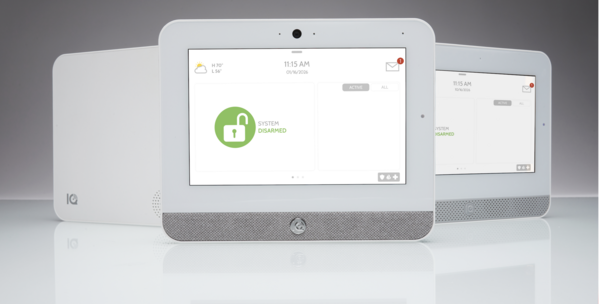
If you’ve followed the Tuxedo keypad over the years, you know the weather feature has had its ups and downs. First introduced, then paused, then brought back again, it’s been quite a journey. Now, Resideo has confirmed that weather updates will no longer be supported on certain Tux models.

The announcement earlier this week confirmed that the TUX, TUXWIFIS, and TUXWIFIW will no longer support the weather display after August 15, 2025. However, the Honeywell Home TUXEDOW and Resideo TUXEDOWC, the newer touchscreens for the VISTA-21IPLTE, VISTA-20P, VISTA-15P, and VISTA-128BPT, will continue to support the feature.

If you’ve programmed automation scenes that use “Sunset” as a trigger, those automation scenes will no longer function on the affected TUX models. For example, if you have lights set to turn on automatically at sunset, that scene will no longer work now that the weather service is discontinued. The TUXEDOW and TUXEDOWC will continue to support "Sunset" as an automation trigger.

Quick Facts:

Which models no longer support weather as of August 15, 2025?

  • TUX
  • TUXWIFIS
  • TUXWIFIW

Which models still support weather?

  • Honeywell Home TUXEDOW
  • Resideo TUXEDOWC

What happens to my sunset scenes?

On affected TUX models, automation scenes that use “Sunset” as a trigger will stop working (e.g., lights set to turn on at sunset will no longer automatically do so).

What should I do if I’m affected?

If you rely on weather or sunset triggers, consider upgrading to a TUXEDOW or TUXEDOWC. If you don’t use those features, no action is required.

If you are an Alarm Grid customer and you have questions or need assistance, you can contact us at support@alarmgrid.com. Our support hours are Monday - Friday, 9:00 AM - 8:00 PM Eastern Time. Our support number is 888-818-7728.

Tags: , , , , , , , , , ,

Comments


Posted By

The problem outlined in this notice arises if you attempt to pair an older firmware ProSeries touchscreen keypad to a newer or recently updated ProSeries panel. If the keypad is on version 3.324.46 or lower, and the panel is on 03.3206.57+, then the keypad won't pair and ceases functioning.


ProSeries keypads, specifically the PROWLTOUCH and PROWLTOUCHC, may require a special upgrade process to install the latest firmware in certain cases. Normally, these keypads receive updates from the ProSeries panel. However, if the keypad can’t pair with the panel, or loses connection, it won’t be able to receive the update.

If you have a ProSeries panel and touchscreen keypad that stay paired, connected to WIFI, and in regular communication most of the time, you shouldn’t have any issues. When the panel updates its firmware via WIFI, it will pass along any available update to the keypad automatically. If your keypad has trouble staying connected, you may want to set it up using Access Point (AP) Mode. This helpful FAQ can show you how.

As we mentioned earlier, most users won’t run into this issue. However, certain situations make it more likely. For example, if you buy a used ProSeries touchscreen keypad, or if you purchase one from stock that has been sitting on the shelf for a long time, you may encounter the problem.

If your panel hasn’t been updated regularly, jumping from an older firmware straight to the latest release can cause the issue described above. It can also occur with panels that have been installed for a long time and communicate with AlarmNet360 only over cellular.

If your system has a PROWIFI or PROWIFIZW module, the panel and keypad may have been paired using AP Mode. Since the panel can’t update firmware over cellular, suddenly connecting it to WIFI could trigger an upgrade to the latest version, potentially leaving the keypad behind on older firmware.

If you purchase a new keypad that has been sitting in stock, and you discover it suffers from this issue, you should be able to return it to the dealer or distributor for a refund or replacement. However, if you buy a used keypad, inherit one with a home purchase, or receive a second-hand keypad as a gift, you may need to follow specific steps to update it. The first step is to check the firmware version.

Our Advice: If you’re considering buying a used touchscreen keypad, ask the seller to verify its firmware before you commit. Request a picture of the firmware screen as proof. Even if the keypad isn’t paired to a panel, you can still see its firmware version.

To check the firmware, power on the keypad and let it attempt to connect to a panel. Press "Pair to Panel". On the next screen, you’ll see options for connecting the keypad to WIFI. At the bottom of that screen, the current firmware version is displayed.


Once you know the keypad firmware, verify your ProSeries panel version. On the panel begin by tapping the Menu icon (≡) at the bottom center of the panel screen. Scroll down and tap Tools > Enter the Installer or Master Code (4112 or 1234, by default) > tap System Information > General. The panel firmware version will be displayed in a XX.XXXX.XX format.

If the keypad is on version 3.324.46 or lower and the ProSeries panel is on firmware version 03.2306.57 or higher, the touchscreen keypad will not pair with the panel. There is no way to make the keypad in this example pair with a panel at that firmware version. However, the keypad will still function if it is used with a panel on a lower firmware version that is then upgraded properly.

Important Note: You cannot downgrade the firmware on a ProSeries panel, per Resideo support.

Another drawback to this situation is that an end-user can't control when their panel updates, or to what version. The only control you have as an end-user is that if you remove your ProSeries panel from WIFI, it will not receive firmware updates. These panels don't update using cellular data.

Important Notes At A Glance:

  • Keypads on v3.324.46 or lower can’t pair with panels on v03.2306.57 or higher.
  • ProSeries panel firmware can’t be downgraded.
  • Panels update only over WIFI, not cellular.
  • Disconnecting WIFI stops panel updates.
  • Check firmware before buying a used keypad.
  • Contact your alarm dealer for upgrade help.

If you're a customer with concerns about this potential issue, contact your alarm dealer. They will be able to push the necessary upgrades to your ProSeries panel in the correct order. Alarm Grid has a list of customers with touchscreen keypads that may be susceptible and we are proactively reaching out via email or phone to those customers. If you are not an Alarm Grid customer your alarm dealer should have a similar list.


Tags: , , , , , , , , , , , , , , , , , , ,

Comments


Posted By

As we told you in February, Resideo is sunsetting first-gen Total Connect 2.0 cameras. After July 31, 2025, they’ll no longer work in TC2 and will be removed from all accounts. Any recorded clips will also be deleted. Be sure to download and save any important footage outside of TC2 now.

The sunsetting of first-gen Total Connect 2.0 cameras is now just days away. If you still have any of the original TC2 cameras on your account, you should be preparing to replace those cameras with new ones. Otherwise, you will lose video coverage in those areas.

Even more important is downloading any critical video clips uploaded from first-generation cameras. Once the sunset occurs, both the cameras and their recorded footage will be removed from Total Connect 2.0 and will likely be unrecoverable.

It's easy to save these video clips from Total Connect 2.0.

  1. Log into TC2 as normal.
  2. Tap Activity from the menu options at the bottom of the screen, or from the left navigation pane, if you're logged in on the website.

  3. From the Activity screen, find the clip you want to save.
  4. Tap the three dots to the right of the clip title and then choose Download.
  5. In iOS you can access your downloaded clip from Photos. In Android devices, the options may vary depending on device manufacturer, but generally you can access the clip from Files (All or Downloads) and from Gallery:


  6. Recommended VX Series Replacements for EOL Cameras
    Product Name Recommended Replacement
    IPCAM-WI VX5 Indoor Camera
    IPCAM-WI2 VX5 Indoor Camera
    IPCAM-WL VX5 Indoor Camera
    IPCAM-WO VX3 Outdoor Camera
    IPCAM-PT/IPCAM-PT2/PT2A One or More VX5 Indoor Cameras
    ACU Replace ACU and Camera with appropriate Indoor or Outdoor VX5 Camera
    AP/WAP-PLUS/WREX No Replacement Available

The first Total Connect 2.0 cameras did their job well after launching in late 2011 or early 2012, but video tech has come a long way since then. Today's AI motion detection is way better than the old method of analyzing pixel-changes. The newer cameras, such as those in the table above, use AI to actually tell the difference between a person and an animal, for example. With all the available improvements, it makes sense to phase out the original cameras.

Tags: , , , , , , , , , , , , ,

Comments


Posted By

Are you clinging to an older alarm system that uses a phone line? You're not alone. Many reliable old systems are still in use, but finding POTS service may be a challenge. Dialer capture modules offer an easy way to update your older system, allowing it to communicate over cellular networks.

An LTEM-P is shown on the right, and the PRODCM is shown on the left below. The PRODCM mounts inside the enclosure for the LTEM-P:

This means you can keep your existing alarm panel and sensors while upgrading to a more reliable and future-proof communication method. Here we'll explore two popular options: the Resideo PRODCM and the all-new Alarm.com Universal Communicator (LX30B-Q50TU-AUC).

Resideo PRODCM Dialer Capture Module

The Resideo PRODCM is a compact plug-in module designed to work with Resideo's LTEM-PA and LTEM-PV communicators. It's a great choice for alarm panels that don't support Resideo's ECP data communication but can send signals in the Contact ID (CID) format through a telephone output.

Key Features of the Resideo PRODCM:

  • Seamless Integration: The PRODCM cleverly mimics a phone line. When your alarm panel tries to dial the central station, the module provides a dial tone, receives the dialed number, and then captures the Contact ID message. If a panel can report using CID format and has a working dialer, it can be used with the PRODCM
  • Reliable Communication: Once the alarm signal is captured, it's passed to the LTEM-P series communicator, which then sends it to the central monitoring station over the internet, if available, or a cellular network, if enabled.
  • One-Way Communication: It's important to note that the PRODCM only supports one-way communication from the control panel to the central station. This means features like remote access via Total Connect 2.0 or remote downloading to the panel are not supported.
  • Simple Installation: The module plugs directly into the main board of an LTEM-P series communicator. The alarm panel's Tip and Ring terminals are then wired to the terminals on the PRODCM.

Alarm.com Universal Communicator LX30B-Q50TU-AUC

The Alarm.com Universal Communicator (AUC) LX30B-Q50TU-AUC is another excellent option for upgrading older POTS-based security systems. It is compatible with a wide range of panels from manufacturers like DSC, Honeywell, GE, and Paradox. This device not only provides a modern communication path but also adds some smart features.

The Alarm.com LX30B-Q50TU-AUC is shown below:


Key Features of the Alarm.com LX30B-Q50TU-AUC:

  • Broad Compatibility: The AUC can work with many different brands of older alarm panels, making it a versatile choice. It supports both Contact ID (CID) and SIA signaling formats.
  • Interactive Services: A major advantage of the AUC is its ability to connect to the Alarm.com platform. This allows you to remotely arm and disarm a compatible system using the Alarm.com app and receive notifications for events, like alarms.
  • Remote Arming and Status: By using a keyswitch zone and a programmable output (PGM) on your existing panel, the AUC can provide remote arming capabilities and allow you to view the system's status from your phone. To clear an alarm, the user must log into the customer website. You cannot clear an alarm through the app. For VISTA panels, the alarm must be cleared locally through the panel keypad. The system can't be armed again until the alarm is cleared locally.
  • Flexible Installation: The AUC wires to the control panel's auxiliary power and telephone terminals. For remote arming and status updates, it also connects to a zone and a PGM on the panel.

Partial List of Alarm.com Universal Communicator Compatible Panels

Manufacturer Model/Series Version (If Tested)
DSC Impassa
DSC MaxSYS PC4020A V3.52
DSC PC585 70000034-16
DSC Power832 (PC5010) Rev. 04
Rev. 06
DSC PowerSeries Neo
DSC PowerSeries PC1616/PC1832/PC1864 Rev 4.2 EU/4.2 EU/4.5 EU
GE Concord 4
GE Hills NX-4V2
GE Hills NX-6V2 (EU)
GE Hills NX-8V2
Honeywell Galaxy 2-12
Honeywell Vista 15P/20P/21IP
Honeywell Vista128BPT
Honeywell Vista48LA Rev. 4.2
Honeywell Vista50P
NAPCO Gemini P9600
PIMA HUNTER 8 (Captain 8)
PIMA HUNTER-Pro-832
Paradox EVO192 Rev. 7.70
Paradox EVO48 Rev. 1.21
Paradox SP4000/6000
Texecom Premier 412/832

Feature Comparison

Feature Resideo PRODCM Alarm.com LX30B-Q50TU-AUC
Primary Function Captures Contact ID signals and sends them via an LTEM-P communicator Captures Contact ID (CID) or SIA signals previously sent via POTS for cellular communication, and adds interactive services
Interactive Services No, provides communication to the central station only Yes, through the Alarm.com platform (remote arm/disarm, notifications)
Panel Compatibility Works with panels that use Contact ID format via a dialer Compatible with a wide range of panels from various manufacturers (DSC, Honeywell, GE, Paradox, etc.)
Communication Path Works with an LTEM-P communicator (AT&T or Verizon 4G/LTE Cat-M1) for cellular or internet transmission Communicates directly over an AT&T 4G/LTE cellular network
Remote Arm/Disarm Not supported Yes, with panels that support keyswitch arm/disarm
Signaling Formats Contact ID only Contact ID and SIA

Which One is Right for You?

Choosing between the Resideo PRODCM and the Alarm.com LX30B-Q50TU-AUC really comes down to what you want to achieve.

If your main goal is to simply replace your old phone line with a modern, reliable cellular or internet communication path to a central station, and you already have or plan to purchase a Resideo LTEM-P series communicator, the PRODCM is a straightforward and effective solution.

However, if you're looking to not only upgrade your communication path but also add smart control to your existing system, the Alarm.com AUC LX30B is the clear winner. The ability to remotely arm and disarm your system and receive notifications through the powerful Alarm.com platform brings a whole new level of convenience and peace of mind to an older alarm panel.

Tags: , , , , , , , , , , , , , ,

Comments


Posted By

Qolsys is rebranding as IQ, taking a cue from its product line. IQ's parent company, JCI, announced the change on July 1, 2025. The end-user-facing site has already been updated with new branding. It will likely take a little longer for product packaging to follow suit. But, what does this mean?

Honestly, for customers not a lot. I don't know what precipitated the change, but it could be the result of market research showing that IQ is a more recognizable name than Qolsys. Or, perhaps, just a name that is more positively viewed. Whatever the reason, the product line we've all come to know and love will remain unchanged.

Speaking of changes, IQ has a new panel lineup on the horizon. The IQ Panel 5 debuted at ISC West this year. This panel lineup will follow the format of the IQ4 systems. Meaning there will be a good version in the IQ5 NS. A better version in the IQ5 Hub, and a best option in the IQ Panel 5. The differences that exist in the similar IQ Panel 4 lineup will be mirrored in the IQ5 series.

IQ Panel 5

Let’s start with the highlight of the new IQ Panel lineup, the upcoming IQ Panel 5. This next-generation panel will build on the foundation of the IQ Panel 4, launching with base firmware equivalent to version 4.6.1 — likely renamed as 5.0 for the new release.

The IQ Panel 5 will feature a Qualcomm Dragonwing™ chipset and run on Android 14, a big upgrade from the IQ Panel 4’s Qualcomm Snapdragon™ chipset and Android 9 base. This major update paves the way for new and enhanced features and a refreshed user experience, with future refinements driven by customer feedback once the system is in use.

With its base firmware, the IQ Panel 5 will support PowerG+ devices right out of the box. Another key improvement is how the panels will be configured and offered. Every IQ Panel 5 model will include a built-in PowerG transceiver rather than a PowerG daughter card. This includes the IQ5 Hub and IQ5 NS. If support for a legacy SRF frequency is needed, it can easily be added with a simple daughter card. This makes selecting the right panel variant much more straightforward.

The panel’s front-facing camera has also been improved. Instead of being adjustable up and down, the camera is now fixed in place, but rotated 90 degrees to provide a portrait view rather than a landscape one. This means the camera can capture clear disarm images whether the user is a child or an adult. The camera resolution has also been improved, increasing from 9MP to 13MP for better image clarity.

The following improvements have also been made:

  • LEDs: Smaller, less glaring.
  • Power Supply: Now uses a 12VDC power supply, allowing for longer power wire runs and better overall operation.
  • Mounting Plate: Improvements have been made to the smart mount layout so that it better lines up with single, double, and triple gang boxes.
  • Power Terminals: A new terminal block design uses pins rather than blades to connect the panel with power (when the barrel connector is not being used). This prevents power fluctuations during touchscreen use, when the panel may flex against the mounting plate.
  • Panel Tamper: The panel tamper has been moved slightly toward the center of the unit and is now a solid plastic piece, rather than a foam-tipped one.

IQ5 Hub

The IQ5 Hub, assuming it will follow in the footsteps of the IQ4 Hub will still be a powerhouse system, but will be slightly less feature-rich than the IQ Panel 5. The table below shows a comparison between the IQ Panel 4 and the IQ4 Hub. This will give an idea of the differences we can expect between the IQ Panel 5 and the IQ5 Hub.

Feature Comparison between the IQ Panel 4 and the IQ4 Hub:

(Features that differ are highlighted in yellow)

Feature IQ Panel 4 IQ4 Hub
Processor Qualcomm Snapdragon 8 core SOM Qualcomm Snapdragon 8 core SOM
Memory 16GB of NAND Flash 16GB of NAND Flash
User Codes Up to 242 (Role-based) Up to 242 (Role-based)
WIFI Support 802.11 a/b/g/n/ac dual-band 2.4/5Ghz - includes built-in Access Point Capability 802.11 a/b/g/n/ac dual-band 2.4/5Ghz - includes built-in Access Point Capability
Cellular Technology LTE Category 4 LTE Category 4
Automation Support Z-Wave Plus (800): Up to 137 Devices) Z-Wave Plus (800): Up to 137 Devices)
Bluetooth Support Bluetooth Low Energy (BLE) 4.2: For Disarming and Audio Streaming Bluetooth Low Energy (BLE) 4.2: For Disarming and Audio Streaming
LCD Display 7" LCD, 1280 x 800 pixels, 300 cd/㎡, RGB 24 bit, 16.9 Million Colors 7" LCD, 1024 x 600 pixels, 300 cd/㎡, RGB 24 bit, 16.9 Million Colors
Touchscreen Type Capacitive Glass Multi-touch Capacitive Glass
LED Indicator (Status LED) Triple, Full-color RGB LED Single, Full-color RGB LED
Speaker 4W x 4, QuadSound, 4x 4W Front-facing speakers w/85 dB siren 4W x 1, Front-facing speaker + 85 dB Piezo Siren
Microphone MEMS x 3, (Micro-Electro-Mechanical System) with Echo Cancellation MEMS x 1 (Front-facing)
Camera Front-facing Camera, 8MP, Wide-Angle 120° Field-of-View, Fixed-Focus Camera, with Flex-Tilt Adjustment No Camera
Two-Way Voice Support Yes No
Supports IQ Base Yes No

IQ5 NS

The IQ5 NS is a screenless version of the IQ Panel 5. While full specifications have not yet been released, the differences between these two systems will likely mirror those between the IQ4 NS and the IQ Panel 4. For the DIY installer, the most significant change will be the programming, which is handled through an app or web portal rather than an integrated touchscreen.

For local programming, the IQ Installer Interface app must be used. This is a free app available from the iOS App Store and Google Play Store. This allows you to connect to the panel via its built in wireless access point and program using the phone or tablet's touchscreen. The programming interface is very similar to programming through the panel's touchscreen. Below, you can see an example of the screen used to connect to an IQ4 NS.


The IQ5 NS is an excellent choice for those on a budget who still want many of the great features associated with IQ panels. These features include Z-Wave Plus with Z-Wave Long Range support, support for PowerG, and an updated Qualcomm Dragonwing™ processor. The chart below shows a comparison between all three versions of the IQ4 panel line. It's safe to assume that the differences between the panels in the IQ5 lineup will be similar.

Feature IQ4 NS IQ4 Hub IQ Panel 4
HARDWARE
7" Touchscreen NO YES YES
8-Core CPU YES YES YES
Built-in LTE & WIFI Comms YES YES YES
Dual SRF (PowerG + 1) NO NO YES
Single SRF YES YES NO
Z-Wave Plus (800-Series) YES YES YES
Bluetooth Disarming NO YES YES
Music Streaming NO YES YES
Microphones 0 1 3, with echo cancellation
8MP Panel Camera (w/Flextilt) NO NO YES
Built-in Panel Glass Break NO NO YES
Built-in Panel Motion Detector NO NO YES
24-Hour LiPo Backup Battery YES YES YES
Smart Mount Installation YES YES YES
Compatible with IQ Base NO NO YES
Available in Black Housing NO NO YES
SOFTWARE
Live View, Live Answer Doorbell & Cameras NO YES YES
Weather on Home Screen NO YES YES
Photo Frame Screensaver NO YES YES
Full Alarm.com Integration YES YES YES
SECURITY
4-Watt Speakers YES, 1 YES, 1 YES, 4
85dB Siren YES YES YES
Support for 128 Zones YES YES YES
Support for Partitioning YES, 4 YES, 4 YES, 4
242 User Codes YES YES YES
Encrypted Sensor Support YES (with PowerG or 319.5 MHz SRF) YES (with PowerG or 319.5 MHz SRF) YES
Support for Hardwired Zones YES (SRF will determine how) YES (SRF will determine how) YES (via PG9WLSHW8 or other SRF)
2-Way Voice NO NO YES
Residential Certification YES, (UL1023, UL985) YES, (UL1023, UL985) YES, (UL1023, UL985)
Commercial Certification YES, (UL2610) YES, (UL2610) YES, (UL2610)

So, the brand name change from Qolsys to IQ won't affect any existing customers or their products, and it won't change the product lineup, or the roadmap for future products. It's just less of a mouthful when discussing the brand and its products, and that's a good thing!

Tags: , , , , , , , , ,

Comments


Posted By

Alarm Grid is closed today, July 4 in observance of Independence Day. This holiday gives us a chance to relax and enjoy time with our families. We hope you're doing the same! On Monday, July 7, we'll return to our normal schedule. Tech support will be available from 9:00 AM to 8:00 PM EDT.

Please remember that our commitment to your safety and security never takes a holiday! Our 24/7 central station partners will remain fully staffed and operational throughout the holiday. Dedicated operators are always ready to process any alarms or other signals from your security system, ensuring uninterrupted protection for your home or business.

You can rest easy knowing that even when our administrative team is away, your alarm system is being monitored, and signals processed around the clock. If you need to contact the monitoring station to cancel an alarm, or verify a signal, it's easy:

Alarm Grid Monitored Customers In the United States:

  • Contact Criticom Monitoring Service (CMS) by calling 888-818-7728 and choosing Option 9.
  • Be ready to provide the monitoring station operator with your name, address, and your false alarm password. If you provide the wrong password, or provide the duress password, they will dispatch authorities, so be prepared.

Alarm Grid Monitored Customers In Canada:

  • Contact Rapid Response by calling (800) 932-3822 and following the prompts.
  • Be prepared to provide the operator with you name, address, and false alarm password. If you provide the wrong password, or the duress password, the operator will dispatch authorities.

The monitoring station can't take requests for account changes, billing inquiries, vacation scheduling, or other administrative tasks. If you need to contact Alarm Grid for those types of issues please send us an email. Our email address is support@alarmgrid.com. If you prefer to speak to someone, you can call us at 888-818-7728 during our regular business hours. Please be patient on Monday while we process any backlogged requests received during the long weekend.

Have a safe and happy Fourth of July!

Tags: , , , , , , ,

Comments


Posted By

Today, June 19, 2025, Alarm Grid's offices are closed in observance of Juneteenth, the United States' most recently established national holiday. This means we won't be here to provide technical support or activate new accounts. We'll return to our regular hours on Friday, June 20, 2025.

On June 17, 2021, the Juneteenth National Independence Day Act was signed into law, officially making June 19, the day of the original Juneteenth celebration, a nationally recognized holiday in the United States. As a result, most banks, federal offices, and the USPS will be closed on this day.

For our Alarm Grid monitored customers, it's business as usual! All monitoring activities will continue normally, and customers will full monitoring plans can still contact the monitoring station to verify signals or put your system on test. Your alarm signal processing remains unaffected by the holiday.

Operators at Criticom Monitoring Services (CMS) and Rapid Response (for our Canadian customers) are available at all times. Customers in the U.S. can call (888) 818-7728 and choose Option [9] at the prompt. This will send you directly to CMS. Canadian customers can reach Rapid Response by calling (800) 932-3822 and following the prompts.

Regardless which monitoring station you call, you should be ready to provide your name, address, and false alarm password. Be sure to provide the correct false alarm password to the operator. Providing the duress password or an incorrect password will result in a dispatch of the authorities.

If you need to make changes to your account, change the way an alarm is treated, update your zone list, change your false alarm password, or have any other "housekeeping" tasks to perform on your system, the monitoring station can't help you with those.

You can either email your request, which is preferred, or you can wait and call when we're back in the office. Our email is support@alarmgrid.com. Our phone number is (888) 818-7728. We'll be back on Friday, June 20 at 9:00 AM EDT, ready to assist you. Please allow us a bit of time to catch up on any backlogged requests. From everyone here at Alarm Grid, we hope you have a relaxing and peaceful Juneteenth celebration!

Tags: , , , , , ,

Comments


Posted By

No more hunting through your Alarm.com app activity screen, trying to piece together the reason for an alarm on your system. Alarm Recap, a new feature from Alarm.com, summarizes all events occurring just before, during, and after an alarm. Giving you a complete recap with a single glance.

To see this new feature, you must have an Alarm.com account and iOS app version 5.9.7+ or Android app 5.7.6+. This feature has been slowly rolling out over the past couple of weeks, so if you're on the latest version and don't see it yet, don't worry, it's coming. The alarm recap becomes available on the app Home screen ten (10) minutes after the alarm's conclusion (i.e. post disarm).

Each recap covers activity and video from five (5) minutes before the alarm, events that occur during the alarm, and events up to three (3) minutes after the alarm. While most alarm types trigger a recap, in-app property panic alarms and water monitoring events are not included.

Alarm Recap: What You'll See

  • The Sensor/Event that triggered the alarm.
  • Relevant video footage (i.e., People, Vehicle, Animal, etc.)
  • Recent activity leading up to, and during, the alarm.
  • The user that disarmed after the alarm.
  • Monitoring station events.
  • Tamper or Malfunction Events.

Alarm Recap: Who Can View

All logins with the ability to view Activity have access to the alarm recap. This includes users with Master, Full Control, Read-Only, and Custom logins with the attribute for Activity enabled. Additionally, Master, Full Control, and Custom logins that can arm/disarm remotely can also provide feedback on Alarm Recap. This feedback is used to make improvements to Alarm.com features.

Alarm Recap: How To View

When you log into the app, the alarm recap is available from the Home Dashboard screen. You can also reach it by choosing Activity from the menu options at the bottom of the screen. From the activity screen tap the alarm event row, then tap Alarm Recap.

Alarm Recap: Other Details

If you have a partitioned system, the alarm recap will include each partition that reported an alarm. For commercial accounts with multiple locations, the alarm recap can be viewed from the individual business system's location rather than from the Enterprise Group level.

If multiple alarms occur in a 24 hour period, only the most recent alarm will be shown in the alarm recap. Information for prior alarms can be viewed from the Activity screen. The alarm recap is only available after the alarm has been cleared (the system disarmed). You won't see it during an active alarm.

The Alarm Recap feature is a game-changer when it comes to understanding what's happening with your security system. No more guessing or scrolling endlessly through activity logs!

This new feature gives you a clear, concise summary of alarm events, delivering crucial information like triggering sensors, relevant video, and who disarmed the system, all in one easy-to-digest view. It’s designed to save you time and give you peace of mind by providing immediate clarity when an alarm occurs.

Get the Full Picture with Video

To truly unlock the power of Alarm Recap and see exactly what triggered an alarm, we highly recommend adding Alarm.com's video monitoring to your system. Without video, you'll still get a great summary of events, but with it, you'll literally see the complete picture, allowing you to quickly verify incidents and take appropriate action.

Alarm.com has a tremendous suite of video cameras and peripherals. If you have a scenario, they likely have a camera that will work perfectly in it. Alarm Grid offers video monitoring with security in our Platinum Plans (Self or Full). We also offer stand-alone video monitoring, though you won't get an Alarm Recap with a video-only plan.

Tags: , , , , , , , , , , , , ,

Comments


Posted By

Qolsys IQ4 software version 4.6.1 is set to drop on June 9, and it's a BIG update. From support for PowerG+, including the new PowerG+/Z-Wave touchscreen door lock, to the all-new water tile, we're going to discuss what you can expect from this huge software update. Come, let's get into it!


The plan is for this software to be posted on June 9, 2025. That could change, but I would be surprised if it does. That doesn't mean that you'll be able to go to Menu > Settings > Advanced Settings > Installer or Dealer Code (1111, 2222 respectively, by default) > Upgrade Software > Upgrade Using Network and the panel will go out there and find 4.6.1 and install it.

When a new version is released, particularly a large one like this, it's usually only available by entering a Patch Tag at the panel, or by pushing it over-the-air through Alarm.com. This kind of slow rollout allows the update to be further vetted, making sure there are no previously unnoticed issues that need to be corrected. After the software has been out for a little while, it will be available for a blind upgrade, as described in the previous paragraph.

New Features in 4.6.1

Support for PowerG+ Devices and Features:

The following new PowerG+ sensors will be supported. This link has product images and links. The links below are for the specification sheets:

In addition to the list of newly supported devices, there are also features associated with PowerG+ that will only be supported in 4.6.1+. One such feature is Dealer Lockdown, which allows an alarm dealer to lock a PowerG+ sensor to their unique dealer code. This prevents another dealer from simply taking and reusing that sensor with a different panel. While this offers a significant level of control for traditional security companies, it doesn't really affect Alarm Grid customers.

Another addition for PowerG+ devices is battery level reporting to Alarm.com. This feature allows alarm dealers to view the battery status of all PowerG+ sensors on a system at a glance. This insight enables dealers to efficiently schedule service calls, replacing multiple low batteries in a single visit rather than making separate trips for each individual alert. This is a powerful operational benefit for traditional alarm companies, streamlining their maintenance processes.

Alarm Grid customers probably won't notice this feature, unless they're working with tech support on an issue for a PowerG sensor. Customers can always view battery status for compatible PowerG devices through the panel by going to "System Tests > PowerG Test" in the "Advanced Settings" menu. You can access this option using the Installer Code/Dealer Code/Master Code (1111, 2222, 1234, respectively, by default).

And finally, support for a maintenance warning for the new PGP9976 Smoke Detector is added in Software 4.6.1. Photoelectric smoke detectors have a sensing chamber with a photo sensor. Generally speaking, when smoke enters the chamber, it causes light to refract, hitting the photo sensor and causing an alarm. Over time, dust, dirt, cobwebs, and other debris can get into the sensing chamber, causing false alarms. The smoke detector can sense when this is happening and notify the panel, letting you know you need to clean the sensing chamber.

Additional New Features (Not Associated with PowerG+):
  • Video Events to Panel: Analytic video event thumbnails, and annunciation of these events, can now be displayed on, and announced by, the IQ Panel 4 and IQ4 Hub. This means, based on your settings, you can receive an audible/visual notification with an image thumbnail directly on the panel. You'll be able to tell immediately if it's a person, a package drop-off, an animal, etc. based on the type of camera and the analytics rule configuration.
  • Ambient Temperature Display: Now, the Dealer, Installer, or Admin user can select up to two (2) compatible PowerG/PowerG+ devices to show their ambient temperature on the Panel UI and Weather Clock.
  • Silent Disarming: Now, when the system is armed Stay, users will see a "Silent Disarming" option on the panel UI. So, when you come home after working the night shift, you can enter and disarm without disturbing those who are still asleep.
  • Mute Life-Safety Trouble Sounds: An option has been added to allow life-safety trouble sounds to be muted while the panel is in NightTime mode. Once the panel returns to regular operation, the trouble sounds will be annunciated.
  • Support for Dark Mode on IQ Remote PG: Configurable per remote touchscreen. Hopefully, the option to have the panel and touchscreens follow Sunset/Sunrise and switch automatically will be in a future release.
  • Adjust the order of Devices in the Lighting Screen: Users with a long list of automated lighting devices can now drag the most commonly used devices to the top of the list. This prevents having to scroll and search for them each time you want to control them manually.
  • User Bypass Attribute: When creating a user code via the panel user interface, you can now select whether or not this user is allowed to bypass zones in order to arm. This feature requires that "Secure Arming" be enabled. Secure arming disables quick arming and requires a user code for every arming.
  • Ecobee Thermostat Support: Ecobee thermostats that work with Alarm.com can now also be seen/controlled through the IQ panel UI.

This isn't everything included in this build, but it highlights what I believe are some of the more exciting additions. When the release notes become available, we'll post them to the site and update this post. There are a few bug fixes, and minor updates as well. The shade icon has been updated. The user interface for dimming lights has been improved. The Z-Wave firmware for the panel is updated from V7.15 to V7.18, improving performance for large networks.

This will be the base build for the new Qolsys IQ Panel 5 lineup, which will debut some time later in the year. Following the format set forth by the IQ4 lineup, there will be a Qolsys IQ5NS, IQ5 Hub, and IQ Panel 5, adhering to the "Good, Better, Best" philosophy. We'll have more on these new panels as information seeps out.

Tags: , , , , , , , , , , , , , , , , , , , , , ,

Comments


Posted By

Spring is here and today we observe Memorial Day. What started in the late 1800s as Decoration Day, a time to honor fallen Civil War soldiers, has transformed over the years. In 1968, President Lyndon Johnson declared the last Monday in May to be Memorial Day by signing the Uniform Holiday Act.

The Alarm Grid offices will be closed in observance of Memorial Day on Monday May 26, 2025. We won't be answering calls for technical support or activating new accounts. This is an opportunity for our dedicated staff to relax and enjoy time with their families. Working in security can be stressful and everyone needs a break from time to time!

We'll be back in the office on Tuesday, May 27, 2025 for our regular support hours (9:00 AM - 8:00 PM Eastern Time). If you have an inquiry over the holiday weekend, feel free to email us at support@alarmgrid.com. We'll prioritize support emails on Tuesday and get back to you as quickly as possible. Please be patient while we respond to all requests.

If you have full central station monitoring with Alarm Grid know that our central station partners, Criticom Monitoring Services (United States customers) and Rapid Response (Canadian customers) are available at all times. If you need to verify or cancel an alarm, or put your system or a sensor on test, you can contact them. You can reach Rapid Response at (800) 932-3822.

Customers in the U.S. can call (888) 818-7728 and choose Option [9] at the prompt. This will send you directly to Criticom Monitoring Services (CMS). Regardless which monitoring station you call, you will need to be ready with your name, address, and false alarm password. Be sure it's the false alarm password that you provide to the operator. Not the duress password and not an incorrect password. Providing the wrong information will result in a dispatch of the authorities.

If you need to make changes to your account, change the way an alarm is treated, update your zone list, change your false alarm password, or have any other "housekeeping" tasks for your system, the monitoring station can't help you with those You can either email the request, which is preferred, or you can wait and call when we're back in the office.

What started as a way to honor fallen Civil War soldiers now extends to all who died in U.S. conflicts. I remember calling my father on Memorial Day to thank him for his service. He told me I had the wrong day, that was for Veteran's Day. I knew, I just wanted an extra opportunity to thank him for coming home. Today, we especially honor those who were not so fortunate, and their families.

Tags: , , , , , , ,

Comments