Wireless Security Posts

Posted By

Alarm Grid is thrilled to inform you that the new 2GIG 345S encryption-capable sensor lineup is now available. This collection covers all the bases, with sensors for security, life safety, and environmental monitoring. The 345s sensors allow you to select encrypted or non-encrypted operation.

If you're building out a new 2GIG system or expanding an existing one, you are going to want to take a close look at what this family of products has to offer.
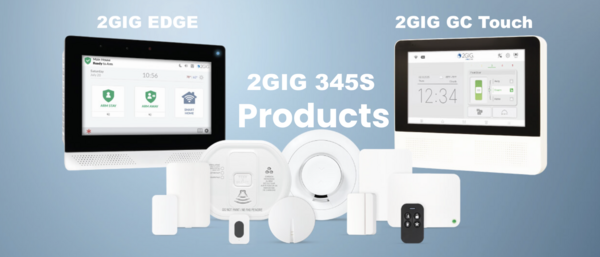

All of the 345S sensors communicate on the standard 345 MHz wireless frequency. That means they play nice with a wide range of 2GIG panels, including the 2GIG GC Touch (AT&T LTE and Verizon LTE versions), 2GIG GC2e, 2GIG GC3e, and Edge (AT&T LTE and Verizon LTE versions available). They will also work right alongside any existing 2GIG or Honeywell 5800 Series sensors you already have enrolled.

And here is a nice bonus: the sensors in this lineup come with an onboard encryption switch, so you can enable encrypted communication if your panel supports it. They come from the factory with encryption disabled, but enabling it is super easy.

With that said, let's check out the new 345S sensors!


2GIG DW100-345

345S Wireless Door/Window Contact Sensor
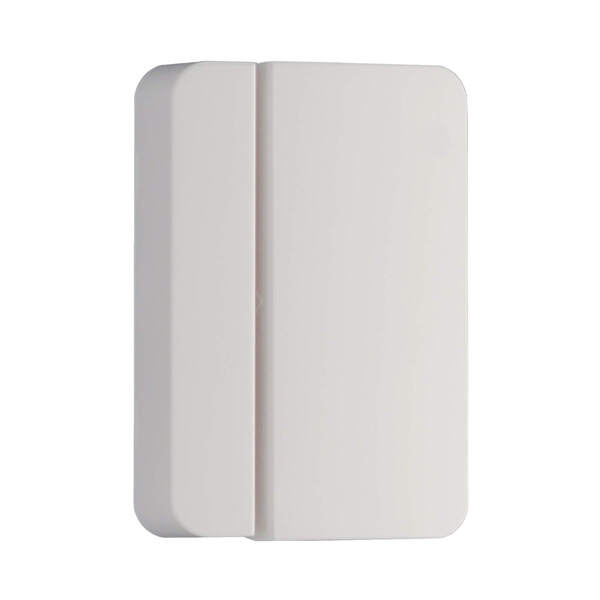
345S Wireless Door/Window Contact Sensor

The 2GIG DW100-345 is a surface-mounted door and window contact that should be one of the first sensors on your shopping list. It mounts right onto the surface of a door or window frame and communicates wirelessly with your panel whenever the magnet separates from the sensor, letting the system know something has been opened.

One thing we really like about this one is the thoughtful design. It has a rounded outer shell with a square interior, which makes it easy for installers to line up correctly during mounting. It also ships with a spacer that lets it fit flush on a wider variety of door and window profiles. You get support for an external Normally Open or Normally Closed wired input as well, which gives you some extra flexibility. Battery life comes in at up to 8 years, and encryption is switchable on or off right on the board.

Key Features:

  • Surface-mounted design with included spacer for versatile installation
  • Up to 8-year battery life
  • Supports external NO or NC wired input
  • On/Off switchable encryption via onboard switch


2GIG DWR100-345

345S Recessed Door/Window Contact Sensor
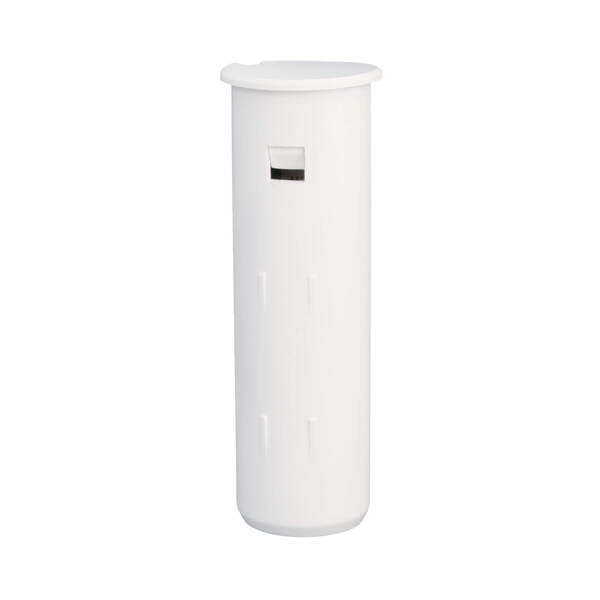
345S Recessed Door Window Contact Sensor

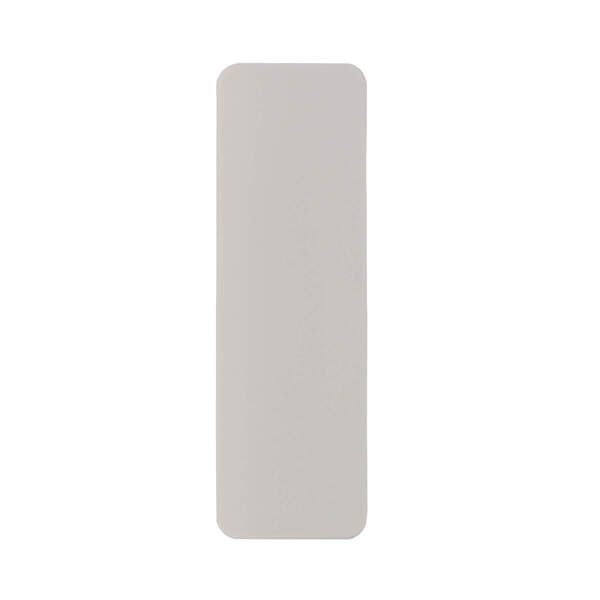
If you want your security sensors to be completely out of sight, the 2GIG DWR100-345 is the way to go. This is a recessed contact, which means the sensor and its magnet get installed inside holes drilled into the door or window and its frame. Once everything is in place, the only way you would ever notice the sensor is by looking at the edge of the frame with the door or window already open.

This is a fantastic option for anyone who cares about keeping their home looking clean and uncluttered. It communicates on the 345 MHz frequency and will report to the panel whenever the door or window is opened. Battery life is rated at up to 5 years, and encryption can be toggled on or off using a switch right on the sensor.

Key Features:

  • Completely hidden recessed design for a clean look
  • Up to 5-year battery life
  • On/Off switchable encryption via onboard switch


2GIG PIR100-345

345S Passive Infrared Motion Detector

345S Passive Infrared Motion Detector

The 2GIG PIR100-345 is a wall-mounted motion detector that uses passive infrared technology to pick up on changes in heat energy caused by movement. When set to its default High Sensitivity Mode, it covers an impressive area of 30 feet deep by 50 feet wide. That is more than enough for a typical living room, hallway, or open floor plan.

Pet owners will appreciate the built-in pet immunity feature. When enabled, the sensor will ignore the movement of animals weighing up to 85 pounds, which goes a long way toward cutting down on false alarms. The sensitivity setting is installer-adjustable, so you can dial it in for your specific environment. Battery life is rated at up to 7 years, and like most sensors in the 345S lineup, encryption can be toggled on via an onboard switch.

Key Features:

  • 30 ft x 50 ft coverage area on high sensitivity
  • Pet immunity for animals up to 85 lbs (installer-adjustable)
  • Up to 7-year battery life
  • Ships non-encrypted; encryption activated via onboard switch


2GIG GB100-345

345S Wireless Glass Break Detector

345S Wireless Glass Break Detector

The 2GIG GB100-345 is a wireless glass break detector that can be mounted on either a ceiling or a wall. It uses a dual-stage detection method to tell the difference between actual breaking glass and other loud noises. First, it listens for the low-frequency "thud" of something striking the glass. Then it listens for the high-frequency "crash" of the glass actually shattering. Both sounds have to occur together for the sensor to trip, which does a great job of preventing false alarms.

It handles plate, tempered, laminated, and coated glass, and it covers a 15-foot radius from where it is mounted. There are user-adjustable sensitivity settings as well, which is helpful if the sensor is going in a noisier area. Battery life is up to 5 years, and encryption is switchable on the board.

Key Features:

  • Dual-stage thud and crash detection to minimize false alarms
  • Detects plate, tempered, laminated, and coated glass
  • 15-foot detection radius
  • User-adjustable sensitivity settings
  • Up to 5-year battery life
  • On/Off switchable encryption


2GIG SMKT100-345

345S Smoke, Heat, Freeze Detector

345S Smoke, Heat, Freeze Detector

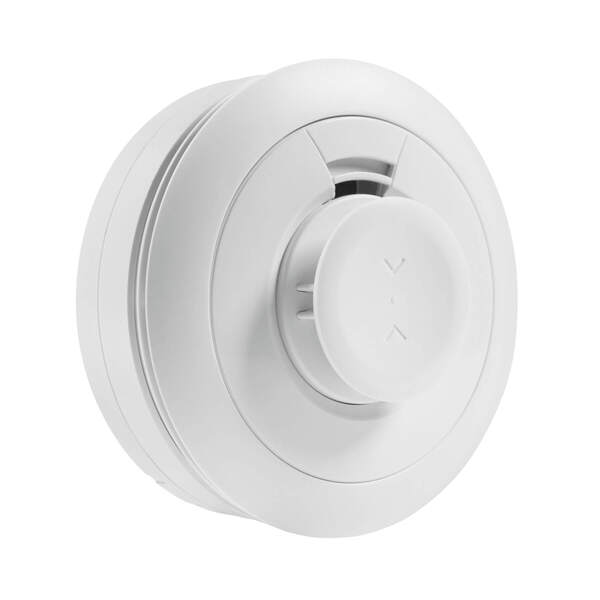
The 2GIG SMKT100-345 is a multi-purpose life safety sensor that handles smoke, heat, and freeze detection all in one device. It uses a photo-electric optical smoke detection chamber paired with advanced detection algorithms, and it meets the newer UL217 8th edition and UL268 7th edition standards. That means it is better at recognizing smoke from synthetic materials, which is important since so much of what is in our homes today is made from plastics and other synthetics.

Beyond smoke, the sensor also monitors for dangerous temperature conditions. It sends a Rate of Rise alert when the room temperature hits 104 degrees Fahrenheit and climbs 15 or more degrees within a single minute. It will also alert you to extreme high and low temperatures, making it useful as a freeze sensor for vacation homes or unoccupied spaces. The projected battery life is 10 years, and encryption is enabled by default on this one, though it can be switched off if needed.

Key Features:

  • Meets UL217 8th edition and UL268 7th edition standards
  • Photo-electric optical smoke detection chamber
  • Rate of Rise heat alert (104°F + 15° rise in one minute)
  • Extreme high and low temperature freeze alerts
  • Projected 10-year battery life
  • Default encrypted; can be switched to unencrypted mode


2GIG CO100-345

345S Carbon Monoxide Detector
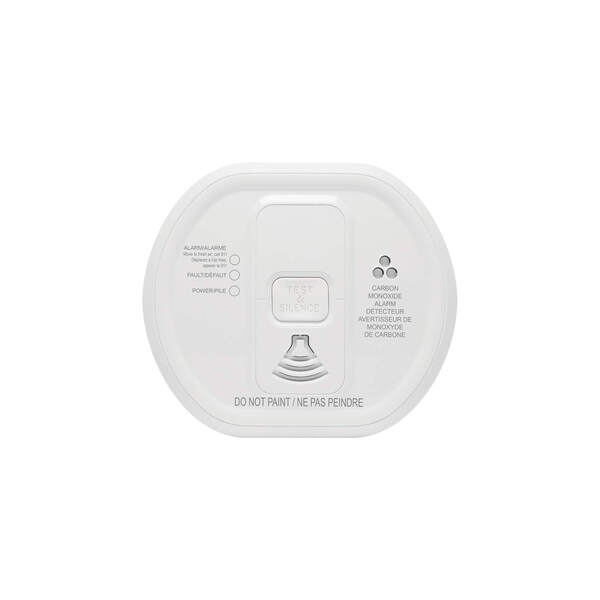
345S Carbon Monoxide Detector

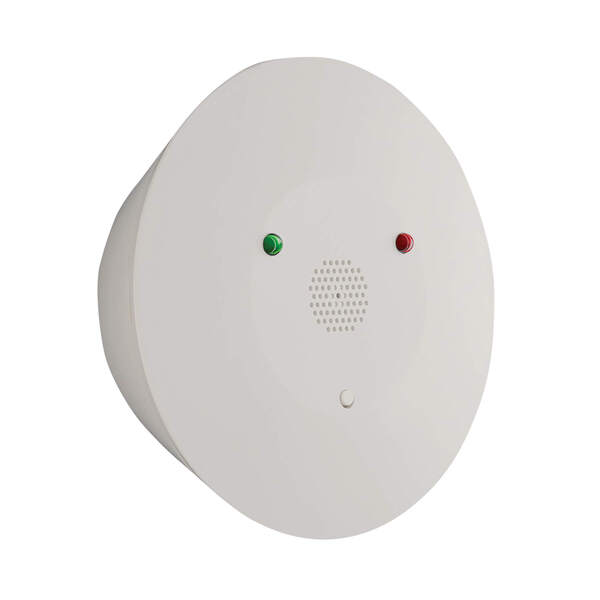
Carbon monoxide is one of those dangers you absolutely cannot detect on your own, which is why the 2GIG CO100-345 is such an important addition to any system. This wireless CO detector uses an electrochemical sensor to monitor for carbon monoxide and communicates alarm, tamper, and battery condition messages back to your panel.

What really stands out here is the longevity. You get a 10-year sensor life and a 10-year battery life, so once this thing is installed, you can largely set it and forget it. It also has a built-in 85 decibel sounder to wake you up if CO is detected, even before the panel sounds its own alarm. The case is tamper protected and the sensor includes an end-of-life indicator so you know when it is time for a replacement. It is ETL listed for added peace of mind.

Key Features:

  • 10-year sensor life and 10-year battery life
  • Built-in 85 dB sounder for immediate local alerts
  • Tamper protected case with end-of-life indicator
  • Full monitoring of alarm, low battery, and tamper conditions
  • ETL listed


2GIG FF100-345

345S Firefighter Smoke and CO Detector Listener
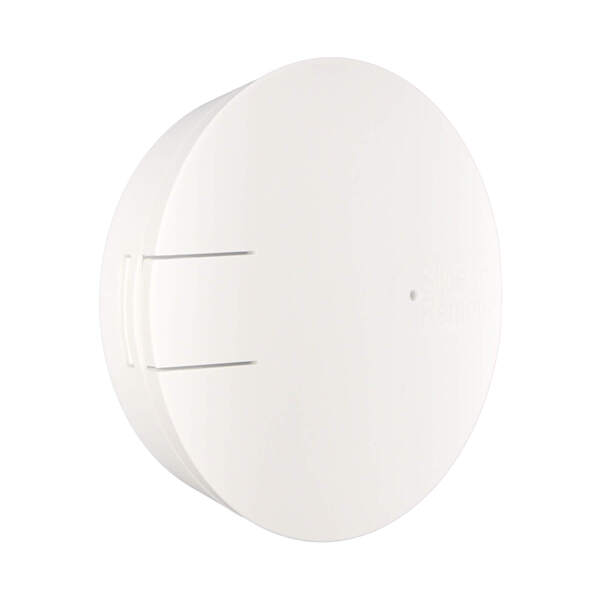
345S Firefighter Smoke And Co Detector Listener

The 2GIG FF100-345 is a clever solution for a common problem. If you already have UL listed smoke or CO detectors in your home, you probably do not want to rip them out just to add monitoring to your security system. The FireFighter solves this by listening for the specific alarm cadence of your existing detectors and then relaying that signal wirelessly to your 2GIG panel.

The best part is that adding a FireFighter does not impact the UL listing or Fire Marshall approval of your existing detectors. It simply sits nearby and listens. It runs on a single CR123A long life lithium battery and is FCC, IC, and ETL listed for use in both the US and Canada. Encryption can be enabled via an onboard switch.

Key Features:

  • Monitors existing UL listed smoke, CO, or combo detectors
  • Does not affect UL or Fire Marshall approval of existing detectors
  • Runs on one CR123A long life lithium battery
  • FCC, IC, and ETL listed (US and Canada, UL985)
  • On/Off switchable encryption via onboard switch


2GIG FTD100-345

345S Wireless Dual Flood Water and Temperature Sensor
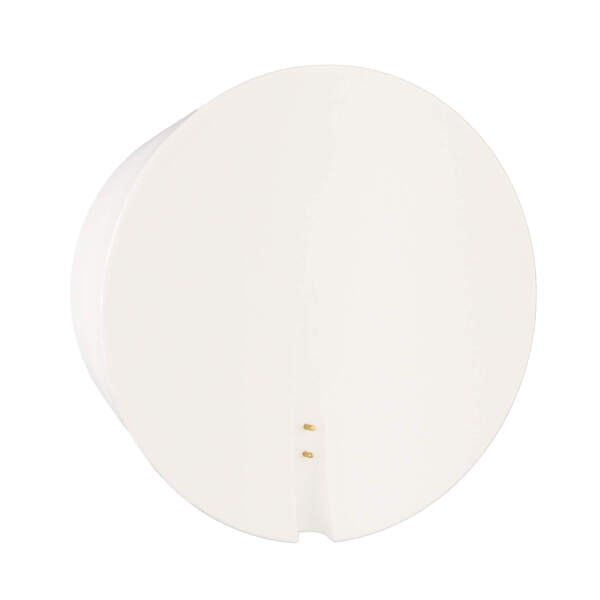
345S Wireless Dual Flood Water and Temperature Sensor

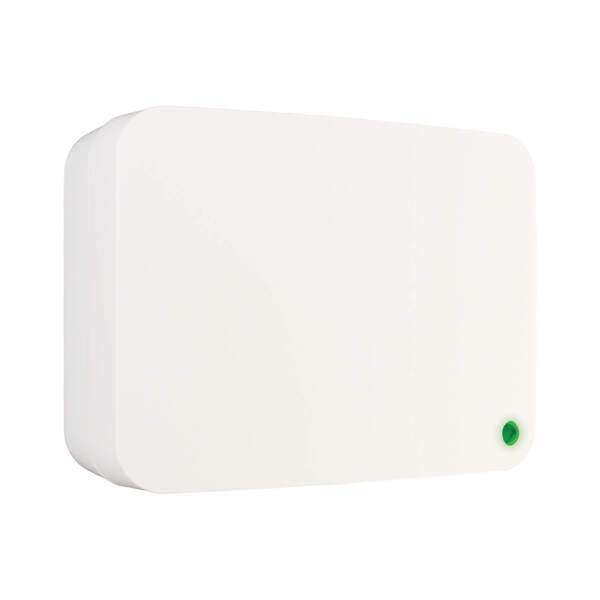
Water damage is one of the most expensive problems a homeowner can face, and the 2GIG FTD100-345 is designed to catch it early. This dual-purpose sensor monitors for the presence of water and also keeps tabs on the ambient temperature in its location. Place it near a water heater, under a sink, in a basement, or anywhere else where a leak or a burst pipe could cause serious damage.

It is part of the 2GIG Notification Sensors line, which adds smart home awareness features to your security system beyond just intrusion detection. The sensor runs on a single CR 2.3V lithium battery with a five-year battery life. Encryption can be enabled via the onboard switch.

Key Features:

  • Dual flood and temperature monitoring in one device
  • Runs on one CR 2.3V lithium battery
  • Five-year battery life
  • On/Off switchable encryption via onboard switch


2GIG FT100-345

345S Wireless Flood/Temp Sensor

345S Wireless Flood/Temp Sensor

The 2GIG FT100-345 is another option for flood and temperature monitoring. Like the FTD100 above, it can detect the presence of water and monitor for temperature changes that fall outside of defined thresholds. It is fully supervised and tamper protected, so you will know right away if anything goes wrong with the sensor itself.

This is a great sensor to place in utility rooms, crawl spaces, or anywhere you want early warning about water intrusion or freezing temperatures. It runs on a CR123A lithium battery with a five-year lifespan, and encryption can be toggled on or off at the sensor.

Key Features:

  • Flood detection and ambient temperature monitoring
  • Fully supervised and tamper protected
  • Runs on one CR 2.3V lithium battery with 5-year life
  • On/Off switchable encryption via onboard switch


2GIG TILT100-345

345S Wireless Tilt Sensor
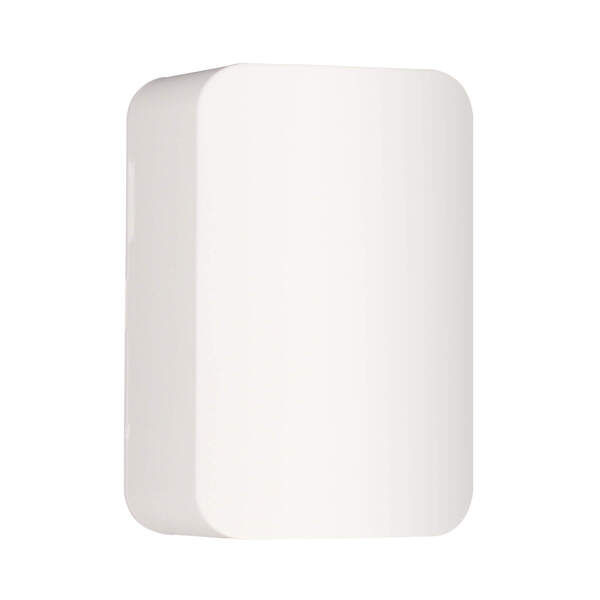
345S Wireless Tilt Sensor

The 2GIG TILT100-345 is a simple but really useful sensor. It monitors whether something has been tilted past a 45-degree angle, which makes it perfect for keeping track of your garage door status. Mount it on the inside of the garage door panel, and it will report to the system whenever the door goes up or comes back down. It sends a restore signal once the door returns to its closed position.

Beyond garage doors, you can also use it to monitor mailboxes, pet doors, storm cellar doors, or anything else that tilts when opened. It includes a tamper switch and low battery reporting. Installation is easy with the included double-sided tape and mounting screws. Battery life is rated at up to 10 years, and encryption is switchable on the board.

Key Features:

  • Triggers at 45-degree tilt, restores when returned to upright position
  • Perfect for garage doors, mailboxes, pet doors, and more
  • Up to 10-year battery life
  • Includes double-sided tape and mounting screws
  • Tamper switch and low battery supervision
  • On/Off switchable encryption


2GIG KEY100-345

345S 4-Button Security Panel Key Ring Remote
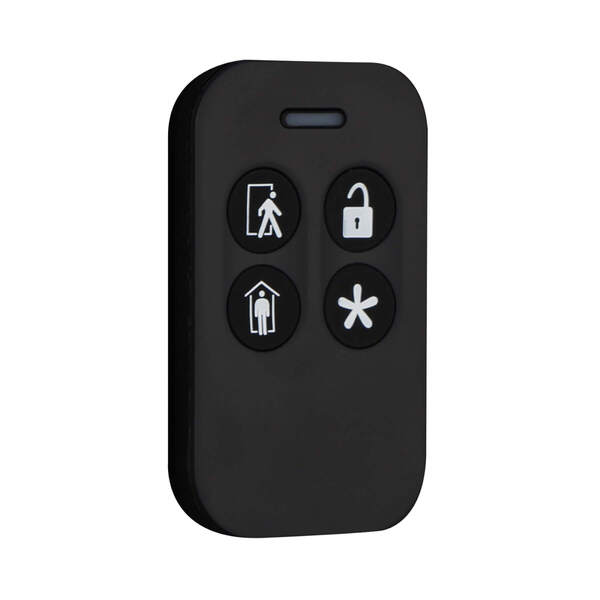
345S 4-Button Security Panel Key Ring Remote

The 2GIG KEY100-345 is a wireless key fob that gives you a quick and convenient way to control your system without having to walk over to the panel. It has four buttons that let you arm, disarm, and trigger a panic right from your keychain, pocket, or purse. It supports encryption, which is highly recommended for a key fob.

If there is an emergency, you can hit the panic button to activate the siren and automatically signal the central monitoring station, if enabled. The key fob can also be programmed to operate the programmable output on the alarm panel, which is handy if you have a connected device like a garage door or gate relay. It is small, lightweight, and easy to keep on you at all times.

Key Features:

  • 4-button control: Arm Away, Arm Stay, Disarm, and programmable output
  • Emergency panic button activates siren and signals monitoring station
  • Compact design fits on a key chain, in a pocket, or purse
  • Programmable output control for connected relay devices


2GIG PANIC100-345

345S Wireless Panic Button Pendant Remote
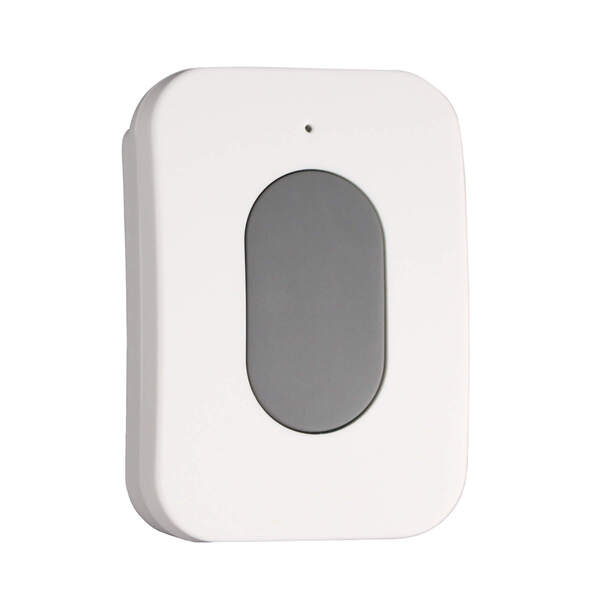
345S Wireless Panic Button Pendant Remote

The 2GIG PANIC100-345 is a dedicated panic button designed for one thing: getting you help fast. Press the button and it immediately sends an emergency signal to the control panel, regardless of whether the system is armed or disarmed. It has a wireless range of 500 feet in open air, so it works from just about anywhere on your property.

What makes this device especially useful is how many ways you can carry or mount it. It comes with options for a lanyard, wristband, belt clip, and car visor clip. The button is water-resistant, which means it can get wet, but should not be submerged. That means it holds up well even in damp environments like bathrooms or near pools. A five-second lockout after each press prevents accidental reactivations, which is a nice safety touch.

Key Features:

  • 500 ft wireless range in open air
  • Water-resistant design
  • Wearable via lanyard, wristband, belt clip, or car visor clip
  • Five-second lockout prevents accidental activations
  • Over 1 million unique ID code combinations
  • FCC/IC and ETL certified


2GIG TAKE100-345

345S Wireless Hardwire Takeover Module
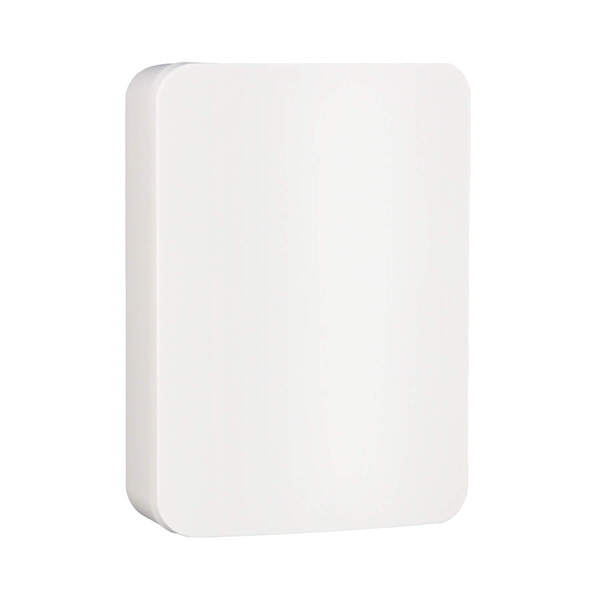
345S Wireless Hardwire Takeover Module

Upgrading to a 2GIG wireless system but your home is already wired up with hardwired sensors? The 2GIG TAKE100-345 is exactly what you need. This takeover module lets you convert up to 8 existing hardwired zones into wireless zones that communicate with your 2GIG panel. If you have more than 8 zones, you can add additional modules.

It supports up to 500 mA for powering wired motion sensors and glass break sensors, and it can even be powered by the backup battery of your old alarm panel. It includes a charging circuit with LED status lighting for the backup battery. Just keep in mind that it is intended for indoor use only and cannot be used for Carbon Monoxide or Fire detection zones. Encryption is supported via an onboard switch, and the module is ETL listed.

Key Features:

  • Converts up to 8 hardwired zones per module into wireless zones
  • Supports up to 500 mA for wired motions and glass breaks
  • Can run on existing alarm panel backup battery with charging circuit
  • LED status lighting for battery condition
  • ETL listed
  • Supports encryption via onboard switch


2GIG RPTR100-345

345S Wireless Repeater

345S Wireless Repeater

If you have a larger home or a tricky layout with lots of walls and obstacles, the 2GIG RPTR100-345 Wireless Repeater can be a lifesaver. It extends the wireless range of your 2GIG system by receiving signals from your sensors and repeating them to the panel. It handles both 2GIG and Honeywell 5800 Series signals, and it works with encrypted and non-encrypted sensors right out of the box.

Setup could not be easier. It is a plug-and-play device that starts repeating signals the moment you power it on. It also includes a 24-hour rechargeable backup battery, so it keeps working even during a power outage. A built-in repeat indicator in the signal prevents the "repeated signal storm" issue that some older repeaters can cause. You can optionally program it as a zone to supervise Tamper, AC Loss, and Low Battery conditions for the repeater.

Key Features:

  • Repeats both 2GIG and Honeywell 5800 345 MHz signals
  • Works with encrypted and non-encrypted sensors out of the box
  • Plug-and-play with immediate signal repetition
  • 24-hour rechargeable backup battery
  • Built-in repeat indicator eliminates repeated signal storm
  • On/Off switchable supervisory encryption

Questions? We Are Here to Help!

If you have questions about any of these 2GIG 345S Sensors or 2GIG panels, or if you just want to learn more about our monitoring service, please reach out to us! The best way to contact us is to email support@alarmgrid.com. If you want to speak by phone, you can reach us at (888) 818-7728 during our regular business hours of 9am to 8pm Eastern Time. Visit our website to chat with a live agent between 9:00 AM and 6:00 PM Eastern.

Tags: , , , , , , , , , , , , , , , , , , , , , , , , , ,

Comments


Posted By

As winter weather continues to move across the region, the Alarm Grid team wants to keep customers informed about how upcoming conditions may impact our operations. Forecasts indicate that the Louisville area may be affected by snow, sleet, freezing rain, or a combination of all three. These conditions can make travel hazardous, and the safety of our team is always a top priority.

For this reason, while Alarm Grid will remain open and operational, our Louisville office employees will be working remotely during this weather event. This allows our team to continue supporting customers while avoiding unsafe road conditions.

That said, severe winter weather can sometimes lead to power outages or intermittent internet disruptions. If this occurs, customers may experience slight delays when reaching our support team. We kindly ask for your patience as we work through any temporary challenges caused by the weather.

It is important to note that Alarm Grid’s professional monitoring services will not be affected. Our monitoring partners, CMS for customers within the United States and Rapid Response for customers in Canada, operate 24/7/365. They maintain multiple facilities in geographically diverse locations, ensuring that a single weather event does not impact their ability to monitor Alarm Grid customers.

If you're an Alarm Grid monitored customer, and you need to place your system on test mode or cancel an alarm, please contact your monitoring station directly. For CMS, call (888) 818-7728 and select Option 9. For Rapid Response, call (800) 932-3822 and follow the prompts. When calling, be prepared to provide your name, address, and false alarm password. Providing an incorrect password or a duress password will result in authorities being dispatched.

For routine support issues, the monitoring station will not be able to help. Items such as individual panel support or adding or removing zones from your system must be handled by the Alarm Grid support team. You can reach us by calling (888) 818-7728 and selecting Option 2. For non-emergency issues, email us at support@alarmgrid.com, and we will get back to you as quickly as possible.

We appreciate your understanding and patience as we navigate this winter weather event together!

Tags: , , , , , , , , ,

Comments


Posted By

This post is a quick intro to the new 2GIG GC Touch, plus the top initial questions and answers circulating among dealers and forums. Documentation is still scarce at launch, so this post collects the most commonly asked questions we’ve seen and summarizes the early answers.

Caveat: This information is based on initial reports and community/dealer chatter about the GC Touch and may contain errors. Consider the Q&A below to be “early info” rather than final specs, we’ll update this post as more official documentation becomes available.

2GIG GC Touch:

Quick overview

The 2GIG GC Touch (Verizon LTE version and AT&T version) is positioned as a budget-friendly successor to the GC2/GC2e series: a modern touchscreen panel that retains broad backward-compatibility with legacy sensors but trims some premium features found on 2GIG’s flagship 2GIG Edge (Verizon LTE and AT&T LTE) model.

Early reports indicate the GC Touch emphasizes compatibility and value. It supports legacy 345 MHz sensors, adds support for encrypted 345S/eSeries devices, and improves wireless zone capacity over the old GC2 family.

Below are the top 20 questions installers and end users are asking right now, grouped by topic, followed by the current answers being reported. Again this is early info and may change.

Upgrading & Compatibility

  1. Can I replace my old 2GIG GC2 or GC2e with the GC Touch?
    Yes. It is designed as the direct "budget-friendly" successor to the GC2e series.
  2. Will my existing 2GIG sensors (legacy 345 MHz) work with the GC Touch?
    Yes, it is fully backward compatible with legacy 2GIG 345 MHz sensors and Honeywell 5800 series sensors.
  3. Can I use my old GC2 power supply with the new panel?
    No. The GC Touch uses a 14VDC adapter. You must swap out the old 12VDC transformer to avoid damaging the new unit.
  4. Does the GC Touch fit the same mounting holes/backplate as the GC2?
    ○ It covers a similar wall footprint, but the backplate is new and must be replaced.
  5. Will my old TS1 secondary keypad work with the GC Touch?
    No. The legacy TS1 keypad is not compatible. You will need to use the Alarm.com app or a newer compatible secondary touchscreen. We don't currently know if one will be available.
  6. Does it work with 2GIG eSeries (Encrypted) sensors?
    Yes, it supports both the older non-encrypted sensors and the newer encrypted “eSeries” / “345S” sensors.

Features vs. 2GIG Edge

  1. What is the main difference between the GC Touch and the 2GIG Edge?
    ○ The Edge is the “flagship” with Facial Recognition and a glass-to-edge screen. The GC Touch is the value model with a plastic bezel and no facial recognition.
  2. Does the GC Touch have Facial Recognition disarm?
    No, that feature is exclusive to the 2GIG Edge.
  3. Does the GC Touch have Bluetooth disarming?
    Yes, you can pair a smartphone to disarm the system automatically when you arrive home.
  4. Does it have a built-in glass break detector?
    No, the Edge has a built-in glass break; the GC Touch does not.
  5. Does the GC Touch support Z-Wave Long Range (LR)?
    ○ It features the Z-Wave 800-series chip, which supports Z-Wave long range. However, the panel software must also support it, and it's unknown at this time if it does. Regardless, even without the addition of Z-Wave long range, the Z-Wave 800-series chip offers a significant improvement in range and speed over the older 500-series chip found in the GC2e.

Installation & Troubleshooting

  1. What is the default Installer Code for the GC Touch?
    1561 (standard 2GIG default).
  2. How do I reboot (power cycle) the panel without opening it?
    ○ Usually via the menu: Toolbox > Advanced > Reboot.
  3. Why does the screen look different than my old panel? (Dark Mode)
    ○ The GC Touch introduces a “Dark Mode” UI that matches the 2GIG Edge style — a major visual change from the bright GC2 interface.
  4. How do I add the new “345S” sensors?
    ○ With no installation documentation available, the exact process for adding sensors is not available. We'll provide full documentation as soon as it becomes available.
  5. Does it support 5G cellular?
    No. It uses an LTE (4G) communicator (AT&T or Verizon), which is standard for security systems today.

General & Smart Home

  1. Can I view my Alarm.com cameras on the panel screen?
    Yes, like the Edge, the GC Touch supports live view of compatible Alarm.com doorbells and cameras.
  2. Does it work with Apple HomeKit?
    Not directly. It integrates with Alarm.com, which can be bridged to HomeKit via Siri Shortcuts — there is no native HomeKit support on the panel itself.
  3. How many wireless zones does it support?
    Up to 128 wireless zones, which is double the capacity of the older GC2 (which maxed at 60).
  4. Is there a secondary keypad available for it?
    ○ At launch, users are typically directed to use the mobile app, but a dedicated wireless keypad (like the 2GIG-PAD1-345) can typically be used for basic arming/disarming.

The 2GIG GC Touch looks to be a sensible, value-focused upgrade for GC2/GC2e customers. It has a modern touchscreen, broader sensor compatibility, and a big jump in wireless zone capacity, while intentionally leaving some flagship features (like facial recognition) to the 2GIG Edge.

Keep in mind this post compiles early reports and community feedback, so details may change as official documentation is released. Installers should confirm power, backplate, and keypad compatibility before a takeover, and end users should contact their alarm dealer for provisioning or account setup. We’ll update this page as 2GIG publishes final specs and installation guides so check back for the latest, and download this initial FAQ for a quick reference.

Tags: , , , , , , , , , , , , , , , , , ,

Comments


Posted By

If you own a Lyric system and have not already done so, please read this important update regarding AlarmNet360 changes that affect your panel. It may be time for an update!

Back in 2019 we told you about the Lyric Gateway's end-of-life. Recently we found that an unregistered Lyric Gateway can't be activated. This is because of a disconnect between AlarmNet360, the platform used to register, and the panel. If you have a registered Gateway, you are not affected.


Since the Lyric Gateway hasn't been available since 2019, this is likely not an issue that will affect a lot of people. But, since the secondary market for alarm panels is alive and well on platforms like ebay, and because the Lyric Gateway can't be programmed through the panel's touchscreen, it's still necessary to get this information out there.

When Resideo discontinues a product, they continue to fully support that product for five (5) years, then it moves to limited support. That means Resideo will only provide written documentation for the product to anyone requesting support. They will not provide over-the-phone troubleshooting.

Between 2019 and now, if we had an issue with a Lyric Gateway not registering properly, we could contact Resideo technical support and they would assist with the registration. Their support team has access to tools that we don't and can resolve some issues with registration that we can't. However, now that the Gateway has entered limited support, Resideo tech support will no longer offer this assistance.

So, if you see a Lyric Gateway for sale in some secondary marketplace, we recommend you give it a pass. If you have an unregistered Lyric Gateway with any SIX Sensors paired with it, you'll need to take special steps to keep those sensors viable for use with a new panel.

  1. Be sure sensors are powered on. Be sure that every SIX sensor that is paired with the Gateway panel is powered on and within range of the panel.
  2. Default the Lyric Gateway When you're ready to move the SIX sensors to a new First Alert PROA7, PROA7PLUS, or VISTAH3 panel, remove the set screw in the bottom edge of the panel, then either pull the rear cover off, or pull the panel away from the rear cover (if wall mounted). This will expose the battery, RJ45 port, and the microswitches on the back of the panel.
    • For Rev. 1.00 panels, reboot the panel. To do so, using a paper clip or similar small tool, depress the center microswitch on the back of the panel (see image below) until the panel reboots. Once the panel boots back up, you have five (5) minutes to complete the default. Otherwise, you'll need to reboot again.
    • For Rev. 1.01.0215.531+ you can skip the power cycle and move straight to Step 3.
  3. Perform the default. On the rear of the panel, just below the RJ45 Ethernet port you'll see three microswitches. As you face the back of the panel use a small tool, paper clip, or similar item to press and hold down the left switch for twenty seconds, or until the panel prompts you to enter the Installer Code. After twenty seconds, or once prompted for the Installer Code, release the switch. If prompted for the code enter the panel's current Installer Code. This will set the panel back to factory defaults. As part of the default, a signal will be sent from the panel to all SIX sensors releasing them so that they are no longer paired. All SIX sensors previously programmed with the panel that receive this message are now free to be paired with a new panel.

Any paired SIX sensor that doesn't receive a release signal from the panel, either by the sensor being removed via AlarmNet360 or by defaulting the panel, will be unable to pair with a new panel.

Tags: , , , , , , , , , , , , , ,

Comments


Posted By

The Resideo PROSIX line of wireless sensors currently works with the PROA7, PROA7PLUS, and VISTAH3 panels. These encrypted sensors offer excellent range, reliability, and security. But to get the most out of your investment, it helps to follow some basic rules for installation and upkeep.

New to PRO Series sensors? This simple guide shows you how to place, pair, and care for Resideo PROSIX devices with your PROA7 or PROA7PLUS panel.

What To Do First

  1. Plan install locations: Walk your home and decide where each sensor should be mounted. We'll talk more about mounting considerations next.
  2. Name your zones: Make a short list like “Front Door,” “Kitchen Window,” “Hall Motion.” This makes setup quick and easy.

Sensor Placement Basics

Door/Window Contacts

  • Protect any opening a person can reach from outside. If you’re on a budget, start with the highest-risk spots: ground-level doors and windows, especially those at the back of the home or in darker, hidden areas. Cover additional openings as your budget allows.
  • Mount the sensor on the frame and the magnet on the moving portion of the door or window.
  • Keep the magnet and sensor properly aligned and as close together as possible when closed. Check your model’s maximum gap specification and make sure the closed gap doesn’t exceed it.
  • Avoid mounting directly on ferrous metal. If the frame is metal, use included spacers if provided. Aluminum doors usually don't pose a problem. A PROSIXCTV can be used to add a separate contact, such as the Honeywell 947-75T, that is made specifically for mounting on steel doors.

Motion Sensors

  • Place on a wall or in a corner with a clear view of the room, about 6–8 feet high.
  • Avoid pointing at windows, fans, or HVAC vents.
  • Do not aim directly at heat sources (ovens, space heaters, sunny glass).
  • If you have pets, follow the specific mounting instructions in the installation guide. The PROSIXPIRV offers up to 80 pound (36kg) pet immunity when the instructions for pet immunity are strictly followed. Generally speaking, mount where any animal, regardless of size, can't come within six (6) feet of the front of the sensor.

Glass Break Sensors

  • Verify in the installation instructions that the PROSIXGB is suitable for the type and size of glass you want to protect.
  • Mount the PROSIXGB in the same room as the glass to be protected.
  • Avoid thick curtains or heavy drapes between the sensor and the protected glass.
  • Set the sensitivity level for the PROSIXGB based on the distance between the detector and the protected glass.
  • Mount on a wall or ceiling with a clear “line of sound” no more than 25' (7.6m) from the protected glass.

Tip: If you’re unsure about a mounting location, temporarily tape the sensor in place, finish setup, and test the glass break before permanently mounting.

How to Pair a PROSIX Sensor

  1. On the panel, tap Menu (≡) > Tools > Installer Code (Default 4112) > Programming > Peripherals > + Key (upper right). The panel is now in listening mode.
  2. Put the sensor into enrollment by pulling the battery tab on brand new sensors, or by opening the device's cover to activate the tamper.
  3. Once the panel detects the sensor, give it a clear name, such as “Front Door” or “Living Room Motion.” Program any other sensor-specific fields, such as Response Type and Service for sensors that can use more than one zone, e.g., PROSIXCTV and PROSIXSMOKEV. For sensors with a single function Service will be filled automatically.
  4. Be sure to click Save and close the sensor cover if the tamper was used to pair it with the panel.
  5. Once you exit programming tap Menu (≡) > Sensors and check the signal strength of each PROSIX sensor in the location where it will be permanently mounted. Once a good communication path is confirmed, permanently mount each sensor and do a final signal strength check.

Important Note: If a sensor won’t enroll, confirm it isn’t paired to another panel. An unpaired sensor shows a rapidly blinking LED when you pull the battery tab, fault the sensor, or open the cover. A slow blink indicates the sensor is already paired. If possible, factory-default the sensor; otherwise, remove/release it from the previous panel, then enroll to the new one.

Battery Care

  • Use only the battery type listed on the sensor’s Install Guide, or Data Sheet.
  • Always remove all batteries, wait a full ten seconds, then insert new batteries. This helps to clear any low battery signal. Always read the sensor instructions for any special notes about installing new batteries. For example, the PROSIXCMBOV requires that all new batteries be installed within 15 seconds of beginning the battery install process.
  • For sensors with multiple batteries, always change all batteries at the same time. Don't mix old and new batteries and don't mix batteries from different manufacturers.
  • You can check the battery level of other sensors by tapping Menu (≡) > Tools > Installer or Master Code (4112 and 1234 by default, respectively) > System Test > Test Sensors > Start Test > OK. The siren will sound for a few seconds. Go around and fault each sensor. Then check the panel for the signal strength and battery level of all tested sensors. If any other sensor batteries are low you can go ahead and change them to prevent future low battery messages on the panel.

Important Note: PROSIX sensors use two-way supervision, meaning they require an acknowledgement (ACK) from the panel after sending a check-in signal. If the panel is powered down or removed, a sensor will repeatedly attempt to check-in, quickly draining its battery. To preserve battery life, remove the batteries from your PROSIX sensors whenever the panel will be out of service for an extended time.

When powering the system back up, always power on the PROSIX transmitters before the PRO Series panel. The panel uses Frequency Agility to select the best RF channel and then instructs the sensors to follow. If the panel changes channels while the sensors are still off, they won’t receive the update. This leaves them in a state of limbo, unable to communicate with the current panel or with any new or defaulted panel.

Monthly Test

  1. Put the system in test mode with your monitoring company if you subscribe to full monitoring. You'll need to provide your name, address, and false alarm password, as well as a duration for the test.
  2. Enter the panel's Walk Test Mode.
  3. Open and close each protected door/window and confirm it shows on the panel.
  4. For motion detectors, follow the sensor's instructions for entering Walk Test Mode. For the PROSIXPIRV remove and replace the batteries. This removes any transmit inhibit designed to conserve battery life and enables the sensor LED. The motion will remain in Walk Test Mode for ten minutes. Walk in front of each motion sensor and verify you see it trigger when you walk in the protected area.
  5. For glass break sensors, we linked above to an FAQ on using the Honeywell FG701 to perform a functional test. The FAQ is written describing the steps with a Honeywell 5853, but they translate to the PROSIXGB very well.
  6. Exit test mode and confirm the system displays the proper status with no trouble conditions present.

Safety and Mounting Tips

  • Use the included screws for permanent installs where possible.
  • Clean the mounting surface before using double-sided foam tape. Press firmly in place for a full 30 seconds.
  • Keep sensors dry and indoors unless the model is rated for outdoor use.

Quick Reference: Which Sensor Goes Where?

Area Suggested Sensor Notes
Front/Back Door Opening:
PROSIXCTV
PROSIXMINI
PROSIXMINI3
Align magnet closely with sensor on closed door.
Sliding Glass Door Opening:
PROSIXCTV
PROSIXMINI
PROSIXMINI3
Glass Breakage:
PROSIXGB
Use both for open/close and glass break detection.
First-Floor Windows Opening:
PROSIXCTV
PROSIXMINI
PROSIXMINI3
Glass Breakage:
PROSIXGB
Contacts for open/close. Glass Break for shatter detection.
Hallway/Living Room/Bedroom Motion Detection:
PROSIXPIRV
Mount 6' - 8' high, away from heat and direct sun.
Kitchen Motion Detection:
PROSIXPIRV
Opening:
PROSIXCTV
PROSIXMINI
PROSIXMINI3
Avoid pointing motions at ovens and vents; consider contacts on exterior doors and windows.
Additional Protection CO Detection:
PROSIXCOV
PROSIXCMBOV
Flood:
PROSIXFLOOD
Temperature:
PROSIXTEMP
Carbon Monoxide detection and combination smoke/heat/CO detection
Flood protection
Freeze/High Temp detection


Keep Your Panel Updated

Connect your panel to WIFI so it can receive the latest over-the-air (OTA) firmware updates. The PRO Series panels will not download firmware using cellular data. The PROA7PLUS comes from the factory with the PROWIFIZW installed. The PROA7 comes with no built-in communicator, so it will need to have a PROWIFI or PROWIFIZW added.

Firmware updates can improve stability and sensor compatibility. When firmware updates for PROSIX sensors are available, they are included in the panel's firmware package. Once the panel updates, the sensor firmware will be pushed by the alarm panel to each sensor.

Need a Hand?

Alarm Grid supports DIYers every day. If you want help selecting, placing, or pairing PROSIX sensors, we can help. We provide free technical support to our monitored customers M - F from 9:00 AM - 8:00 PM Eastern Time. You can reach us by calling 1-888-818-7728 or via email at support@alarmgrid.com.

Tags: , , , , , , , , , , , , , , , , , , , , ,

Comments


Posted By

Resideo recently announced that its VISTA and PRO Series panels are now fully certified to integrate with Control4 whole-home automation. Control4 is a premium automation platform, typically available only through authorized Control4 integrators, and it operates by using specialized drivers

Control4 drivers act as the essential software that enables communication between the Control4 automation system and various third-party devices. A certified Control4 driver allows for seamless integration and centralized control of different smart home products through the Control4 interface. The interface can be a touchscreen, an app, or even voice commands. For homeowners and installers, this means a unified experience where security, lighting, entertainment, and more can be managed from a single platform.

For homeowners, the benefits are clear. A certified integration allows the Resideo First Alert panel to do more than just secure the home, it becomes part of a larger ecosystem. Using Control4, you can arm the alarm system at night while having the doors lock automatically, the thermostat adjust to an energy-saving setting, and the lights dim across the house. That’s the type of seamless, one-touch automation that Control4 is known for, now enhanced with the proven reliability of a Resideo First Alert security system.

For dealers and installers, certification reduces guesswork and support headaches. Instead of relying on custom workarounds, they can now use official drivers that are tested and verified. This not only speeds up installation but also builds dealer confidence, by knowing their installations are backed by two major industry players working together.

The move also positions Resideo strongly in the high-end automation space. By joining the ranks of other security systems officially supported by Control4, VISTA and PRO Series panels are now a more compelling option for projects where premium automation is a requirement. It’s a win for integrators looking to expand their offerings, and a win for homeowners looking to unite all of their tech through a single interface.

VISTA panels use the 4232CBM Connected Building Module to integrate with Control4. The module connects the VISTA panel's ECP bus to the Control4 system through a wired serial RS232 or RS422 interface. This setup allows the Control4 driver to import zone alpha descriptors directly from the VISTA panel, which eliminates the need for manual programming of zone data within Control4. As a result, users can arm, disarm, and monitor the status of zones directly through the Control4 interface. Check out the 4232CBM Install Guide.

Another plus that shouldn't be overlooked is the fact that Control4 will import life-safety zones and descriptors. This allows an integrator to create automations based on fire or carbon monoxide zone triggers. For example, in the event of a fire alarm the system might automatically turn off the HVAC system and unlock the doors while turning on lights that illuminate a path out of the building.

Control4 and First Alert PRO Series Integration

You can find the steps for integrating the PRO Series panels with Control4 here. Here's a quick overview of what you'll need:

Before You Begin:

  • Control4 OS 4.1.0+ and Composer Pro Software.
  • PRO Series Firmware 03.2476.183+
  • PRO Series panel must have a PROWIFI or PROWIFIZW installed.
  • PRO Series panel should have all its partitions and zones configured before pairing with Control4, though you can add or remove zones after initial configuration.
  • Your alarm dealer must enable the Control4 feature through AlarmNet360. This is done as part of the Smart Home package (Packages > Smart Home > Add-Ons > Control4).
  • The Control4 system and the PRO Series panel must be connected to the same network through the same router.

After configuration with Control4’s Simple Service Discovery Protocol (SDDP), the PRO Series panel must always use the same IP address. SDDP is a lightweight protocol created by Control4 that lets WIFI enabled devices announce themselves on the network, making it easy for Control4 to find and identify them.

If the panel’s IP address changes, it will disconnect from Control4. Because setting a static IP directly on the alarm panel can be tricky, the better option is to reserve an IP address for the PRO Series panel in your router’s DHCP settings. Check your router’s documentation for instructions on how to set this up. Below is a list of names for this feature, and which manufacturers use each term:

  • DHCP Reservation – Netgear, ASUS, TP-Link (most common term)
  • Address Reservation – D-Link
  • IP Reservation – Linksys, Spectrum, Xfinity
  • Reserved IP Address – Some ISP-provided routers (AT&T, Verizon)

Basic Steps For Setup:

  1. Initiate discovery. From Control4 Composer Pro, initiate discovery (System Design > Items > Discovered).
  2. Create association. Double click on the PRO Series driver that you discovered in Step 1. If Composer Pro fails to discover the driver, make sure that all the prerequisites listed above have been met. Once the driver has been discovered and you double click, the driver is downloaded to your Control4 system. The panel's IP and other required information is sent to Composer Pro. The driver and the IP address can then be associated with one another within Composer Pro.
  3. Perform pairing. Within Composer Pro, click Actions > Start Pairing. You have 120 seconds to complete the next step. If two minutes elapse without a successful pairing, the process will timeout and you'll need to perform this step again.
  4. Pair PRO Series panel. On the PRO Series panel, tap Menu (≡) > Tools > Enter Installer Code (4112 by default) > Control4 Controller > Pair to Control4 Controller. When Composer Pro receives the pairing command, it will know, based on the panel's IP address, to associate the PRO Series driver with the panel and complete the pairing process. If the pairing is successful, the Control4 Controller information will automatically populate. If pairing fails this field will remain blank. In that case, verify that all of the requirements in "Before You Begin" have been met, and try again.

Complete Integration:

  1. Verify partition import. In Composer Pro select Properties. Partition information will be displayed here as the information is imported. Upon successful import, the partition state will update from "Unknown" to the current state. This process may take a minute, so please be patient. Verify that all partitions, along with proper status, are displayed in the left pane.
  2. Import and verify zone information. From Advanced Properties within Composer Pro select Get C4 Contacts to update and display individual PRO Series zones with proper status. The zones will also show in the left pane. When a zone is added (or removed), it will show which zones have been added or deleted there.
  3. Verify visibility. From a Control4 touchscreen, or the Control4 app, tap Security and verify that all partitions and zones are displayed. If a partition appears to be missing, check the visibility settings for that partition within Composer Pro:
    • In the left pane select PRO Series > Properties > Navigator.
    • Select Security in the navigator menu. This will display the Device Visibility settings. Partitions are either "Visible" or "Hidden". If any partition that should be visible within Control4 is listed as hidden choose the Modify option and move that partition from Hidden to Visible.
    • Click File > Refresh Navigators to update and display all partitions. Any partition that remains listed as hidden will not display on any Control4 touchscreen or within the Control4 app. Presumably, it will also remain hidden to any voice assistant you may be using.
  4. Test integration. Once the previous steps have been completed successfully, use the Control4 touchscreen or app to verify operation and status. Verify that all partitions show the proper status, i.e., Armed, Disarmed, etc. Walk around and fault zones, i.e., open and close doors, walk in front of motion detectors, etc. and verify that the status updates within the touchscreen or app.
Tags: , , , , , , , , , , , , , , , , , , , ,

Comments