Qolsys IQ Pro, AT&T LTE, Interlogix/GE Posts

Posted By

The DSC HS2TCHP(N) touchscreen keypad can work with a Qolsys IQ Pro, but only after a software update. Keypads running version 1.39 or lower need new interface files first, and you can get them from our HS2TCHP firmware updates page.

The update is a quick job. It takes an SD card, a few minutes, and no new hardware.

Why the HS2TCHP(N) Needs an Update

The HS2TCHP(N) was made for DSC PowerSeries NEO systems. Its touchscreen software, called the user interface or UI, is written for a NEO panel. The IQ Pro needs a different UI. Until the keypad gets the new firmware files, it is not ready to be used with an IQ Pro.

Check the part number on your keypad before you start. If it says HS2TCHPRO and runs version 1.40 or higher, the touchscreen will not work on an IQ Pro. The update is only for the HS2TCHP(N) at version 1.39 or lower.

When Does This Comes Up?

The most likely reason is a panel swap. Say a home has a NEO system with HS2TCHP(N) keypads already mounted on the walls. The owner decides to switch to an IQ Pro. The wiring is already in place, so reusing those keypads saves money and a lot of work. The update is what makes that possible.

There is one catch. Once a keypad has been updated for the IQ Pro, it cannot go back to a NEO control panel. Do not update a keypad that still needs to work on a NEO system. If you are still running a NEO panel, we show you how to add an HS2TCHP to a PowerSeries NEO panel in a separate guide.

How to Update the Keypad

The update uses an SD card. Download the files from the firmware page linked above and unzip them. There are three files, and all three go in the root directory of a blank SD card. Format the card as FAT32 first, and use a card with a capacity of 32 GB or less.

Next, slide the card into the bottom of the keypad. On the touchscreen, tap the Options icon, then Installer Menu. Enter the IQ Pro Installer or Dealer Code (defaults 1111 or 2222 respectively). Tap Keypad Programming, tap Firmware Upgrade, and follow the prompts to finish. When it is done, the keypad shows the "IQPanel" logo in the top right corner instead of the "DSC" logo.

Do not pull the keypad off its backplate while the SD card is inside. That can damage the card slot. For the manufacturer’s full notice, see the HS2TCHP(N) touchscreen keypad update instructions.

Connecting the Keypad to the IQ Pro

An IQ Pro can support up to 16 keypads. They connect to the panel over the Corbus, which is a four-wire connection. Here are the basics:

  • Match the colors. Connect the keypad’s red, black, yellow, and green terminals to the corresponding Corbus terminals on the IQ Pro board.
  • Use the right wire size. Use 18 - 22 gauge 4-conductor wire. Two twisted pairs are recommended. Do not use shielded wire.
  • Watch the distance. Keypads can sit up to 1,000 feet from the panel. They can be home run, wired in series, or T-tapped.
  • Power comes last. Keep the panel’s battery and power adapter disconnected until all the wiring is done.
  • Enable keypad. Once the keypad is connected, you'll need the IQ Installer App, available for free from the Apple and Google stores, to enable the keypad, assign partitions if necessary, and set any other keypad options.

Each keypad also has a zone input, so you can hook up a wired sensor, like a door contact, right at the keypad. It works with normally closed loops, single end of line resistors, and double end of line resistors. To turn the input on or off, go to Installation, then Devices, then Security Sensors. Pick the enrolled keypad, tap Edit, and choose Keypad Input. Then select Enable or Disable. For all the details, check the IQ Pro install guide.

Need Keypads or Monitoring?

If you're updating your panel and you're interested in a new monitoring plan to go with it, check out our no-contract monitoring options. We don't charge activation fees, and you can cancel at any time. Need another keypad for your project? Browse our PowerG keypads and the IQ Remote PowerG touchscreen keypad.

Need Help?

Stuck on the update or the wiring? Our support team is happy to help. Phone and email support are open from 9:00 AM - 8:00 PM Eastern. Call us at 888-818-7728 or email support@alarmgrid.com. Live chat on our website is also available until 6:00 PM Eastern.

Tags: , , , , , , , , , , , , , , , , , , , , , , , , , ,

Comments


Posted By

Starting on April 23, 2024 an improvement is being implemented to the arming process for the Qolsys IQ Panel 4 and IQ Pro. This change increases customer awareness of when their sensors are being bypassed during remote arming. Previously, it was often unclear when zones were being bypassed.


The behavior changes slightly, depending on which panel version the user has. For IQ Panel 4 systems below firmware 4.5.0, and for IQ Pro systems below firmware 4.3.0n, the "Force Bypass" checkbox will be hidden both on the customer app and website to signal when the Auto Bypass feature will be applied to any open sensors and trouble conditions.

For IQ4 Panels on firmware 4.5.0 or higher, and IQ Pro panels on firmware 4.3.0n or higher, when the Auto Bypass feature is enabled, the Force Bypass checkbox will be hidden on the user app and website. This is to communicate to the user that Auto Bypass is enabled in the panel. Anything that would prevent arming is already going to be bypassed.

If Auto Bypass is disabled at the panel on these versions, the Force Bypass checkbox, which has now been renamed to "Bypass all open sensors/trouble conditions" will appear and will be checked by default. If the user deselects the checkbox and there are sensor open or trouble conditions that would prevent arming, the system will fail to arm.

Be sure your Alarm.com app is on version 5.3.1 or higher. This will allow you to take full advantage of this enhancement to the Alarm.com remote arming feature. To check whether or not your system has the auto-bypass feature enabled, you can tap the gray bar at the top of the main screen, then Settings > Advanced Settings > Enter Installer or Dealer Code (1111 or 2222 by default) > Installation > Security and Arming. You can search from the top of the screen, just type in "Auto" and you should be taken directly to this setting. The "Auto Bypass" feature is enabled, by default.

Tags: , , , , , , , , , , , , , , , , , , , , , , , , , , , ,

Comments


Posted By

Qolsys has done it again, leading the industry with a first-to-market product that suits nearly any need. They've taken the IQ Panel 4 and merged it with the DSC PowerSeries NEO. The result is a hybrid system. From a small home to a school, church, or hospital the IQ Pro can protect them all.


The Qolsys IQ Pro jumps right into the market with a Qualcomm SnapDragon 8 Core SOM (System On a Module) processor and 16GB of NAND Flash Memory. It supports up to 128 zones, 8 partitions, 1000 users, and 16 keypads (wired or wireless). All IQ Pro panels offer PowerG and some also have an optional, built-in legacy wireless receiver.

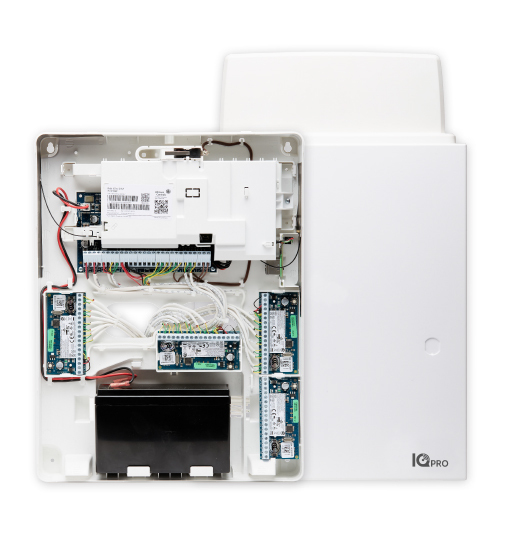
It also has Dual-Path LTE and WiFi or Ethernet internet communication capability. It is available with an AT&T, Verizon, or Telus(Canada) cellular option. Also, as pictured above, it comes in either a plastic enclosure (left front) or a metal enclosure (right rear). The metal enclosure is the only enclosure option that will accept an external antenna.

The IQ Pro communicates through Alarm.com. When dual-path communication is enabled, it will send every alarm signal through both available paths. The signal that reaches Alarm.com first is processed, and the slower signal is disregarded. In this way, Alarm.com always ensures that each individual signal uses the fastest available path to communicate.

For Alarm Grid customers, a plan that includes cellular communication is required to activate the IQ Pro. Use of the WIFI or Ethernet path is optional, but the LTE cellular communicator must be registered with Alarm.com in order to activate the system for any type of monitoring. With Alarm Grid's Self Monitoring, all signals are sent from Alarm.com to the end-user via text, email, push notification, or any combination of those options. There is no central station involved.

For Full Monitoring customers, each signal is sent to Alarm.com and they forward the signals to the appropriate central station, and to the customer via text, email, push notification, or some combination of those options. The Alarm.com website or app is also how the customer can log in and control their system, check system status, and control automation devices, including Z-Wave devices that are connected to the panel. Alarm.com also offers many third-party automation options, such as the use of MyQ garage doors, Rachio or Rainbird irrigation, Sonos whole-house speaker systems, and many more. Both Self Gold and Full Gold Alarm Grid customers will have remote control options. Customers who aren't interested in remote control and automation options can choose the Alarm Grid Cellular Alarm Monitoring Plan.

The IQ Pro panel can be expanded by adding hardwired zones, an addressable wired loop, and/or variable wireless options. Adding hardwired zones requires an HSM2108 module. Each of these modules added provides an additional eight (8) hardwired zones, up to the max of 128 total zones. An addressable wired loop is usually used in a situation where the wire run for the devices is longer than usual, and may be more spread out. If you are replacing a system that has some type of addressable loop in place, you can choose to keep those points protected with wired devices by purchasing the corresponding compatible MX device (see table below) or replace them with PowerG wireless sensors.

There are multiple keypad options. The panel can support up to a maximum of sixteen (16) hardwired, or DSC NEO touchscreens (with a firmware update to the keypad via SD card), up to five (5) wireless or PowerG IQ remotes, and up to three (3) WIFI IQ Remote touchscreens.

For those who only plan to use the PowerG long-range, encrypted sensors, there is the PowerG-only IQ Pro. Or in addition to PowerG, users can also choose either a 345 MHz Honeywell or 2GIG compatible, 319.5 MHz Qolsys or Interlogix/GE compatible, or 433 MHz legacy DSC compatible model. With each also having a choice between a metal or a plastic enclosure.

The IQ Pro can also support up to ten (10) PowerG PIR Cameras such as the PG9944 Outdoor Motion Camera, or the indoor PG9934P PIR Camera. It has four (4) onboard programmable outputs and is expandable with up to 148 outputs. These relays are customizable according to your needs.

The IQ Pro has incorporated an addressable MX loop. By adding an HSM3105 module to the system, you can build out an addressable loop with up to 124 devices. In low-power mode, the MX addressable loop will get its power from the IQ Pro Corbus, which is how the MX module connects to the panel. In this configuration, the HSM3105 can be mounted inside the IQ Pro cabinet or in an approved external cabinet. In this mode, the MX Loop can have a maximum current draw of 67mA at 40V (equivalent to 360mA @ 11.3V or 325mA @ 12.5V). Wiring between the IQ Pro and the HSM3105 must not exceed 3' (1m) using 22 gauge wire, regardless of which power mode is used.

There is also an option to add an HSM2300 or an HSM2204. The HSM2300 is a power supply module that provides an additional 1A of current. The HSM2204 is a power supply and PGM module combined. It can provide an additional 1A of current and four (4) high-current programmable outputs. When used with either power supply, the power supply and the HSM3105 should be mounted in an approved auxiliary enclosure next to the main panel. This configuration is called high-power mode where the power supply connects to the Corbus, and the HSM3105 connects to the power supply. The HSM2300 and HSM2204 can only provide up to 228mA @ 40V (1000mA @ 12.5V) or 260mA @ 40V (1000mA @ 11.3V).

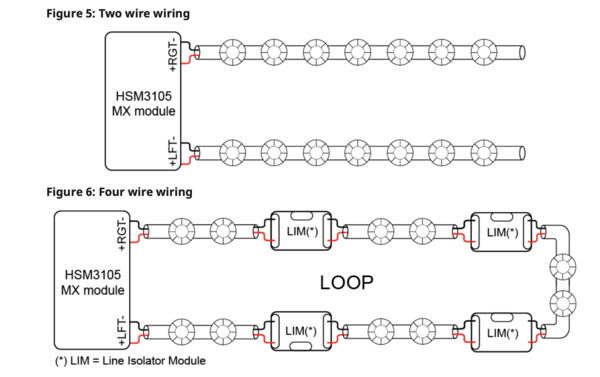
The HSM3105 has four (4) terminals for the MX Loop. This allows you to set it up in either a 4-wire "loop" configuration or a 2-wire "spur" configuration (see image below). The 4-wire loop configuration starts at one set of (+) and (-) terminals on the left side and terminates at the other set of (+) and (-) terminals on the right. The 2-wire spur configuration uses the left and/or right set of (+) and (-) terminals and terminates in the field at the last device.

Configuring the HSM3105 is done via the IQ Installer app, which is available as a free download from the Apple App Store or the Google Play Store. The family of MX devices includes a wide range of sensors to protect almost any environment. Each MX device uses the connection from the HSM3105 to get its power, whether the loop is in low-power or high-power mode.


MX Devices

Compatible Addressable Loop Devices

Model # Description
MX945 Universal Input
MX916 Smoke/Heat Detector
MX862 360 Ceiling Mount PIR
MX920 Line Isolator Module
MX922 Glass Break Detector
MX926 Smoke Detector
MX936 Heat Detector
MX975 Door/Window Contact
MX974 PIR w/ Pet Immunity
MXBASE 4" Fire Base
MX916KT Smoke/Heat Detector w/ 4" MXBASE
MX926KT Smoke Detector w/ 4" MXBASE
MX936KT Heat Detector w/ 4" MXBASE

Qolsys IQ Pro Panels with Verizon LTE Communicator:

Qolsys IQ Pro Panels with AT&T LTE Communicator:

The Qolsys IQ Pro is sure to be a crowd pleaser! With support for PowerG wireless, legacy wireless, multiple keypad types, wired expansion when it's needed, dual-path communication, including LTE wireless, optional Bluetooth disarming, and support for Z-Wave Plus, it has just about every feature you could want in a modern alarm system. If you've been looking for the perfect system, you can stop, it's right here.

Tags: , , , , , , , , , , , , , , , , , , , , , , , , , , ,

Comments