Qolsys IQ Panel 2 Plus Firmware Version 2.6.0
Posted By Julia RossQolsys has released the long-awaited Firmware Version 2.6.0. This will be the base version for the Qolsys IQ Hub and will allow users to configure the new IQ WIFI Mesh Router from the touchscreen of the IQ Panel 2. These are only a couple of the new features. This is truly an exciting update!
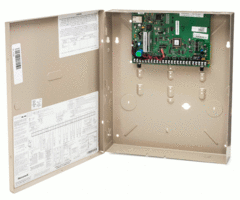
We've been talking about the Qolsys IQ Hub, well, forever, it seems. But honestly, it's been "coming soon" for over a year now. We are so glad that the wait is almost over. The Qolsys IQ Hub will truly be a DIY dream. Qolsys has taken a "see no green" approach to this panel, meaning there is no reason to open the panel fully, so you should never see the green printed circuit board (PCB). It won't even have screw terminals! The battery will be easily end-user replaceable with a minimum of "deconstruction" to the alarm panel itself. Some of the best features of the IQ Panel 2/2+ will be available in this new panel, such as Bluetooth disarming, and Alarm.com Camera Streaming at the panel.
A couple of things have been removed though. It will not have a built-in camera, nor will it offer 2-way voice capability. The IQ Hub is meant to be a slightly less expensive alternative to the IQ Panel 2 or 2 Plus, and to the Qolsys IQ Panel 4 that we should be seeing later this year. Initially, the IQ Hub will support PowerG Wireless Sensors, but later, there will be 319.5 MHz, 345 MHz, and 433 MHz options available. Each IQ Hub is intended to support only one (1) RF frequency.
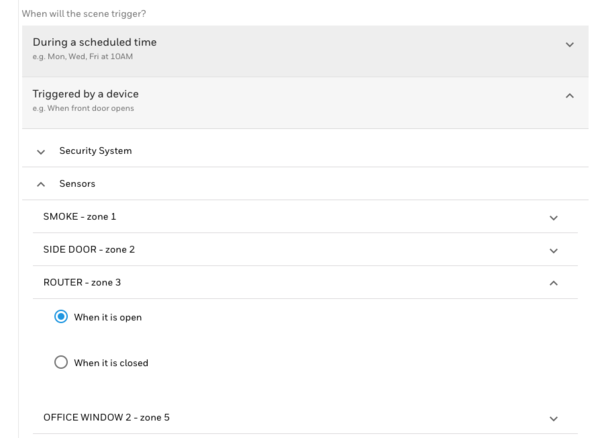
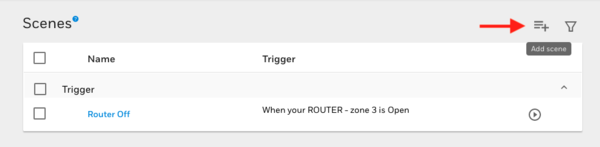
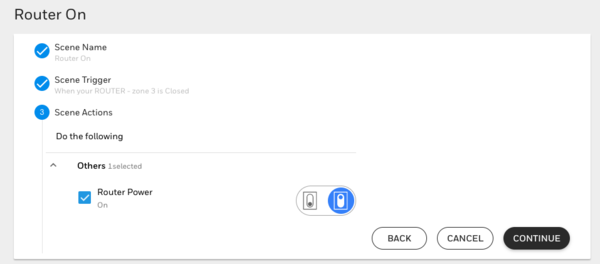
You might be saying, "I thought this was a blog about Firmware Version 2.6.0?" Well, it is. But the fact that we have Firmware Version 2.6.0 available now means that the full release of the Qolsys IQ Hub won't be far behind. The Qolsys IQ Hub is scheduled for a Q2 2021 release. Aside from all the new features and improvements for the IQ Panel 2 Plus itself, another exciting capability that is added in this firmware release is the ability to control and configure the new Qolsys IQ Router through the IQ Panel 2 or 2 Plus Touchscreen.
The Qolsys IQ Router is also slated for release in Q2 of 2021. This is a mesh router system that will support up to eight (8) nodes, and both 2.4 GHz and 5 GHz networks. What's great about this product is that it allows a user to create a WIFI subnet inside their regular network. Any devices that use WIFI can be attached to the network, not just security devices, and multiple nodes (up to 8) can be added to strengthen the mesh network. If you change internet providers or even just internet equipment, you simply unplug the IQ Router from the existing router, plug it into the new router, and all of the WIFI devices will remain connected to the WIFI sub-network without having to reconfigure any of them. These are two upcoming products associated with the release of Firmware Version 2.6.0 that we're really looking forward to.
Below you'll find some of the additional new features supported on Firmware Version 2.6.0:
New Features:
- Support for DSC hardwire keypads (HS2LCD, HS2ICN) via the CORBUS on the PowerG Hardwire to Wireless Translator (PG9WLSHW8) with Firmware V 1.1. Also added new PGM system triggers for Police, Fire, Aux & CO emergency.
- Support for DSC NEO Wire-Free Keypads HS2LCDWFx, HS2LCDWFxENG.
- Support for new V4 PowerG Daughter Card.
- Panel now supports remote Z-Wave Smart Start integration from Alarm.com.
- This update includes the critical firmware2 fix that resolves an issue where certain panels would automatically reboot with previous firmware applied.
Fixes & Improvements
- Added a setting to allow the panel to send 1 or 10 images taken by PowerG Image Sensor Cameras (PG9934P, PG9944, NEXT CAM, PG2, NEXT CAM K9-85 PG2, BW-IRC, BW-IPC, TOWER CAM PG2, BW-ODC) during an alarm event to Alarm.com. Previously, ten (10) images were stored locally at the panel, but only the first image was sent to Alarm.com.
- Added a setting allowing alarm dealers to select a specific time for Communication Tests to be sent to the monitoring station. If no selection is made, the time will be randomized.
- Added a setting for detection direction on PG9902 Outdoor Curtain PIR. Users can choose left to right, right to left, or both.
- Added the ability to disable PowerG activation LED on devices that have one in order to conserve battery.
- Added Partition support for EN Grade 2 Panels.
- Improved 700-Series Z-Wave performance on UK & EU Panels.
- Bluetooth Disarm now available for UK & EU Panels.
- Added language support for Spanish (Spain), French (France), Finnish, and Polish.
- Added support for European date format: DD.MM.YYYY.
- Improved cellular strength matching between Panel and Alarm.com for Latin America.
- Silent and Audible Panics now report separate CID codes to central station.
- Duress Alarm and Silent Police Panic can now be dismissed from Alarm.com.
- Improvements to PowerG Wireless keypad functionality (WS9LCDWFx).
- Keyfob arming now follows the Auto-Bypass setting on the panel.
- Duress codes from KP-140 & KP-141 now transmit to Alarm.com.
- Corrected an issue where a PG9905 Temperature Sensor would send double alarms for the same event.
- Fixed an issue related to virtual device integration on the panel, which includes Liftmaster Garage Door control from the panel UI, and Solar Integration from Alarm.com. See TSB 201026 for additional details.
Into each life, a little rain must fall. It's not all good news, although, this is more of an inconvenience than actual bad news. Because Firmware Version 2.6.0 also contains the important firmware2 fix, it must be downloaded and installed from the Qolsys Server. The server has some logic built-in that allows it to tell if the panel being updated requires the firmware2 fix, or not. For this reason, much like Firmware version 2.5.5, Qolsys is not making this firmware file available for download. This means that Alarm Grid can't host it on our site.
What this means for the end-user is that in order to get 2.6.0, your panel must have a WIFI connection. Once it does, you have two ways in which you can get the firmware. You can request it from your alarm dealer, and they can push the update to your panel from Alarm.com. This will be a free update. As long as your panel has WIFI 24/7, this is a simple and no-fuss way to get your panel updated. Just remember, if for some reason your panel loses WIFI, the update won't go through. Alarm.com will not allow the panel to be updated via a cellular-only connection. You can also follow the instructions below to request the update via Patch Tag.
If your panel happens to be in an area where there is no WIFI, maybe it's a hunting or fishing cabin, or a second home where WIFI is not readily available, then you may be able to use your cell phone as a mobile hotspot and fool the panel into thinking it's connected to WIFI. The amount of data in this file is about 250 MB according to Qolsys. Alternatively, you may be able to move the panel to a spot that has WIFI available just long enough to perform the upgrade. In a situation like this, you need to be in control of when the update begins, so in this case, you would want to use the "Patch Tag" method of updating. To do so, once your panel has a WIFI connection, do the following:
Follow these instructions after making sure your panel is on version 2.0.1 or higher. If the panel is on 2.5.0 or 2.5.1, the user must first update to 2.5.3 before running the update for 2.6.0:
- Touch the small gray bar in the center at the top of the Home screen on the panel.
- Touch “Settings”
- Touch “Advanced Settings”
- Enter a valid Installer or Dealer Code (defaults are 1111 and 2222 respectively)
- Touch “Upgrade Software”.
- Touch “Patch Tag” and enter: iqpanel2.6.0 then touch “OK”.
- Important: If you need to install 2.5.3 prior to this update, the Patch Tag for that version is: iqpanel2.5.3. Run that update before running the Patch Tag for 2.6.0.
- Touch “Upgrade Using Network”. If the panel is connected to WIFI, the system will begin downloading the update, it will be installed when the download completes. Once the update begins Do Not Touch The Screen! The update will take about five (5) minutes, and the panel will reboot as a part of the process. When the panel returns to the home screen and the Green LED at the right lights, the process has completed.
What do you think about the new Qolsys firmware, and the new products they have in the pipeline? Share your thoughts in the comments below. Is there a security topic you'd like to see us discuss? If so, leave a comment and we'll be happy to cover any security-related topics of interest. As always, we look forward to hearing from you!